T300 Walk-Behind Floor Scrubber
English EN
Operator Manual
Hygenic® Fully Cleanable Recovery Tank
TennantTrue® Parts
IRIS® a Tennant Technology
Pro-Panel™ Controls
Insta-Click™ Magnetic Disk
North America
For the latest Parts manuals and other language Operator manuals, visit: www.tennantco.com/manuals
9014501
Rev. 06 (09-2024)
INTRODUCTION
This manual is furnished with each new model.
It provides necessary operation and maintenance instructions.
This machine will provide excellent service. However, the best results will be obtained at minimum costs if:
- The machine is operated with reasonable care.
- The machine is maintained regularly - per the maintenance instructions provided.
- The machine is maintained with manufacturer supplied or equivalent parts.
To view, print or download manuals online visit www.tennantco.com/manuals
Always remember to recycle.
Tennant Company
10400 Clean Street
Eden Prairie, MN 55344−2650
USA
Phone: (800) 553−8033
www.tennantco.com
Pro-Membrane, Membrane, Severe Environment, Zone Settings, Quiet-Mode are trademarks of Tennant Company.
Trojan is a registered trademark of Trojan Battery Company.
This product may contain portions of software that have various 3rd party licenses. More information can be found at: www.tennantco.com/opensource
Specifications and parts are subject to change without notice.
Original Instructions. Copyright ©2015−2024 Tennant Company.
All rights reserved.
INTENDED USE
The automatic floor scrubber is intended for commercial use, for example in hotels, schools, hospitals, factories, shops, offices and rental businesses. It is designed to scrub hard floor surfaces (concrete, tile, stone, synthetic, etc.) in an indoor environment. This machine is not intended for cleaning carpets or sanding wood floors. Use only recommended pads/brushes and commercially available floor cleaning detergents. Do not use this machine other than described in this Operator Manual.
MACHINE DATA
Please fill out at time of installation for future reference.
Model No. −
Serial No. −
Installation Date −
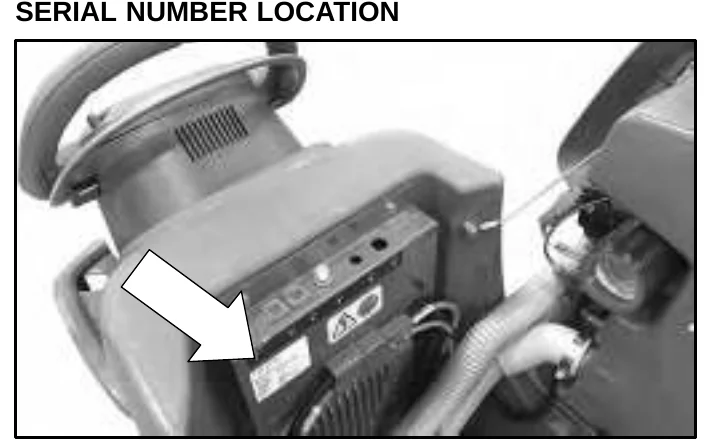
SERIAL NUMBER LOCATION
UNCRATING MACHINE
Carefully check machine for signs of damage. Report damages at once to carrier. Contact distributor or Tennant for missing items.
To uncrate the machine, remove straps, wheel blocks and shipping brackets. Using the supplied ramp carefully back the machine off the pallet. Make sure scrub head is in the raised position.
TABLE OF CONTENTS
| Topic | Page |
|---|---|
| OPERATION | |
| IMPORTANT SAFETY INSTRUCTIONS | 4 |
| SAFETY LABELS | 6 |
| MACHINE COMPONENTS | 7 |
| MACHINE SYMBOLS | 8 |
| CONTROL PANEL COMPONENTS | 8 |
| T300 Model with Membrane Control Panel (Manual Down Pressure Model) | 8 |
| T300 Model with Pro-Membrane Control Panel (Actuated Down Pressure Model) | 9 |
| T300 Model with Pro-Panel Controls (LCD − Liquid Crystal Display) | 9 |
| INSTALLING BATTERIES | 10 |
| LITHIUM−ION BATTERY | 10 |
| FLOODED (WET) AND MAINTENANCE-FREE SEALED LEAD-ACID BATTERIES | 10 |
| BATTERY PACK LIFT−OUT TRAY (Option) | 10 |
| HOW THE MACHINE WORKS | 11 |
| BRUSH AND PAD INFORMATION | 11 |
| MACHINE SETUP | 12 |
| CHARGE BATTERIES | 12 |
| ATTACHING SQUEEGEE ASSEMBLY | 12 |
| INSTALLING BRUSH/PAD − Insta-Click Magnetic Disk | 12 |
| INSTALLING PAD − Orbital | 13 |
| INSTALLING CYLINDRICAL BRUSHES | 13 |
| FILLING SOLUTION TANK | 14 |
| FILLING SEVERE ENVIRONMENT TANK (ec-H2O model Option) | 15 |
| ec-H2O NanoClean WATER CONDITIONING CARTRIDGE (ec-H2O model) | 15 |
| ACCESSORY RAIL | 16 |
| CONTROL PANEL OPERATION | 16 |
| T300 WITH MEMBRANE CONTROL PANEL (Manual Down Pressure Model) | 16 |
| T300 WITH PRO-MEMBRANE CONTROL PANEL (Actuated Down Pressure Model) | 18 |
| T300 MODEL WITH PRO-PANEL CONTROLS | 20 |
| MACHINE OPERATION | 24 |
| PRE-OPERATION CHECK LIST | 24 |
| OPERATING MACHINE | 24 |
| WHILE OPERATING MACHINE | 26 |
| EMERGENCY SHUT-OFF BUTTON (Drive models) | 26 |
| BATTERY DISCHARGE INDICATOR | 26 |
| CIRCUIT BREAKER PANEL | 26 |
| HOUR METER | 27 |
| DRAINING TANKS | 27 |
| DRAINING RECOVERY TANK | 27 |
| DRAINING SOLUTION TANK | 28 |
| SERVICE INDICATOR CODES | 29 |
| ON-BOARD BATTERY CHARGER SERVICE INDICATOR CODES | 30 |
| ec-H2O SYSTEM SERVICE INDICATOR CODES − OPTION | 31 |
| Topic | Page |
|---|---|
| MAINTENANCE | |
| MAINTENANCE CHART | 32 |
| MACHINE MAINTENANCE | 33 |
| AFTER DAILY USE | 33 |
| AFTER WEEKLY USE | 35 |
| AFTER EVERY 50 HOURS OF USE | 35 |
| AFTER EVERY 100 HOURS OF USE | 36 |
| ELECTRIC MOTORS | 36 |
| BELTS | 36 |
| ORBITAL SCRUB HEAD ISOLATORS | 36 |
| BATTERIES | 37 |
| FLOODED (WET) AND MAINTENANCE-FREE LEAD−ACID BATTERIES | 37 |
| CHECKING CONNECTIONS / CLEANING | 37 |
| LITHIUM−ION BATTERY | 38 |
| CHARGING BATTERIES | 39 |
| BATTERY CHARGER SETTINGS | 40 |
| CHANGING ON−BOARD BATTERY CHARGER SETTINGS (Pro/Membrane models) | 40 |
| CHANGING ON−BOARD BATTERY CHARGER SETTINGS (Pro-Panel model) | 42 |
| MANUAL BATTERY WATERING SYSTEM (Trojan Battery OPTION) | 43 |
| SQUEEGEE BLADE REPLACEMENT | 44 |
| ec-H2O NanoClean WATER CONDITIONING CARTRIDGE REPLACEMENT | 45 |
| LOADING/UNLOADING MACHINE FOR TRANSPORTING | 46 |
| STORING MACHINE | 46 |
| FREEZE PROTECTION | 46 |
| TROUBLESHOOTING | 48 |
| SPECIFICATIONS | |
| GENERAL MACHINE DIMENSIONS/CAPACITIES/PERFORMANCE | 50 |
| MACHINE DIMENSIONS | 52 |
| SUPERVISOR CONTROLS | 57 |
IMPORTANT SAFETY INSTRUCTIONS − SAVE THESE INSTRUCTIONS
The following warning precautions are used throughout this manual as indicated in their description:
FOR SAFETY: To identify actions which must be followed for safe operation of equipment.
The following information signals potentially dangerous conditions to the operator. Know when these conditions can exist. Locate all safety devices on the machine. Report machine damage or faulty operation immediately.
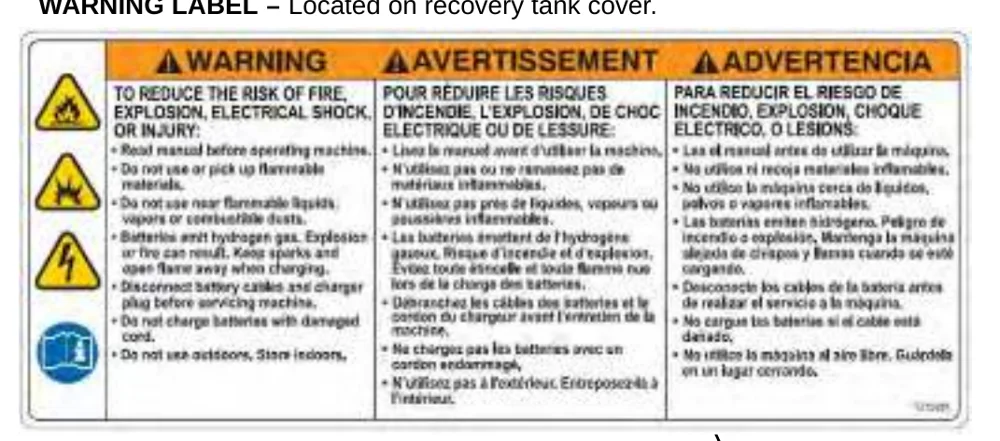
- Read manual before operating machine.
- Do not use or pick up flammable materials.
- Do not use near flammable liquids, vapors or combustible dusts.
This machine is not equipped with an explosion proof motor. The electric motor will spark upon start up and during operation which could cause a flash fire or explosion if machine is used in an area where flammable vapors/liquids or combustible dusts are present. - Batteries emit hydrogen gas. Explosion or fire can result. Keep sparks and open flame away when charging.
- Disconnect battery cables and charger cord before cleaning and servicing machine.
- Do not charge batteries with damaged cord. Do not modify plug.
If the charger supply cord is damaged or broken, it must be replaced by the manufacturer or its service agent or a similarly qualified person in order to avoid a hazard. - Do not use outdoors. Store indoors.
- Spinning pad/brush, keep hands away.
IRIS Telemetry - This machine may be equipped with technology that automatically communicates over the cellular network. If the machine will be operated where cell phone use is restricted because of concerns related to equipment interference, please contact a Tennant representative for information on how to disable the cellular communication functionality.
FOR SAFETY:
- Do not operate machine:
- Unless trained and authorized.
- Unless operator manual is read and understood.
- Unless mentally and physically capable of following machine instructions.
- Under the influence of alcohol or drugs.
- While using a cell phone or other types of electronic devices.
- If not in proper operating condition.
- In outdoor areas. This machine is for indoor use only.
- In areas where flammable vapors/liquids or combustible dusts are present.
- With pads or accessories not supplied or approved by Tennant. The use of other pads may impair safety.
- In areas with possible falling objects.
- In areas that are too dark to safely see the controls or operate machine.
- Before operating machine:
- Check machine for fluid leaks.
- Make sure all safety devices are in place and operate properly.
- When operating machine:
- Use only as described in this manual.
- Report machine damage or faulty operation immediately.
- Wear closed−toe, non−slip work shoes.
- Reduce speed when turning.
- Go slowly on inclines and slippery surfaces.
- Do not scrub on inclines that exceed 9% grade or transport on inclines that exceed 21% grade.
- Follow site safety guidelines concerning wet floors.
- Follow mixing, handling and disposal instructions on chemical containers.
- Do not carry passengers on machine.
- Use care when reversing machine.
- Keep children and unauthorized persons away from machine.
- Do not allow machine to be used as a toy.
- Before leaving or servicing machine:
- Stop on level surface.
- Set the parking brake, if equipped.
- Turn off machine and remove key.
- When servicing machine:
- Disconnect battery connection and charger cord before working on machine.
- All work must be done with sufficient lighting and visibility.
- All repairs must be performed by trained personnel.
- Use Tennant supplied or approved replacement parts.
- Do not modify the machine from its original design.
- Do not jack up machine.
- Avoid moving parts. Do not wear loose clothing or jewelry and secure long hair.
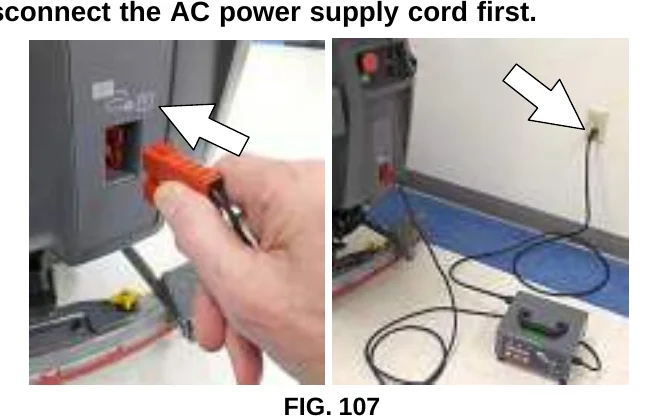
- Do not disconnect the off-board charger’s DC cord from the machine’s receptacle when the charger is operating. Arcing may result. If the charger must be interrupted during charging cycle, disconnect the AC power supply cord first.
- Do not use incompatible battery chargers as this may damage battery packs and potentially cause a fire hazard.
- Inspect charger cord regularly for damage.
- Keep work area well ventilated.
- Avoid contact with battery acid.
- Keep all metal objects off batteries.
- Do not power spray or hose off machine.
- Use a hoist or adequate assistance when lifting batteries.
- Battery installation must be done by trained personnel.
- Wear personal protection equipment as needed and where recommended in this manual.

For Safety: wear protective gloves.

For Safety: wear eye protection.
- When loading/unloading machine onto/off truck or trailer:
- Drain tanks before loading machine.
- Use a ramp, truck or trailer that can support the machine weight and operator.
- Do not operate the machine on a ramp incline that exceeds a 21% grade level.
- Use a winch if ramp incline exceeds a 21% grade level.
- Lower the scrub head and squeegee before tying down machine.
- Turn machine off and remove key.
- Set parking brake (if equipped).
- Block machine wheels.
- Use tie-down straps to secure machine.
- When using Lithium-ion Battery Model:
- Battery service to be performed by Tennant Service only.
- Battery is designed exclusively for specific Tennant machine applications. Do not install battery in unapproved machines.
- Dispose of battery in accordance with local regulations. Contact Tennant Service.
- Contact Tennant Service or your local regulatory authorities for proper transporting instructions of lithium-ion batteries.
- Use only OEM approved battery charger supplied with lithium-ion battery.
- Do not expose battery to temperatures below -4°F/-20°C, above 140°F/60°C.
- Do not use machine immediately after long-term extreme temperature storage. Before use, return battery module temperature range to 50°F/10°C~95°F/35°C
- Do not operate or store battery in hazardous environment (electrically charged, humidity, extreme temperatures and magnetic fields).
- Do not expose battery to flame or plasma.
- Do not disassemble or mistreat battery. Do not tear seal tape or will void warranty.
- Do not drop, crush or subject battery to impact, as it may cause battery to heat up or catch fire.
- Do not put battery in fire or water to avoid battery explosion.
- Do not touch battery with wet hand, avoid electric shock.
- Stop using or charging the battery immediately if battery has abnormal temperature, leakage or other abnormal conditions.
SAFETY LABELS
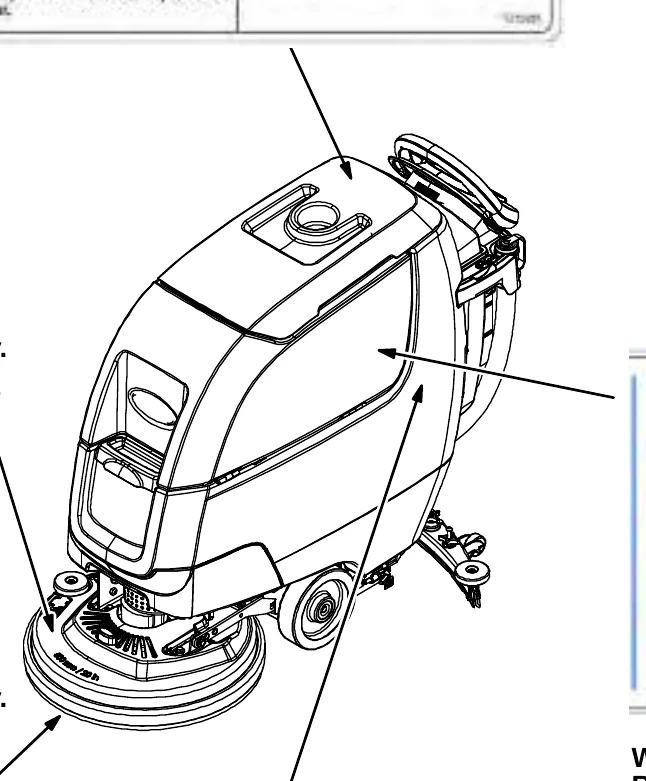
The safety labels appear on the machine in the locations indicated. Replace labels if they are missing or become damaged or illegible.
WARNING LABEL − Located on recovery tank cover.
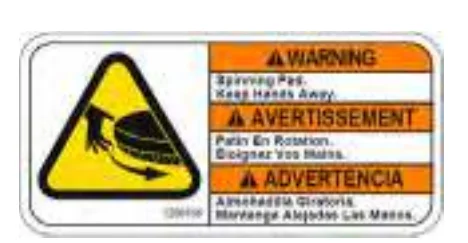
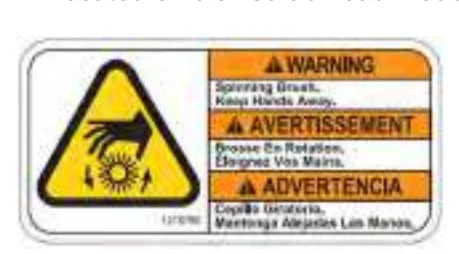
WARNING LABEL −
Spinning pad. Keep hands away.
Located on disk scrub head model.
WARNING LABEL −
Spinning brush. Keep hands away.
Located on cylindrical scrub head model.
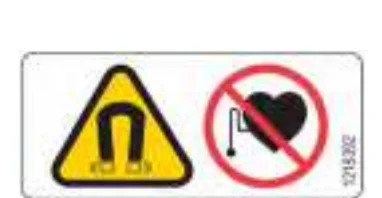
WARNING LABEL −
Magnetic Field Hazard. Magnetic pad driver/brush can be harmful to pacemaker wearers or medical implants.
Located on Insta-Click magnetic pad driver/brush.
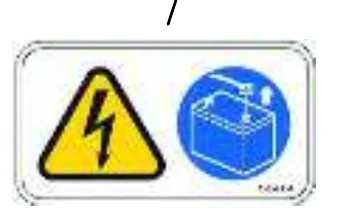
WARNING LABEL −
Electrical hazard. Disconnect battery cables before servicing machine.
Located on circuit breaker panel.
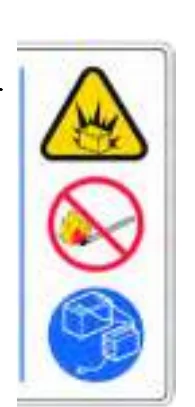
WARNING LABEL −
Batteries emit hydrogen gas. Explosion or fire can result. Keep sparks and open flame away when charging.
Located on bottom side of recovery tank.
MACHINE COMPONENTS
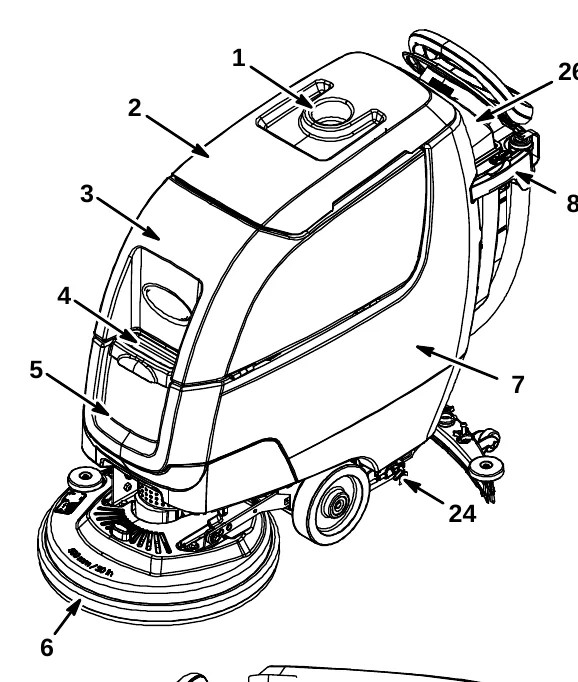
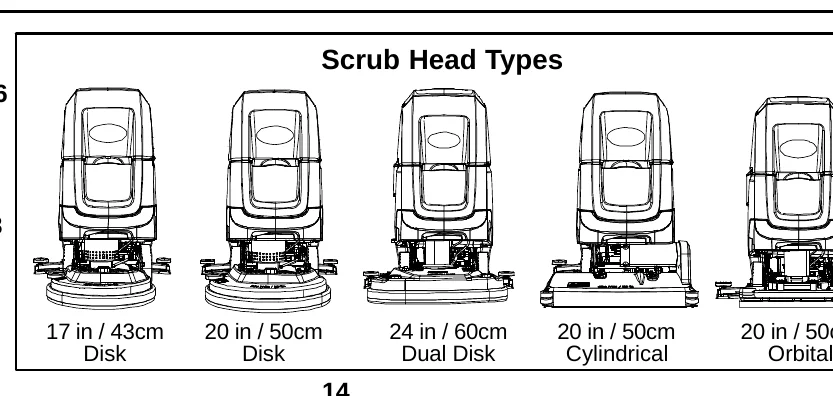
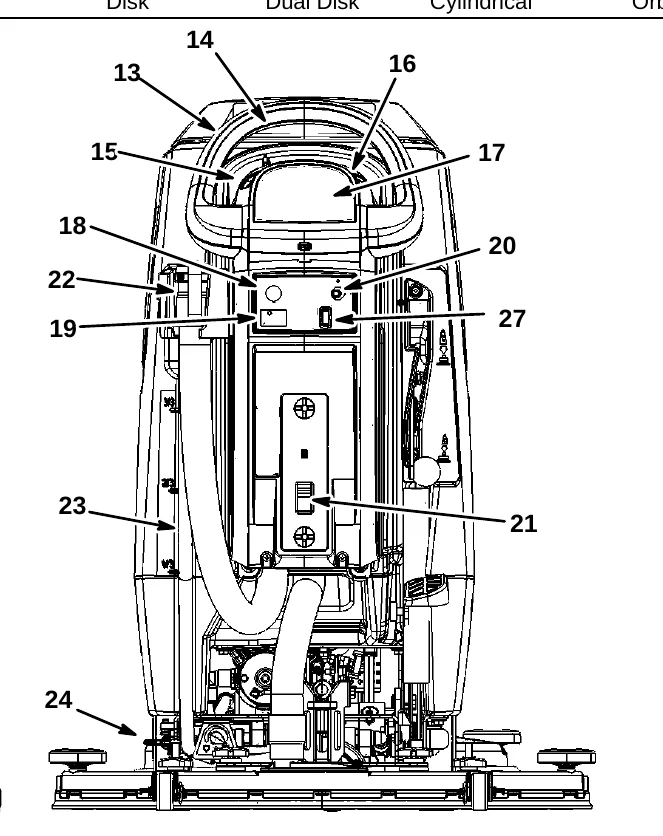
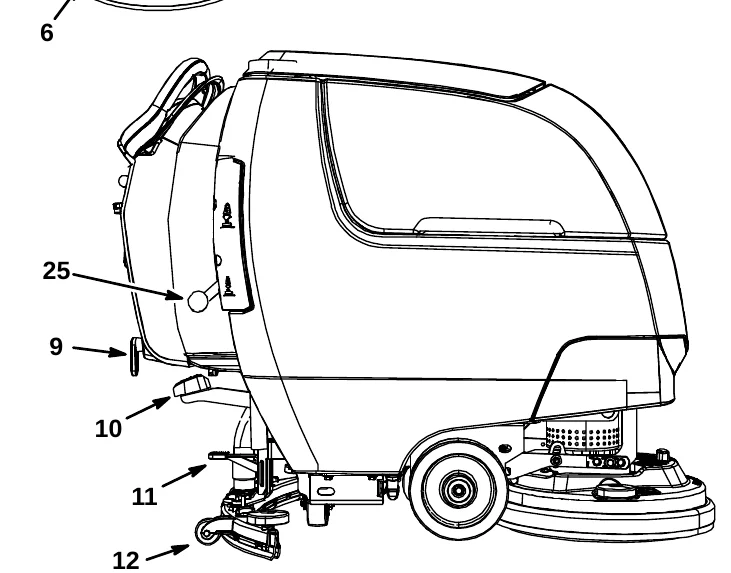
| No. | Component |
|---|---|
| 1 | Cup holder/tray |
| 2 | Recovery tank lid |
| 3 | Recovery tank |
| 4 | Solution tank fill-port |
| 5 | Solution tank |
| 6 | Scrub head |
| 7 | Battery compartment |
| 8 | Accessory rail |
| 9 | On-board battery charger cord hooks |
| 10 | Scrub head lift pedal |
| 11 | Squeegee foot pad |
| 12 | Squeegee assembly |
| 13 | Control handle |
| 14 | Control handle start bail |
| 15 | Speed control knob (drive model) |
| 16 | Forward/Reverse lever (drive model) |
| 17 | Control panel display |
| 18 | Emergency stop button (option) |
| No. | Component |
|---|---|
| 19 | Hour meter |
| 20 | Key switch |
| 21 | Off-board battery charger receptacle |
| 22 | Recovery tank drain hose |
| 23 | Solution tank level/drain hose |
| 24 | Parking brake (option) |
| 25 | Dual down pressure lever (Manual down pressure model) |
| 26 | Circuit breaker panel splash guard. |
| 27 | ec-H2O on/off switch (Pro−Panel Model option) |
MACHINE SYMBOLS
Batteries and chargers: make sure your charger is compatible with your batteries, and set its charging algorithm to your battery pack before you use it.
| Symbol | Meaning |
|---|---|
 | Fast speed (drive model) |
 | Slow speed (drive model) |
 | Forward / Reverse (drive model) |
 | On |
 | Off |
 | ec-H2O scrubbing (option) |
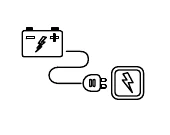 | Battery charge |
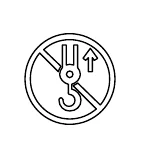 | Do not lift by accessory rails |
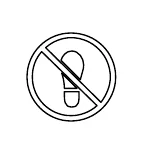 | No step |
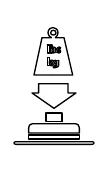 | Dual down pressure (Manual down pressure model) |
 | Parking brake (option) |
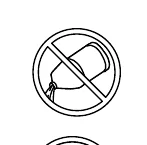 | No detergent (ec-H2O option) |
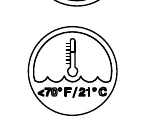 | Water temperature (ec-H2O option) |
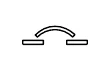 | Circuit breaker |
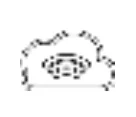 | Cloud Connectivity (Telemetry option) |
CONTROL PANEL COMPONENTS
T300 Model with Membrane Control Panel
(Manual Down Pressure Model)
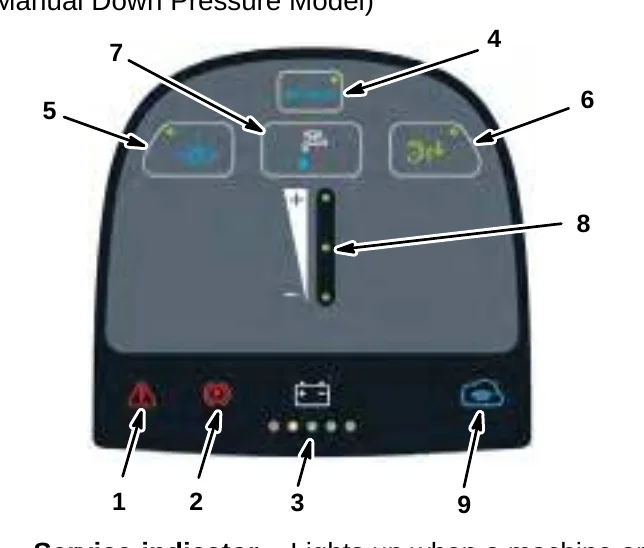
- Service indicator − Lights up when a machine or charger fault is detected.
- Parking brake indicator (option) − Lights up when parking brake lever is engaged. To turn off indicator, disengage parking brake lever near left rear wheel.
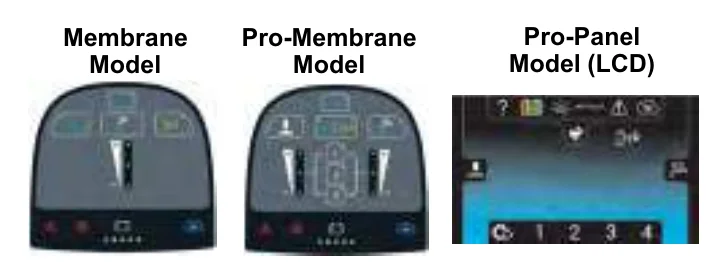
- Battery discharge indicator (BDI) − The battery discharge indicator serves two functions. In normal scrub mode it displays the charge level of the batteries. It also, in conjunction when the service indicator is flashing, provides specific LED codes when a machine or charger fault is detected.
- ec-H2O button / indicator (Option) − A blue ec−H2O indicator appears when the machine is equipped with ec−H2O option.
- Severe Environment on/off button (ec-H2O Model Option) − Press button to dispense cleaning detergent as needed for excessive soil buildup while operating.
- Quiet mode on/off button − Press button to reduce the vacuum motor sound for noise restricted areas.
- Solution flow adjustment button − Press button to adjust the solution flow setting from low, medium, high or to turn off solution flow.
- Solution flow indicator − Displays solution flow setting.
- Telemetry Connectivity indicator (Option) − Lights up blue when machine is connected to the cloud.
T300 Model with Pro-Membrane Control Panel
(Actuated Down Pressure Model)
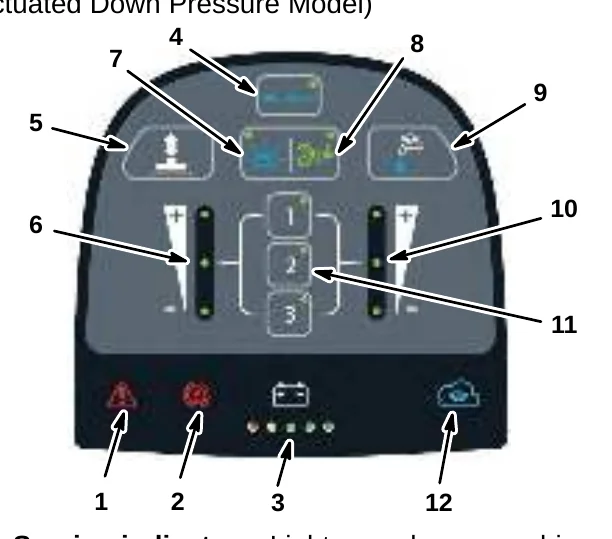
- Service indicator − Lights up when a machine or charger fault is detected.
- Parking brake indicator (option) − Lights up when parking brake lever is engaged. To turn off indicator, disengage parking brake lever near left rear wheel.
- Battery discharge indicator (BDI) − The battery discharge indicator serves two functions. In normal scrub mode it displays the charge level of the batteries. It also, in conjunction when the service indicator is flashing, provides specific LED codes when a machine or charger fault is detected.
- ec-H2O button / indicator (Option) − A blue ec−H2O indicator appears when the machine is equipped with ec−H2O option.
- Down pressure adjustment button − Press button to adjust the down pressure from low, medium or high.
- Down pressure indicator − Displays down pressure setting.
- Severe Environment on/off button (ec-H2O Model Option) − Press button to dispense cleaning detergent as needed for excessive soil buildup while operating.
- Quiet mode on/off button − Press button to reduce the vacuum motor sound for noise restricted areas.
- Solution flow adjustment button − Press button to adjust the solution flow setting from low, medium, high or to turn off solution flow.
- Solution flow indicator − Displays solution flow setting.
- Zone Settings buttons − Machine comes with three factory default Zone Settings for quick operation. The factory zone settings are configured with different solution flow rates, down pressures and maximum scrub speeds.
- Telemetry Connectivity indicator (Option) − Lights up blue when machine is connected to the cloud.
T300 Model with Pro-Panel Controls
(LCD − Liquid Crystal Display)
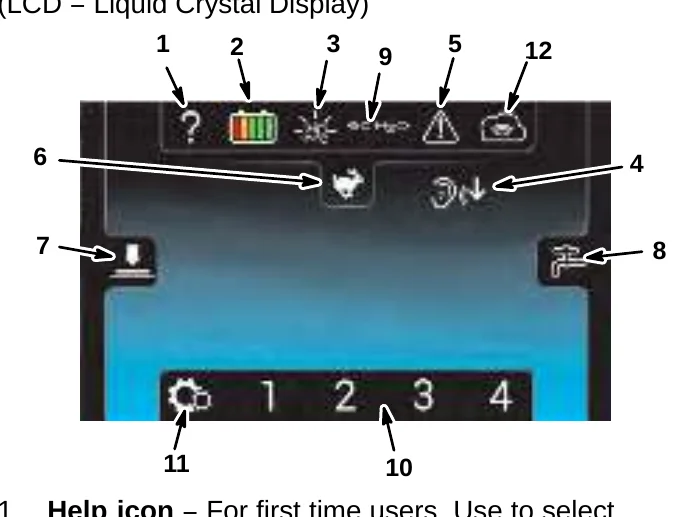
- Help icon − For first time users. Use to select display language, identify control panel symbols and view start-up videos.
- Battery discharge indicator (BDI) − Displays the discharge level of batteries.
- Severe Environment icon (ec-H2O Model Option) − Press icon to dispense cleaning detergent as needed for excessive soil buildup.
- Quiet mode icon − Press icon to reduce the vacuum motor sound for noise restricted areas.
- Service indicator − Lights up and begins flashing when a machine or charger fault is detected.
- Maximum scrub speed icon − Press icon to adjust the maximum scrubbing speed. Supervisor mode accessible only.
- Down pressure Icon − Press icon to adjust the down pressure setting from low, medium to high.
- Solution flow icon − Press icon to adjust the solution flow setting from low, medium, high or to turn off solution flow.
- ec-H2O indicator (Option) − The ecH2O icon is displayed when ec-H2O system is activated and operating normally.
- Zone Settings − Machine comes with four zone settings for quick operation. The factory default zone settings are configured with different solution flow rates, down pressures and maximum scrub speeds.
- Settings icon − Provides access to training video tutorials, machine software information, battery type selection and supervisor controls. A supervisor can setup users with operator login ID with the ability to program the machine’s settings with lock-out functionality.
- Telemetry Connectivity indicator (Option) − Lights up blue when machine is connected to the cloud.
INSTALLING BATTERIES
Batteries and chargers: make sure your charger is compatible with your batteries, and set its charging algorithm to your battery pack before you use it.
LITHIUM-ION BATTERY
For machines equipped with lithium-ion battery, contact Tennant Service for battery service and replacement.
FLOODED (WET) AND MAINTENANCE-FREE SEALED LEAD-ACID BATTERIES
BATTERY SPECIFICATIONS
Two 12 volt deep-cycle batteries.
Contact distributor or Tennant for battery recommendations.
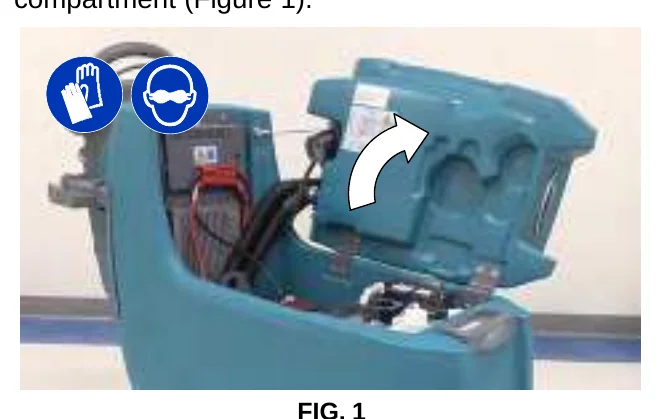
- Lift the recovery tank to access the battery compartment (Figure 1).
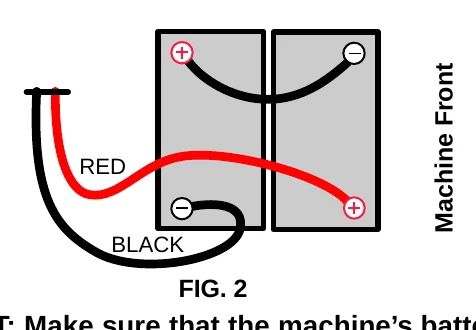
- With adequate assistance, carefully install the batteries into the battery compartment. Arrange the batteries as shown (Figure 2).
- Using the supplied battery post boots, connect the cables to the battery posts as shown (Figure 2). Connect the machine's black (−) battery cable last. Use insulated tools when working near batteries.
For machines shipped without batteries and equipped with an off-board battery charger, the machine's battery discharge indicator (BDI) is factory programmed for GEL batteries as the default.
If installing flooded (wet) lead/acid or AGM batteries, the BDI MUST be reprogrammed to prevent battery damage and/or short run−time. See BATTERY CHARGER SETTINGS.
IRIS® Battery Charging Metrics Notification:
Machines equipped with capability to report battery charging data via IRIS are supplied with a charger and set of batteries from the factory. When a battery reaches its end of life and must be replaced, Tennant highly recommends that the same battery type be used to continue to maximize the machines performance. In the event a battery with a different amp hour (AH), type (Flooded, AGM, Gel), or manufacturer is selected for replacement please contact Tennant technical service department for assistance in determining the feasibility of the replacement batteries and if so, selecting the correct charging profile. Availability of IRIS battery metric reporting is not guaranteed with third party supplied batteries.
BATTERY PACK LIFT−OUT TRAY (Option)
Models equipped with the optional battery lift-out tray for quick or frequent battery pack exchange.
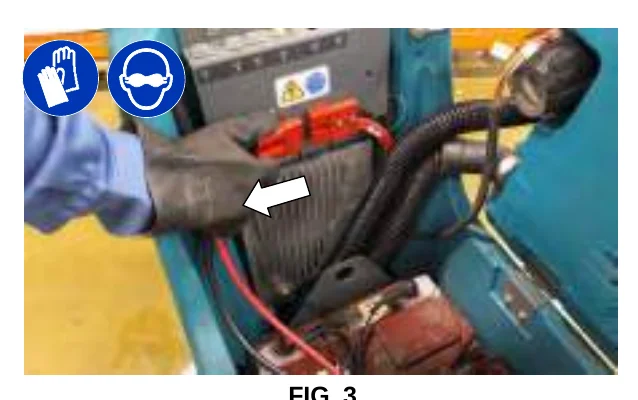
- Disconnect the battery cable connection at machine (Figure 3).
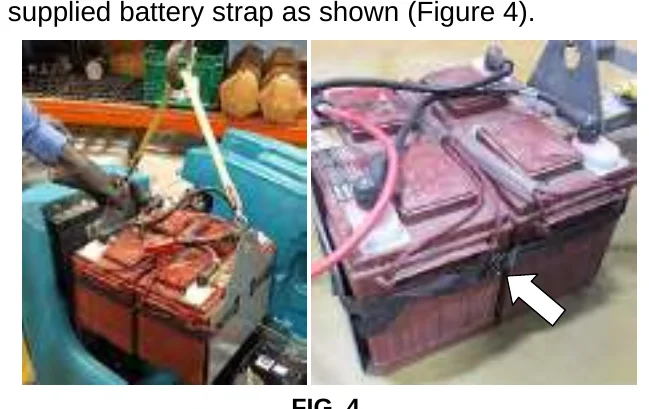
- Using an approved lift strap that supports the weight of battery pack, connect the strap to the two lift brackets as shown. Using a lift hoist rated to handle the weight of the battery pack, carefully lift the battery packs to and from machine. Keep one hand on the battery lift-out tray when lifting for stability (Figure 4).
Before lifting battery pack, make sure the batteries are secured to the battery lift-out tray with the supplied battery strap as shown (Figure 4).
- Reconnect the battery cable connection after installing battery pack.
HOW THE MACHINE WORKS
Conventional scrubbing:
When using the conventional scrubbing mode, water and detergent mixture from the solution tank flows to the floor and the rotating brush(es)/pad(s) scrub the floor clean. As the machine moves forward, the squeegee with vacuum suction picks up the dirty solution from the floor into the recovery tank.
ec-H2O NanoClean Technology (option):
When using the ec-H2O NanoClean technology, normal water passes through a module where it is electrically converted into a cleaning solution. The electrically converted water attacks the dirt, allowing the machine to easily scrub away the suspended soil. The converted water then returns to normal water in the recovery tank.
BRUSH AND PAD INFORMATION
For best cleaning results use the appropriate brush or pad for your cleaning application. Listed below are brushes and pads and the applications for which each is best suited.
Soft nylon bristle scrub brush (White) −
Recommended for cleaning coated floors without removing finish. Cleans without scuffing.
Polypropylene bristle scrub brush (Black) −
This general purpose polypropylene bristle scrub brush is used for scrubbing lightly compacted soilage. This brush works well for maintaining concrete, wood and grouted tile floors.
Super abrasive bristle scrub brush (Gray) −
Nylon fiber impregnated with abrasive grit to remove stains and soilage. Strong action on any surface. Performs well on buildup, grease, or tire marks.
Polishing pad (White) −
Used to maintain highly polished or burnished floors.
Buffing pad (Red) − Used for light duty scrubbing without removing floor finish.
Scrubbing pad (Blue) − Used for medium to heavy-duty scrubbing. Removes dirt, spills, and scuffs and leaves surface clean ready for recoating.
Stripping pad (Brown) − Used for stripping of floor finish to prepare the floor for recoating.
Heavy duty stripping pad (Black) − Used for aggressive stripping of heavy finishes/sealers, or very heavy duty scrubbing.
Surface preparation pad (Maroon) − Used for very aggressive chemical free removal of floor finish to prepare the floor for re-coating
MACHINE SETUP
Batteries and chargers: make sure your charger is compatible with your batteries, and set its charging algorithm to your battery pack before you use it.
CHARGE BATTERIES
Lithium−ion batteries must be charged prior to initial use, see CHARGING BATTERIES.
ATTACHING SQUEEGEE ASSEMBLY
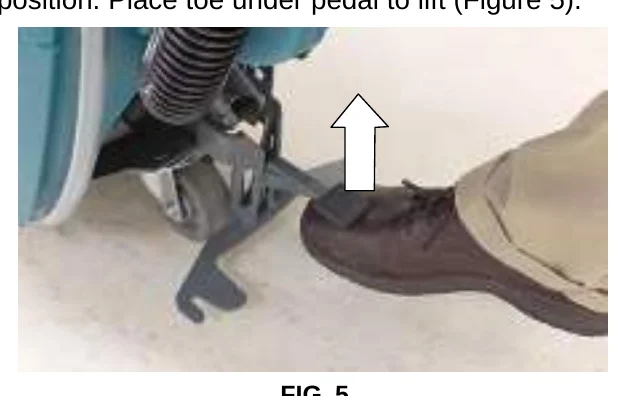
- Lift the squeegee mount bracket to the raised position. Place toe under pedal to lift (Figure 5).
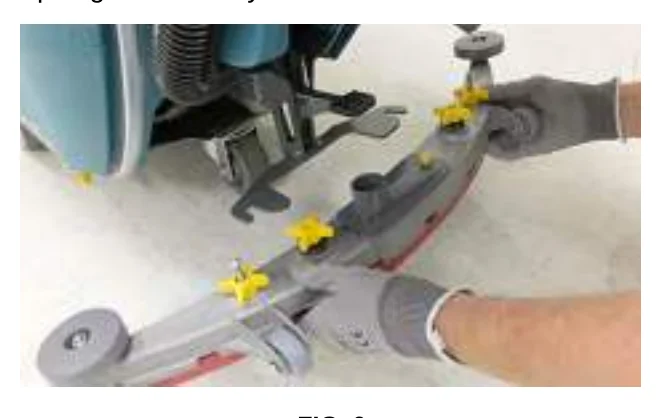
- Mount the squeegee assembly to the squeegee mount bracket (Figure 6). Tighten knobs to secure squeegee assembly to bracket.
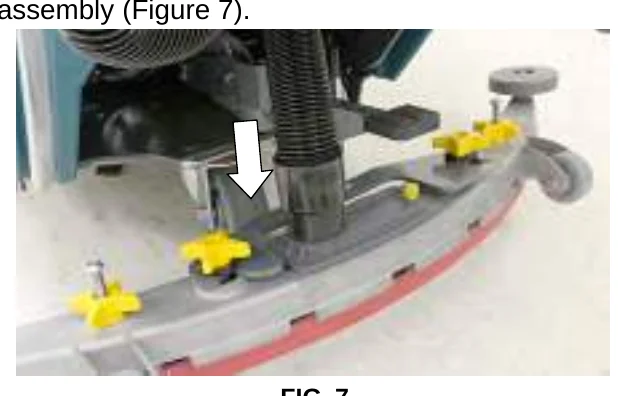
- Connect the vacuum hose to the squeegee assembly (Figure 7).
INSTALLING BRUSH/PAD − Insta-Click Magnetic Disk
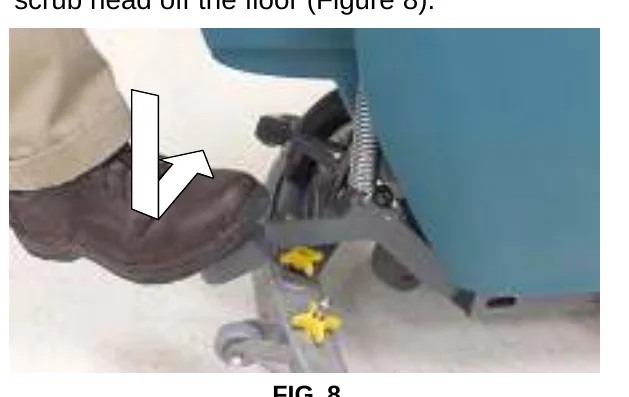
- Step down on the scrub head lift pedal to raise the scrub head off the floor (Figure 8).
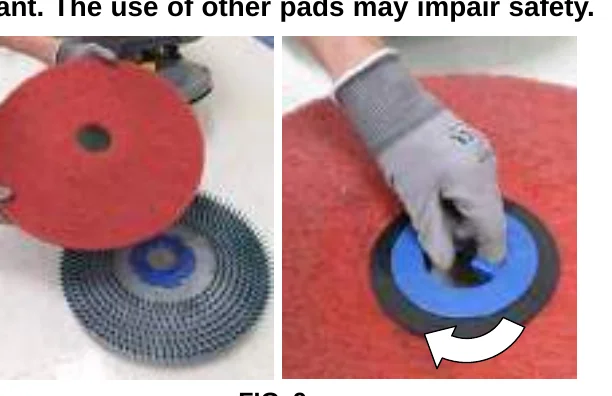
- Attach the pad to the pad driver before installing the driver (Figure 9). Secure pad with centerlock.
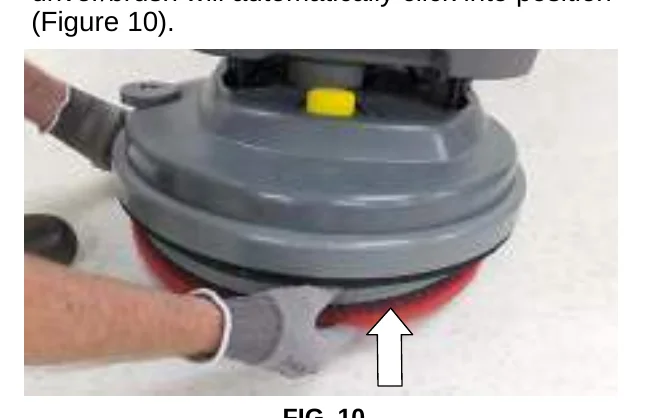
- Place the pad driver/brush under the scrub head and lift into position. The Insta-Click pad driver/brush will automatically click into position (Figure 10).
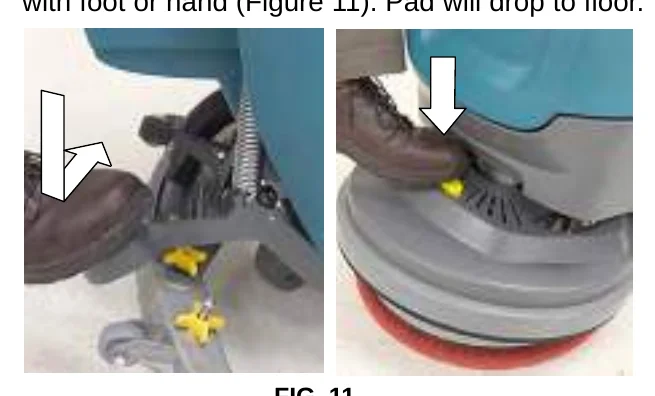
4. To remove the pad driver(s)/brush(es), raise the scrub head and press the yellow plunger button with foot or hand (Figure 11). Pad will drop to floor.
INSTALLING PAD – Orbital
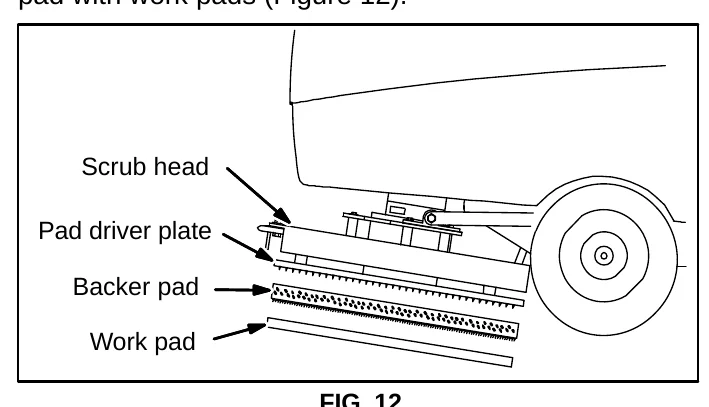
For best cleaning performance and to avoid damaging the pad driver plate or floor surface, always use backer pad with work pads (Figure 12).
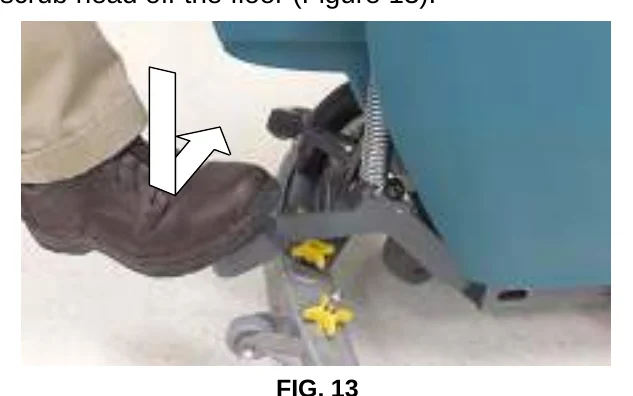
- Step down on the scrub head lift pedal to raise the scrub head off the floor (Figure 13).
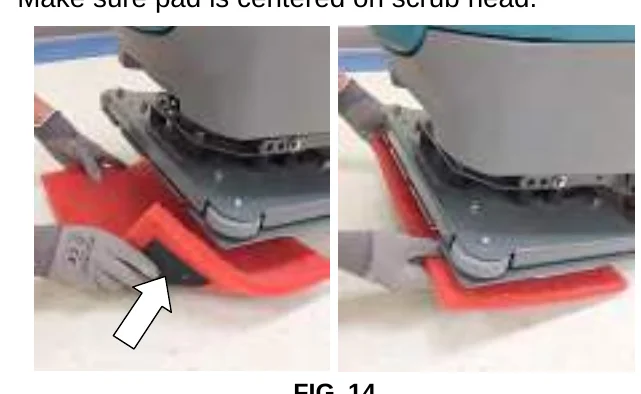
- Install the backer pad, retaining strips facing outward, to bottom of scrub head (Figure 14). Make sure pad is centered on scrub head.
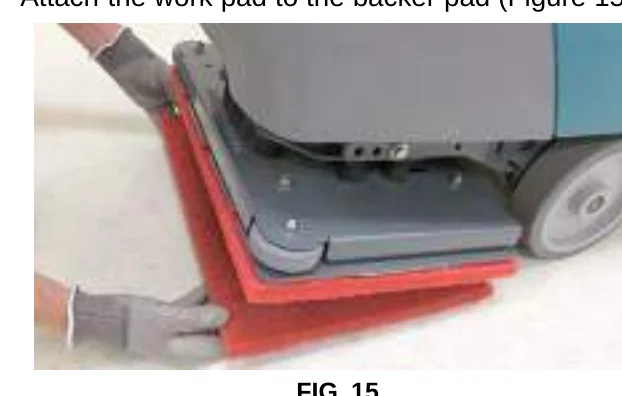
- Attach the work pad to the backer pad (Figure 15).
INSTALLING CYLINDRICAL BRUSHES
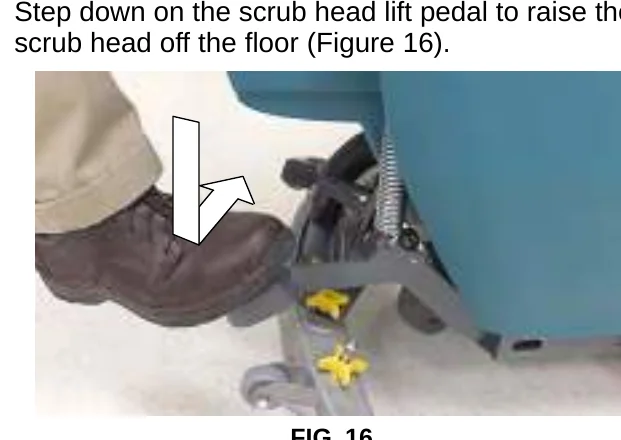
- Step down on the scrub head lift pedal to raise the scrub head off the floor (Figure 16).
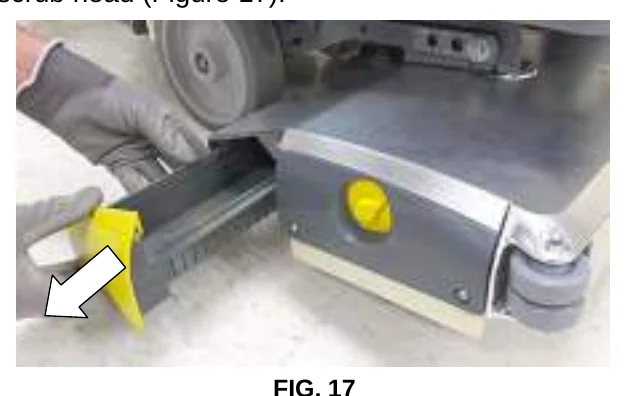
- Remove the debris tray by sliding it out from the scrub head (Figure 17).
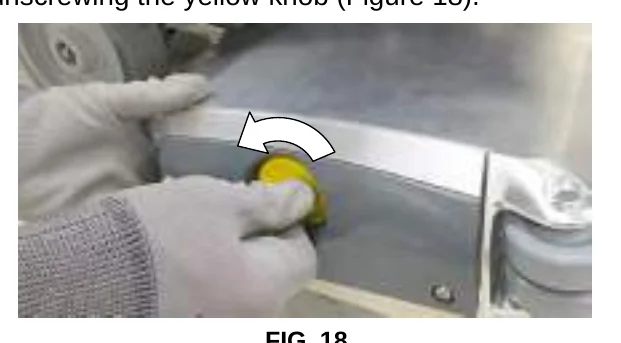
- Remove the idler plate from the scrub head by unscrewing the yellow knob (Figure 18).
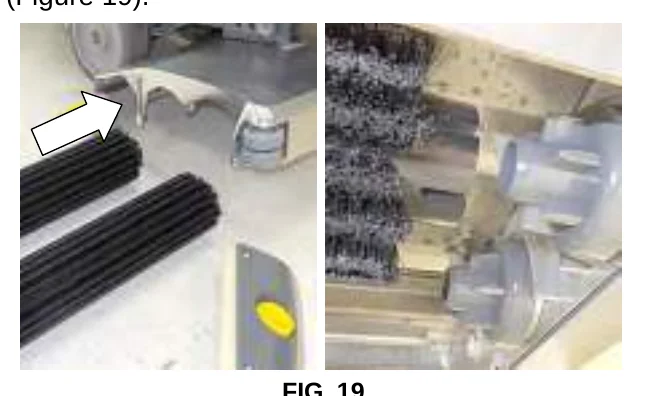
- Slide the brushes into the scrub head and connect the slotted ends of each brush into the drive hubs (Figure 19).
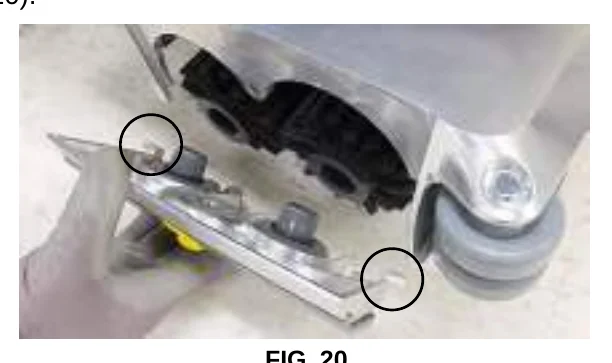
- Connect the idler plate to the brush ends and reattach the idler plate. Make sure the idler plate hooks are engaged before tightening knob (Figure 20).
- Replace debris tray.
FILLING SOLUTION TANK
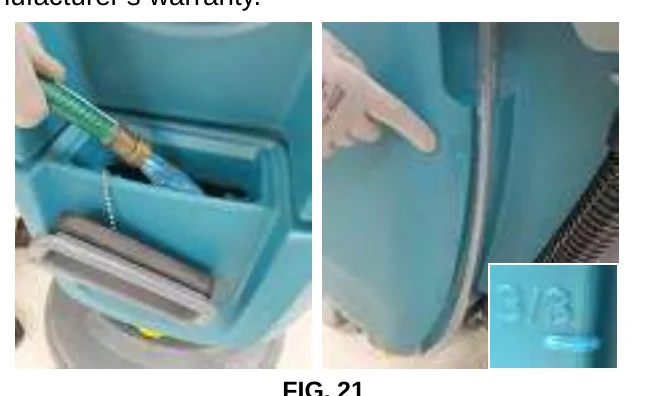
Remove the solution tank lid and fill the solution tank. Stop filling tank when the level reaches the “3/3” mark on the solution tank drain hose indicator (Figure 21).
ec-H2O Scrubbing – Fill solution tank with only cool clean water (less than 70°F/21°C). Do not add conventional floor cleaning detergents. An ec-H2O system fault will occur if cleaning detergents are added.
Conventional Scrubbing – Fill solution tank with water (not to exceed 60°C/140°F). Pour a recommended cleaning detergent into the solution tank according to mixing instructions on the container.
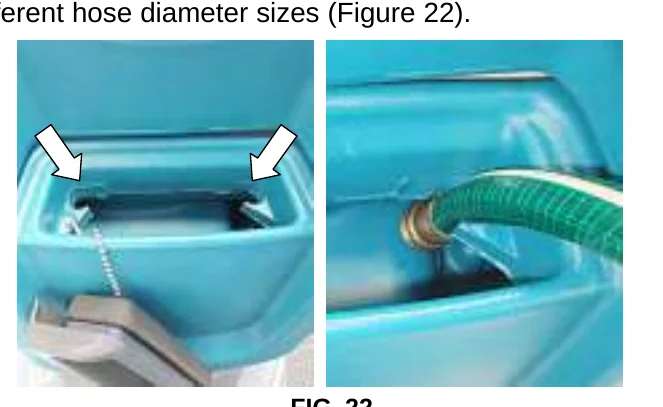
The solution tank fill−port is equipped with two hose clips to hold hose while filling. The two clips are different hose diameter sizes (Figure 22).
FILLING SEVERE ENVIRONMENT TANK (ec-H2O model Option)
The ec-H2O NanoClean model may come equipped with the optional Severe Environment mode. The Severe Environment button allows you to dispense cleaning detergent as needed for excessive soil buildup.
- Lift the recovery tank to access the severe environment tank (Figure 23). Drain recovery tank before lifting tank.
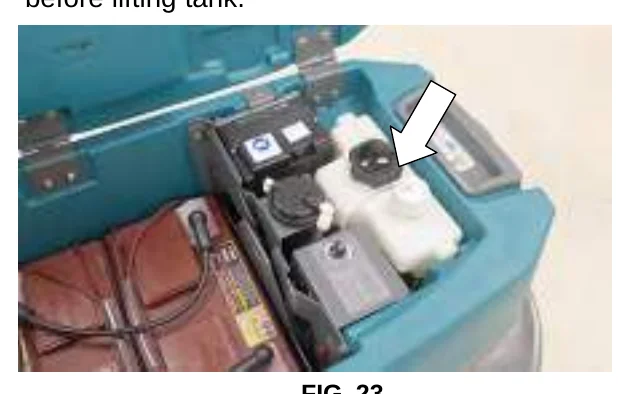
FIG. 23 - Remove cap from tank and add a recommended cleaning detergent at full concentration (Figure 24). Do not add water. Replace cap.
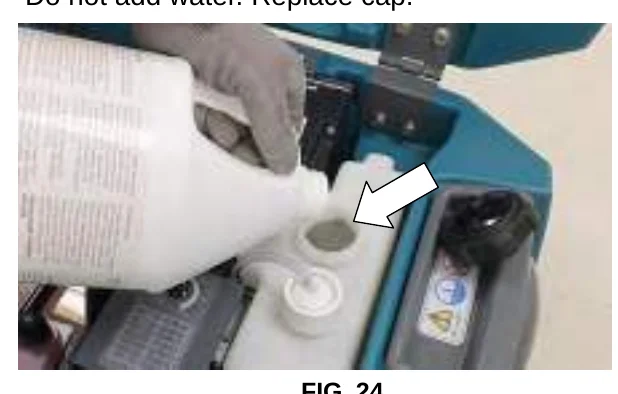
FIG. 24
- Adjust the mixing ratio knob according to the cleaning detergent’s mixing instructions (Figure 25).
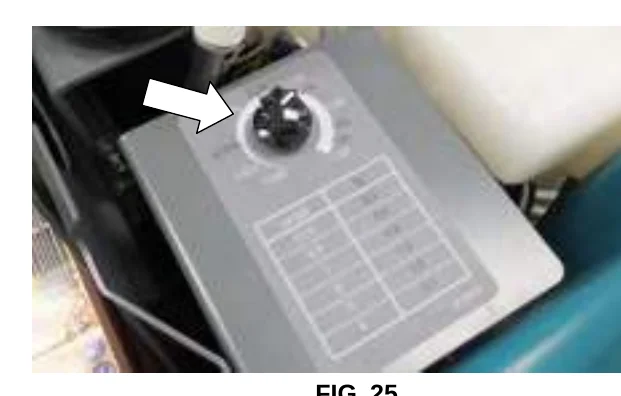
FIG. 25
ec-H2O NanoClean WATER CONDITIONING CARTRIDGE (ec-H2O model)
The ec-H2O system is equipped with a water conditioning cartridge (Figure 26). The cartridge is designed to protect the machine’s plumbing system from potential scaling.
The cartridge is required to be replaced when it reaches its maximum water usage or expiration time of when the cartridge was activated, which ever comes first.
Depending on machine usage a new cartridge can last anywhere from 12 to 24 months.
The control panel will signal a code when it’s time to replace cartridge. See SERVICE INDICATOR CODES for further details.
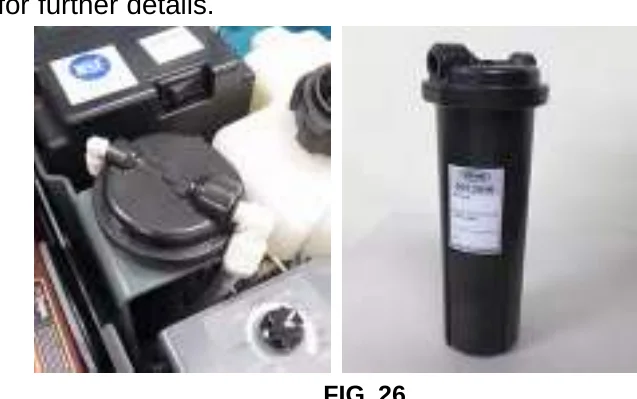
All cartridges are labeled with a manufacture date. The shelf-life of an un-installed cartridge is one year from manufacture date. For new cartridge replacement, the ecH2O module timer must be reset. See ec-H2O NanoClean WATER CONDITIONING CARTRIDGE REPLACEMENT.
ACCESSORY RAIL
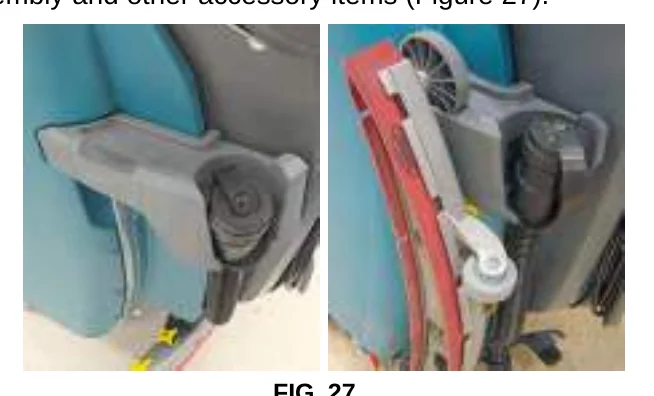
The machine is equipped with an accessory rail which also serves as the recovery tank and solution tank drain hose holder.
The accessory rail is designed to store the squeegee assembly and other accessory items (Figure 27).
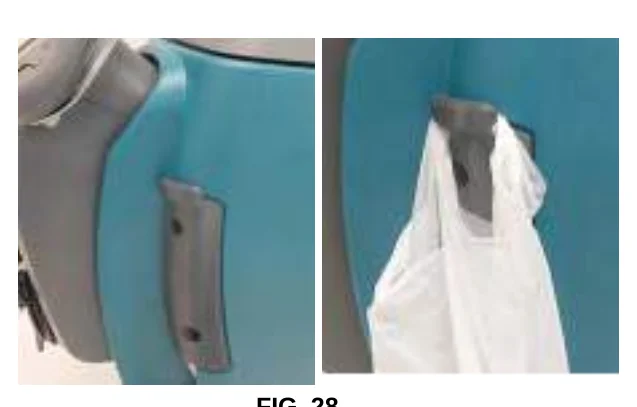
Actuated down pressure models − A debris bag hook is located on the left side of the control console (Figure 28).
CONTROL PANEL OPERATION
T300 WITH MEMBRANE CONTROL PANEL
(Manual Down Pressure Model)
- Turn the key to on ( I ) position to power up machine.
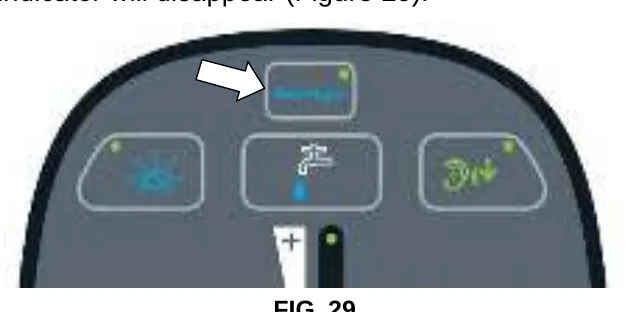
ec−H2O Models:The ec-H2O system automatically turns on at each key start. A blue ec-H2O indicator appears when machine is equipped with the ec-H2O option. The green LED illuminates when ec-H2O is activated. To turn off the ec-H2O system, press the ec-H2O button. The green LED indicator will disappear (Figure 29).
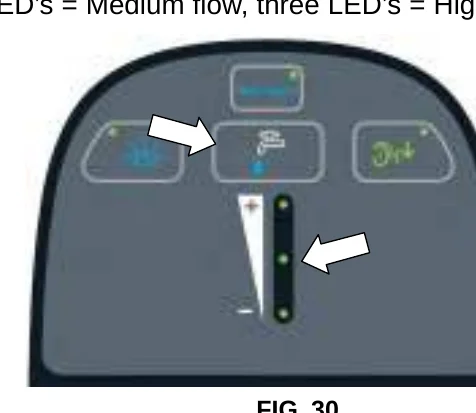
- Press the solution flow button to increase or decrease the solution flow rate (Figure 30). The solution flow indicator will display flow setting.
No LED = No flow, One LED = Low flow, two LED’s = Medium flow, three LED’s = High flow.
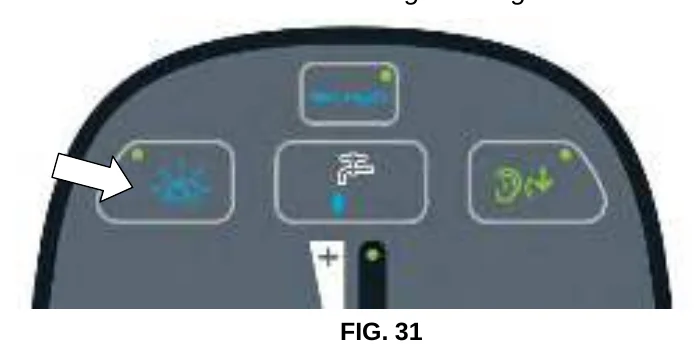
- Models equipped with Severe Environment button option − Press Severe Environment button one time to dispense cleaning detergent for 30 seconds (Figure 31). A green LED in the corner will blink slowly when dispensing. During the last 5 seconds, the LED will blink rapidly as an alert that the dispensing is about to stop. For continuous dispense, press and hold the button for 2 seconds until LED turns solid green. Press button at anytime to turn off.
The icon will blink blue when the severe environment tank needs to be refilled.
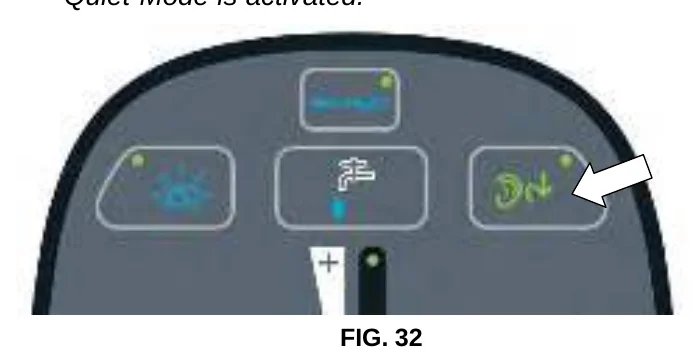
- Press the Quiet-Mode button to reduce the vacuum motor sound (Figure 32). A green LED in the corner will turn on when mode is activated. Press button to turn off.NOTE: Water pickup will reduce slightly when Quiet-Mode is activated.
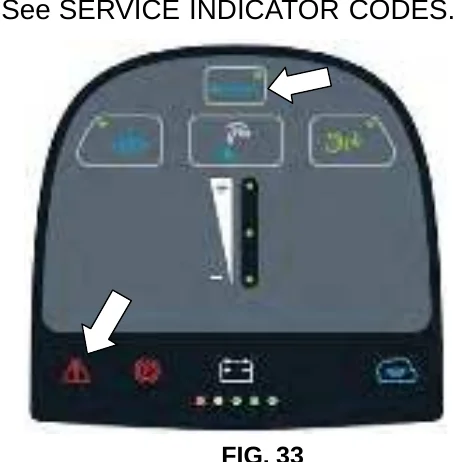
- If a machine fault is detected during operation, the service indicator will light up and begin flashing (Figure 33). See SERVICE INDICATOR CODES.
If the ec-H2O system detects a fault during operation, the ec-H2O icon will turn red or blink red. See SERVICE INDICATOR CODES.
| ec-H2O INDICATOR | CONDITION |
|---|---|
| Solid blue | Normal operation |
| Blinking blue/red | Water conditioning cartridge expired. Replace cartridge. |
| Solid or blinking red | See Service Indicator Codes. |
T300 WITH PRO-MEMBRANE CONTROL PANEL
(Actuated Down Pressure Model)
The control panel operation can be set up with lockout functionality by using the supervisor controls feature. This will prevent an operator from changing or saving the Zone Settings. See SUPERVISOR CONTROLS instructions at back of manual.
- Turn the key to on ( I ) position to power up machine.
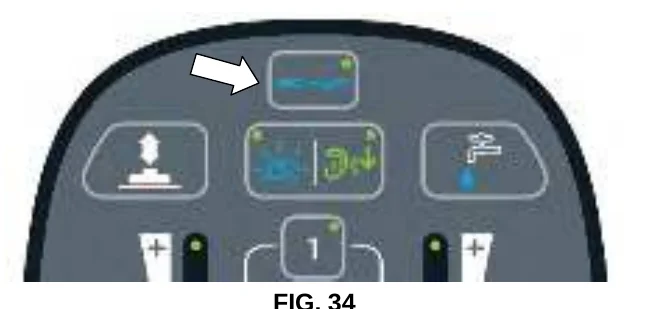
ec−H2O Models: The ec-H2O system automatically turns on at each key start. A blue ec-H2O indicator appears when machine is equipped with the ec-H2O option. The green LED illuminates when ec-H2O is activated. To turn off the ec-H2O system, press the ec-H2O button. The green LED indicator will disappear (Figure 34).
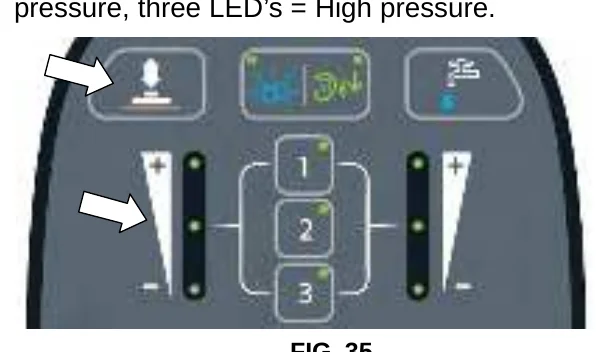
- Press the down pressure button to increase or decrease the down pressure (Figure 35). The down pressure indicator will display the pressure setting. One LED = Low pressure, two LED’s = Medium pressure, three LED’s = High pressure.
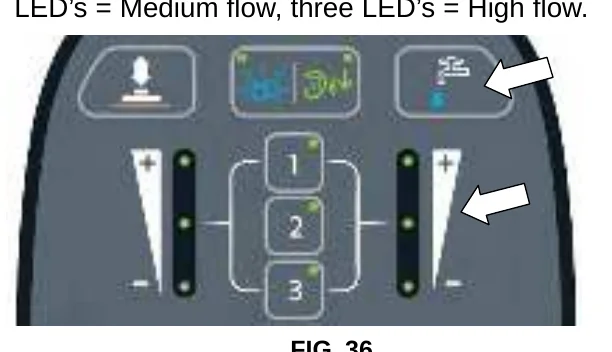
- Press the solution flow button to increase or decrease the solution flow rate (Figure 36). The solution flow indicator will display flow setting. No LED = No flow, One LED = Low flow, two LED’s = Medium flow, three LED’s = High flow.
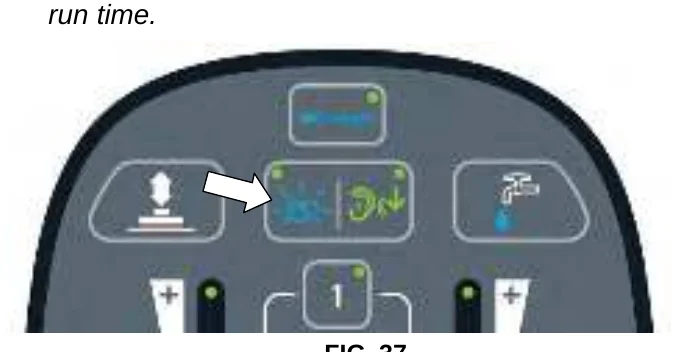
- Models equipped with Severe Environment button option − Press Severe Environment button one time to dispense cleaning detergent for 30 seconds (Figure 37). A green LED in the corner will blink slowly when dispensing. During the last 5 seconds, the LED will blink rapidly as an alert that the dispensing is about to stop. For continuous dispense, press and hold the button for 2 seconds until LED turns solid green. Press button at anytime to turn off.
The icon will blink blue when the severe environment tank needs to be refilled.
OPERATION
- Press the Quiet-Mode button to reduce the vacuum motor sound (Figure 38). A green LED in the corner will turn on when mode is activated. Press button to turn off.NOTE: Water pickup will reduce slightly when Quiet-Mode is activated.
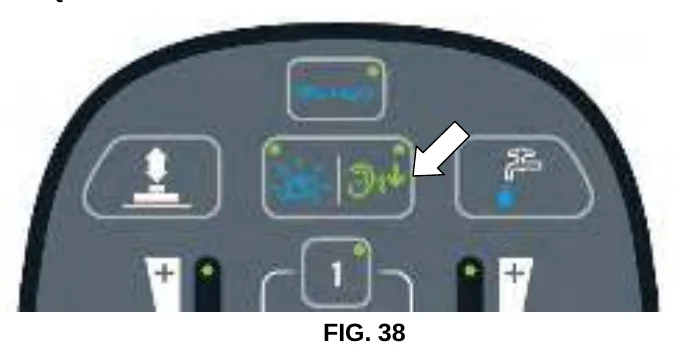
FIG. 38 - Press the Zone Setting numbers for quick operation (Figure 39). The three preset zones are factory configured with different solution flow rates and down pressures.
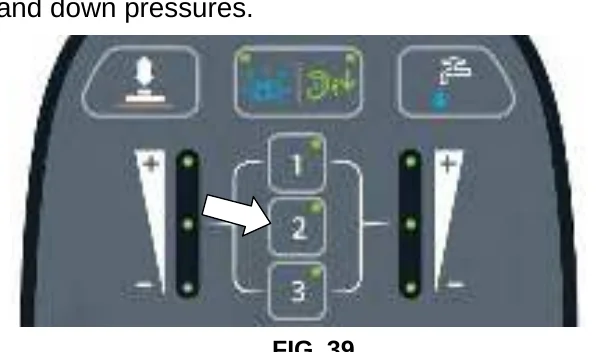
FIG. 39 To change the Zone Settings for a specific scrubbing application, configure the new zone settings and press and hold the zone button until it blinks three times to save new zone setting.
The zone settings can configure the following controls:
- Down pressure rate
- Solution flow rate
- Quiet-Mode on or off (option)
- ec-H2O mode on or off (option)
- Severe Environment mode on or off (option).
NOTE: The severe environment mode and ec-H2O mode cannot be configured together. - If a machine fault is detected during operation, the service indicator will light up and begin flashing (Figure 40). See SERVICE INDICATOR CODES.
If the ec-H2O system detects a fault during operation, the ec-H2O icon will turn or blink red. See SERVICE INDICATOR CODES.
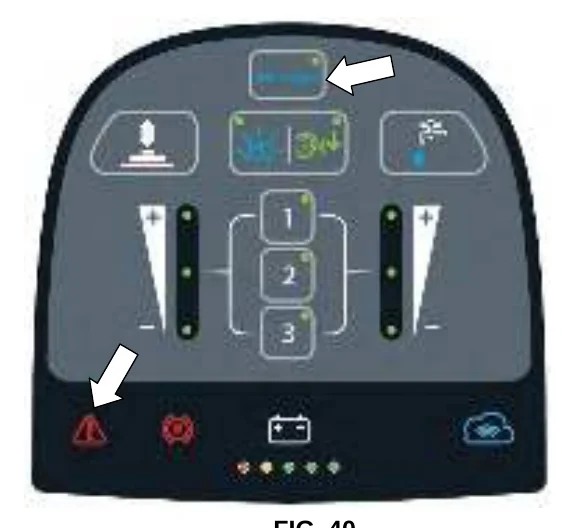
FIG. 40
| ec-H2O INDICATOR | CONDITION |
|---|---|
| Solid blue | Normal operation |
| Blinking blue/red | Water conditioning cartridge expired. Replace cartridge. |
| Solid or blinking red | See Service Indicator Codes. |
T300 MODEL WITH PRO-PANEL CONTROLS
There are two types of user modes that will interface with the operator home screen:
Operator Mode − Capable of machine operation with permissions and restrictions controlled by the supervisor.
Supervisor Mode − Capable of machine operation with full use of all controls, along with configuring permissions and restrictions for the operator mode.
A new machine from the factory will automatically start up in the supervisor mode by default. To configure the control panel with permissions and restrictions for the operator mode, see SUPERVISOR CONTROLS instructions at back of manual.
- Turn the key to on ( I ) position. At start up, a Tennant logo screen will first appear followed by the operator home screen as shown below (Figure 41).
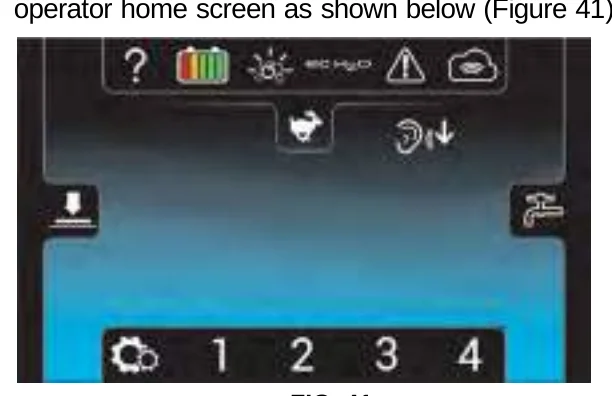
Models equipped with the ec-H2O option, the ec-H2O system automatically turns on at each key start. The ec-H2O icon will appear on the home screen that is illuminated blue, indicating that the system is activated (Figure 41).
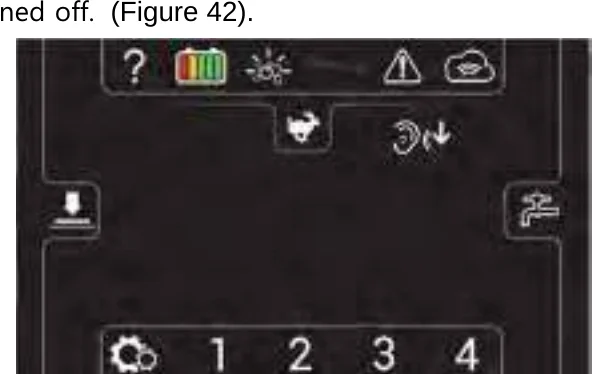
To turn off the ec-H2O system, press the ec-H2O button. The background turns black and a slash mark over the icon indicates that the ec-H2O system is turned off. (Figure 42).
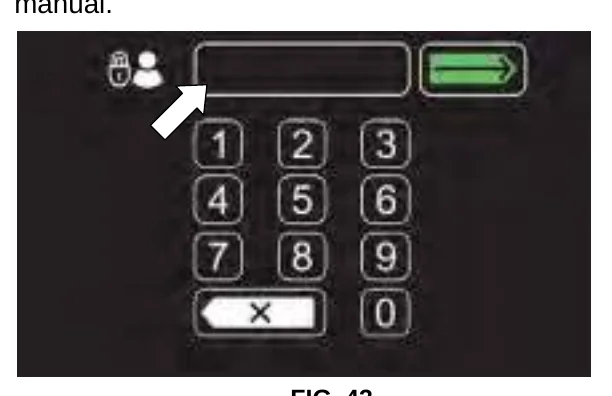
When supervisor controls are configured for the operator mode, a login screen will appear at start up (Figure 43 ). Enter the login number assigned by the supervisor and press the green arrow to access the operator home screen. See SUPERVISOR CONTROLS instructions at back of manual.
- For first time users, press the help icon on the operator home screen (Figure 41). The help screen, shown below, will allow you to select a different display language, help identify control panel icons and view start-up operator videos (Figure 44).
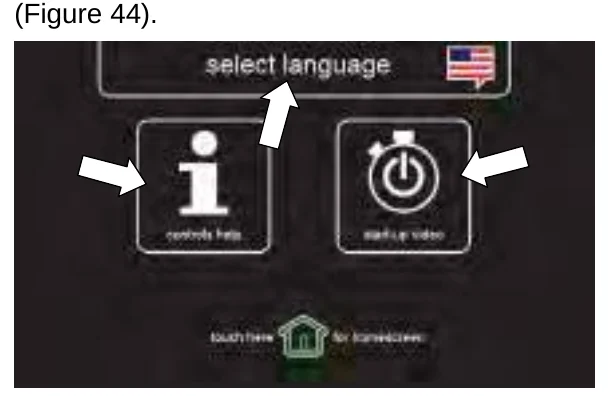
Press the home screen icon at anytime to return to the operator home screen.
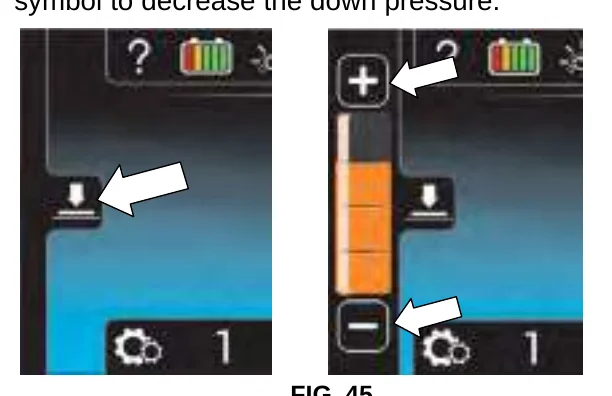
- Press the down pressure icon to display the down pressure scale (Figure 45). Press the (+) symbol to increase down pressure. Press the (−) symbol to decrease the down pressure.
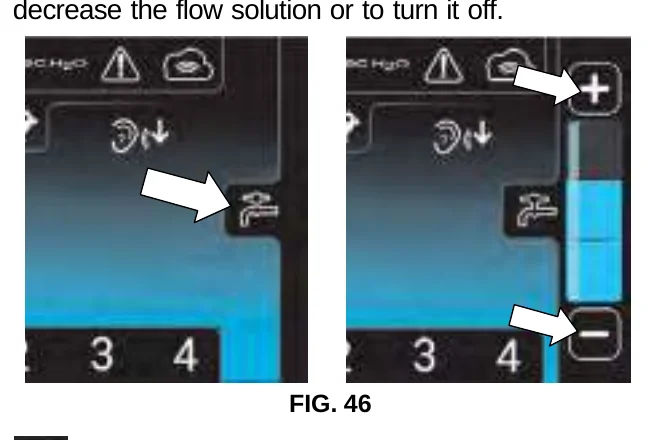
- Press the solution flow icon to display the solution flow scale (Figure 46). Press the (+) symbol to increase solution flow. Press the (−) symbol to decrease the flow solution or to turn it off.
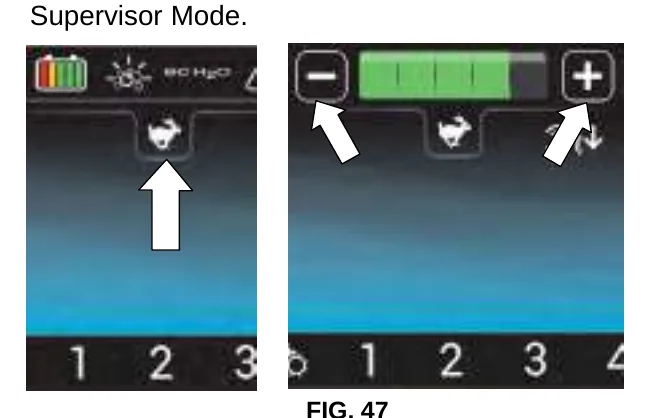
- Press the maximum scrub speed icon to display the maximum speed scale (Figure 47). Press (+) symbol to increase the maximum scrub speed. Press the (−) symbol to decrease the maximum scrub speed. Only accessible in Supervisor Mode.
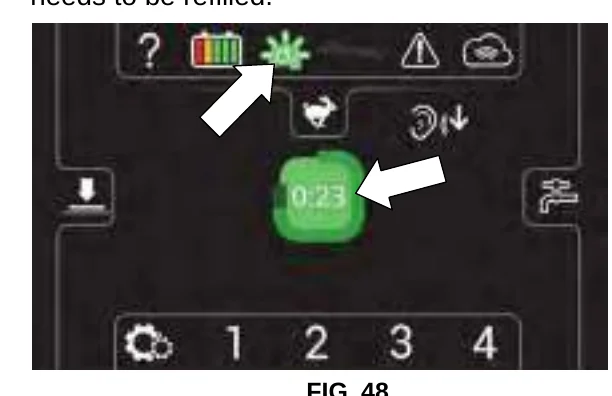
- Models equipped with Severe Environment option − Press the Severe Environment icon once to dispense cleaning detergent for 30 seconds. The icon will turn green and a 30 second count down timer will start. For continuous dispensing of detergent, press and hold the icon for 2 seconds until a continuous timer is displayed. Press the icon at anytime to turn off. (Figure 48). The icon will blink yellow when the severe environment tank needs to be refilled.
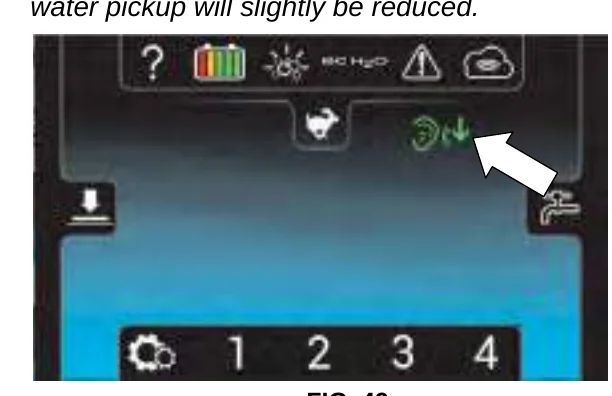
- Press the quiet mode icon to reduce the vacuum motor sound for noise restricted areas (Figure 49). The icon will turn green when activated. Press again to turn off.
- Press the Zone Setting numbers for quick operation (Figure 50). The zone number will turn green when activated. Each Zone Setting number is factory configured with different solution flow rates, down pressures and maximum scrub speeds.
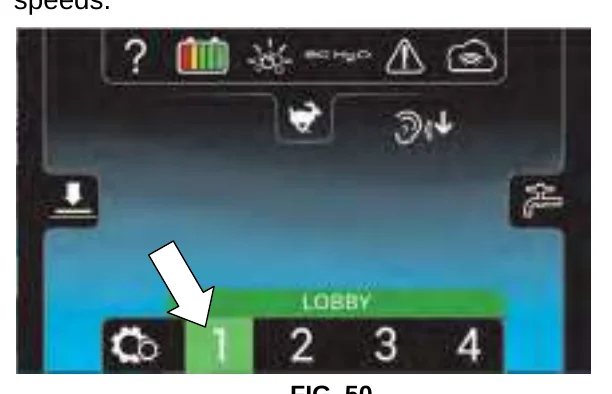
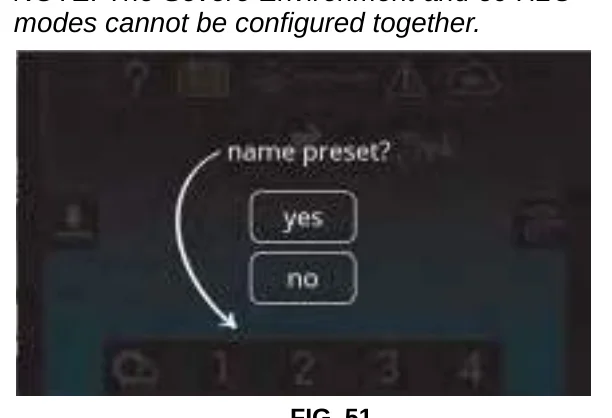
To change the default zone settings − Configure the desired zone settings then press and hold the zone number button until it prompts you to name the new zone setting. Select “yes” to enter a new name (Figure 51). By selecting “no”, the preset name will be removed.
The zone settings can configure the following controls:
- Down pressure rate
- Solution flow rate
- Quiet-Mode on or off (option)
- Maximum scrub speed (drive model)
- ec-H2O mode on or off (option)
- Severe Environment mode on or off (option).
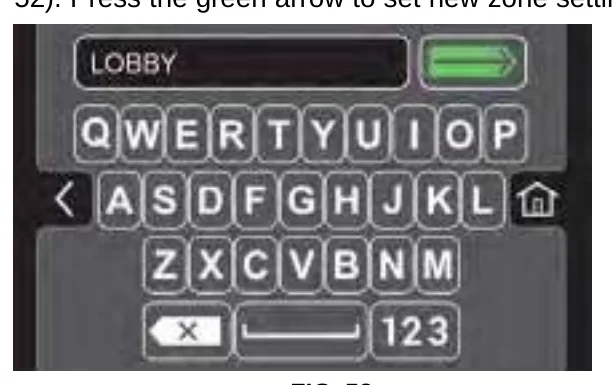
If the zone settings are configured to scrub a lobby for example, rename the zone “LOBBY” (Figure 52). Press the green arrow to set new zone setting.
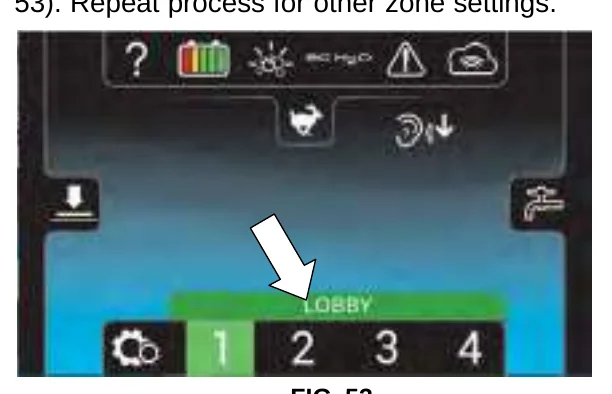
The name will appear above the zone setting number when the zone button is pressed (Figure 53). Repeat process for other zone settings.
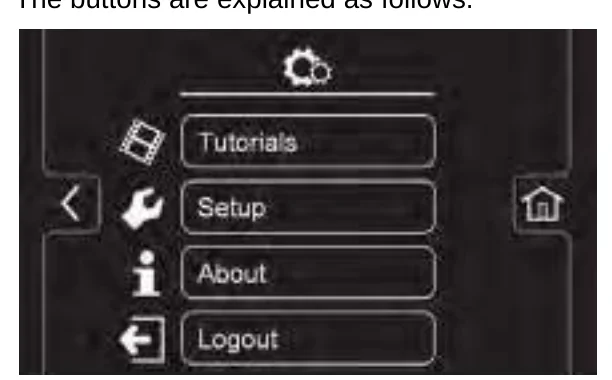
- Press the Settings icon on the operator home screen to access the following screen (Figure 54). The buttons are explained as follows.
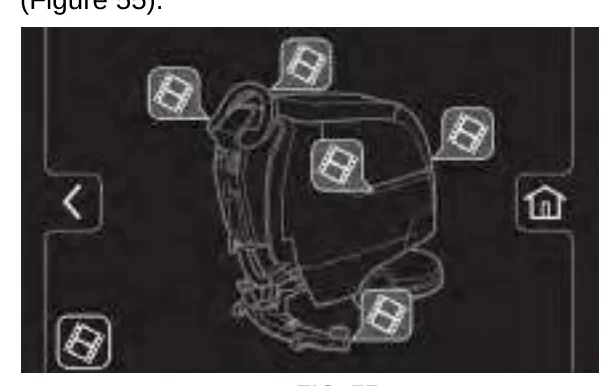
Tutorials button − Includes videos on how to perform specific operation and maintenance procedures. Press the video icons to start videos (Figure 55).
Setup button − Requires the user to be in supervisor mode to access machine setup. See SUPERVISOR CONTROLS instructions at back of manual.
About button − Includes machine systems information.
Logout button − Required when supervisor controls are configured with assigned login numbers. See SUPERVISOR CONTROLS instructions at back of manual.
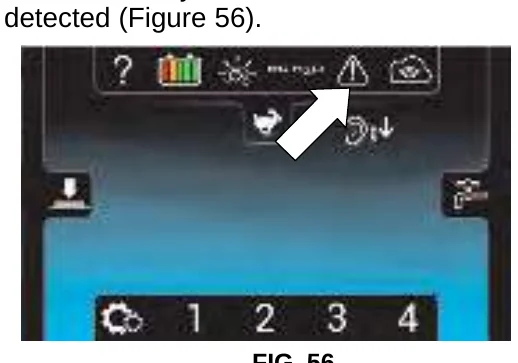
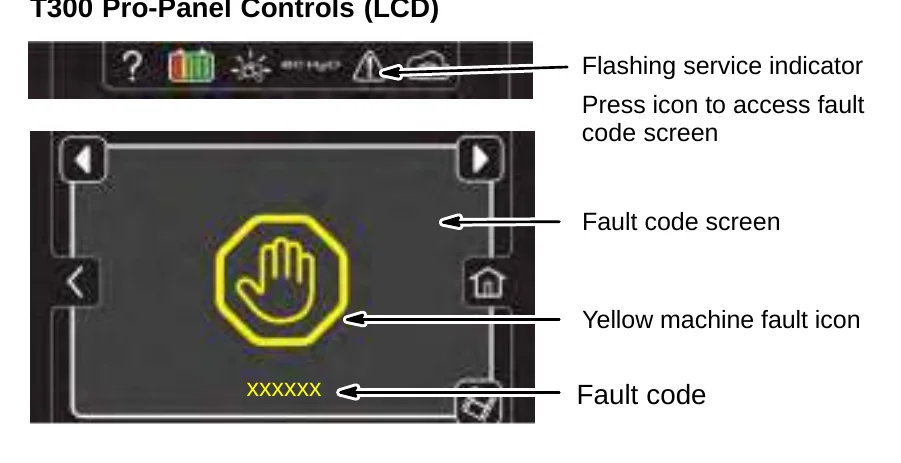
- The service indicator icon on the home screen will flash yellow or red when a machine fault is detected (Figure 56).
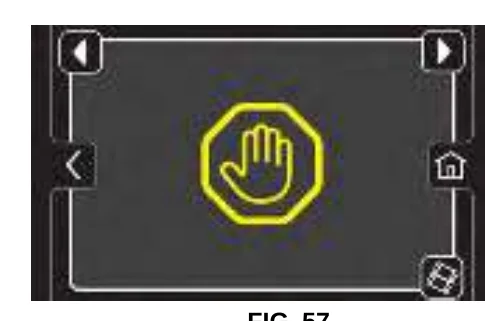
In conjunction with a flashing service indicator icon, the following fault screens will automatically pop up to indicate the problem.
Yellow machine fault Icon (Figure 57). See SERVICE INDICATOR CODES to diagnose machine fault.
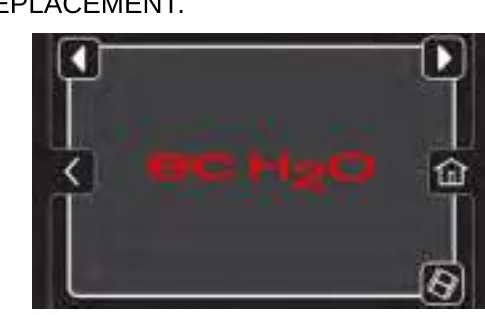
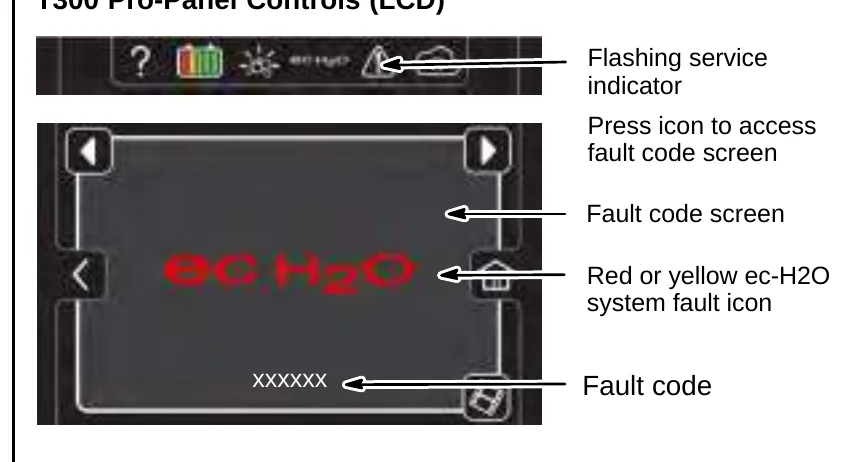
Red or Yellow ec-H2O system fault icon (Figure 58). See SERVICE INDICATOR CODES to diagnose ec-H2O system fault.
When the ec-H2O system fault icon is blinking Blue and Red, the water conditioning cartridge has expired and needs to be replaced. See ec-H2O NanoClean WATER CONDITIONING CARTRIDGE REPLACEMENT.
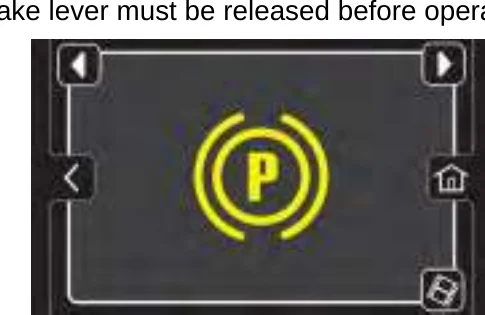
Yellow Parking brake Icon (figure 59). Parking brake lever must be released before operating.
Press arrows at top of screen to cycle through fault screens.
MACHINE OPERATION
PRE-OPERATION CHECK LIST
- Sweep area and remove any obstructions.
- Check brushes/pads for wear and damage.
- Check squeegee blades for wear and damage.
- Confirm recovery tank empty and screen and debris tray is clean.
- Check scrub head skirt for wear and damage.
- Cylindrical brush model − confirm scrub head debris tray is empty and clean.
- ec-H2O Scrubbing: Confirm solution tank is filled with clear cool water only.
- ec-H2O Scrubbing: Ensure all conventional cleaning agents/restorers are drained and rinsed from solution tank.
- Check machine for proper operation.
OPERATING MACHINE
For control panel operating instructions, see CONTROL PANEL OPERATION.
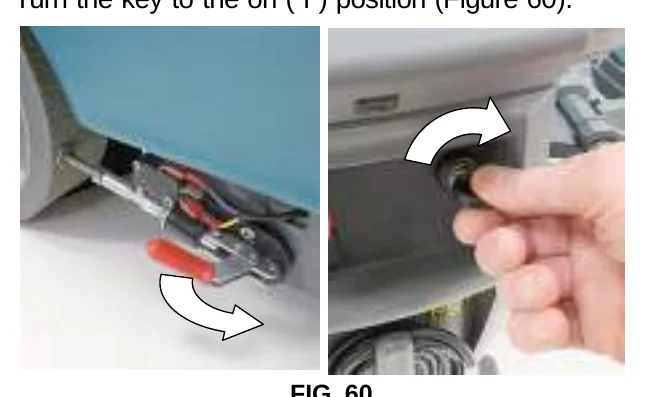
- Release the parking brake lever, if equipped (Figure 60)
- Turn the key to the on ( I ) position (Figure 60).
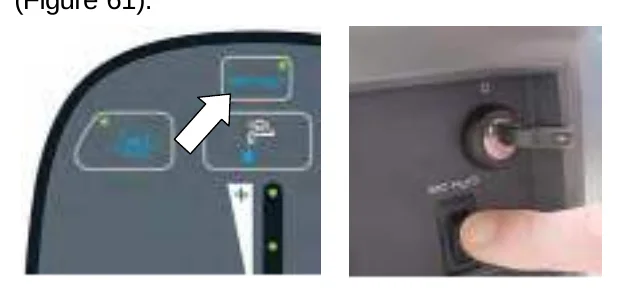
- ec-H2O models − The ec-H2O system will automatically turn on at start up. To turn off the ec-H2O system, press the ec-H2O button / switch (Figure 61).
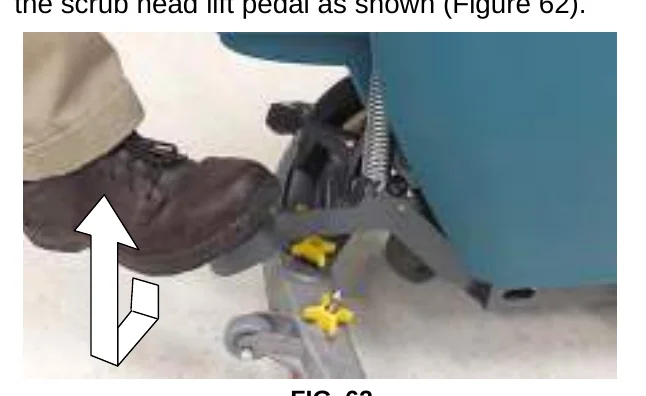
- Lower the scrub head to the floor by stepping on the scrub head lift pedal as shown (Figure 62).
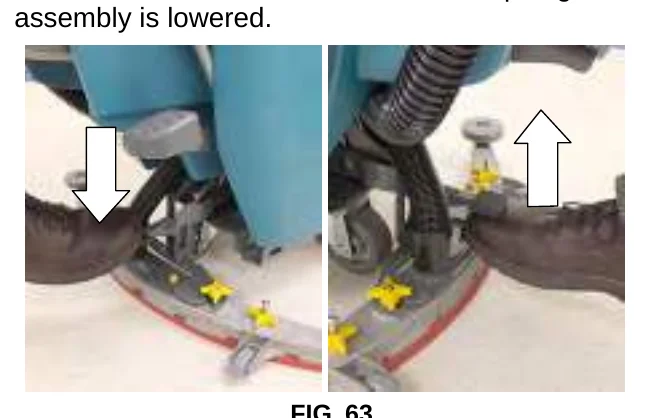
- Lower the squeegee assembly to floor by stepping on foot pad as shown (Figure 63). To raise squeegee assembly, place toe under foot pad and lift. The vacuum motor will start when squeegee assembly is lowered.
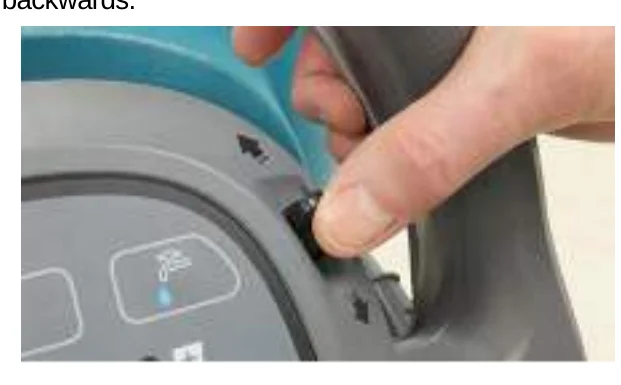
- Drive models − push the directional lever to the forward position to go forward (Figure 64). To reverse the machine pull the directional lever backwards.
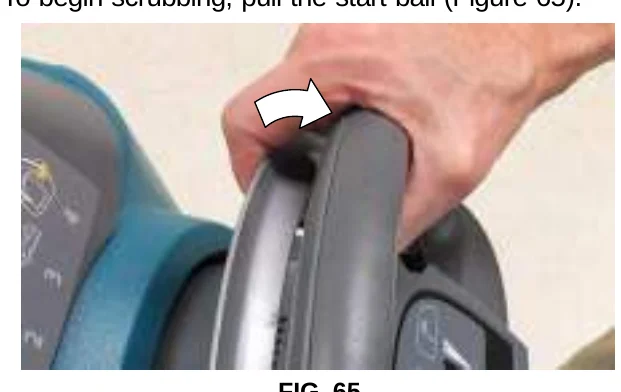
- To begin scrubbing, pull the start bail (Figure 65).
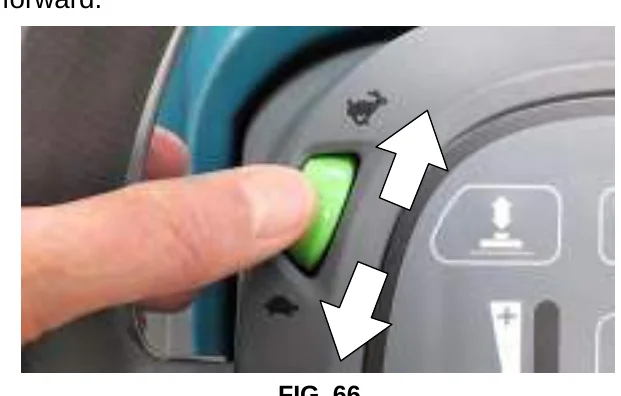
- Drive models − Adjust the scrubbing speed by turning the speed dial to the desired speed (Figure 66).
Push models − Slowly push the machine forward. The rotating brush(es) will help assist the machine forward.
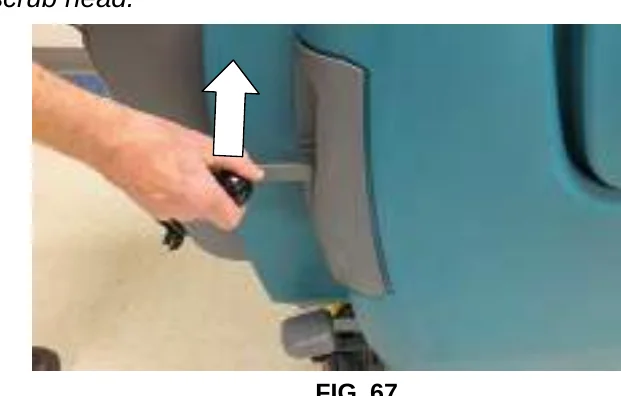
- Manual down pressure model − When extra brush pressure is needed for heavily soiled areas lift the dual down pressure lever (Figure 67).
- To stop scrubbing, release the start bail and raise the scrub head and squeegee assembly off floor. Turn key off and set parking brake, if equipped.
WHILE OPERATING MACHINE
- Overlap each scrub path by 2 inches (5 cm).
- Keep machine moving to prevent damage to floor finish.
- Wipe squeegee blades with a cloth if blades leave streaks.
- Avoid bumping the machine into posts and walls.
- When draining and refilling machine, always top off the optional Severe Environment tank with detergent.
- Pour a recommended foam control solution into the recovery tank if excessive foam appears.ATTENTION: Foam buildup will not activate the float shut-off screen, vacuum motor damage will result.
- Use the double scrubbing method for heavily soiled areas. First scrub the area with the squeegee up, let solution set for 3-5 minutes, then scrub the area a second time with squeegee down.
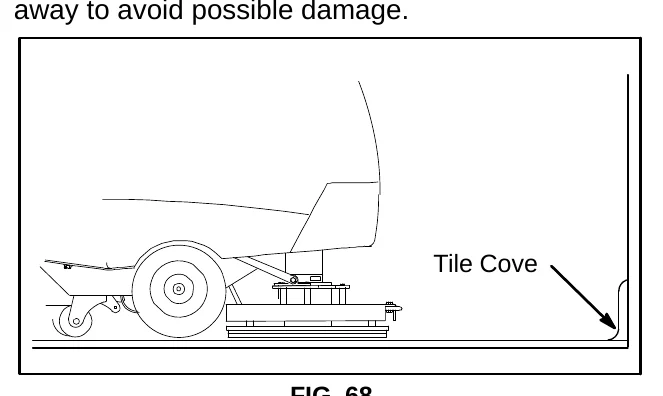
- Orbital Scrub Head Model − Use caution when working near the tile cove (Figure 68) and floor mounted fixtures such as pedestal sinks and other breakable items. Keep the metal scrub head edge away to avoid possible damage.
- When leaving the machine unattended, remove the key and set the parking brake, if equipped.
- Do not operate machine in areas where the ambient temperature is above 110°F/43°C or below freezing 32°F/0°C.
EMERGENCY SHUT-OFF BUTTON (Drive models)
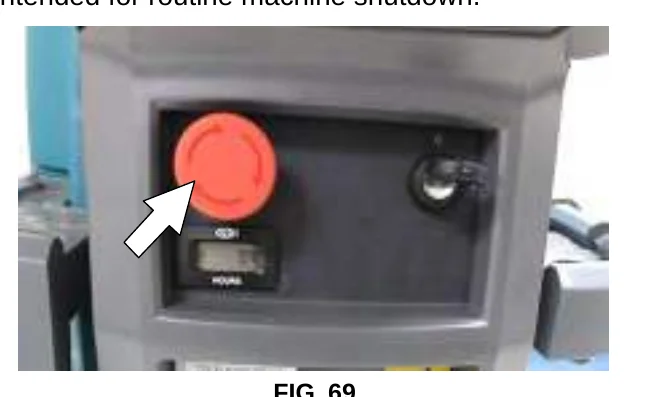
Push the emergency shut-off button in the event of an emergency (Figure 69). This red button shuts off all power to machine. To regain power, turn the button clockwise and restart the key.
Only use this button in the event of an emergency. It is not intended for routine machine shutdown.
BATTERY DISCHARGE INDICATOR
Batteries and chargers: make sure your charger is compatible with your batteries, and set its charging algorithm to your battery pack before you use it.
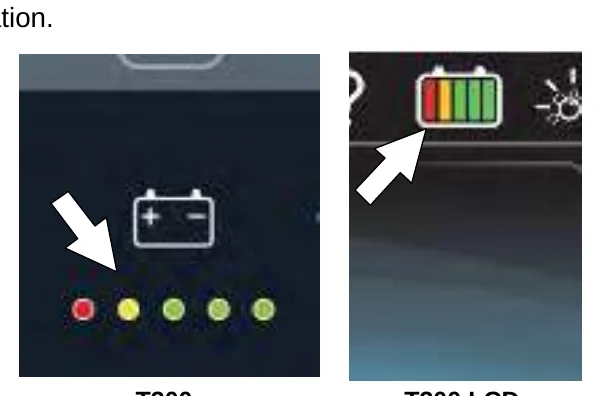
The battery discharge indicator (BDI) displays the charge level of the batteries while the machine is operating. When the batteries are fully charged, all five indicators are lit (Figure 70). When the discharge level reaches the red light, stop scrubbing and recharge the batteries. If the red light begins to flash, the scrubbing function will automatically shut off to protect the batteries from total discharge. Drive Model: The machine will still propel when the red light is flashing, this will allow user to transport machine to charging station.
CIRCUIT BREAKER PANEL
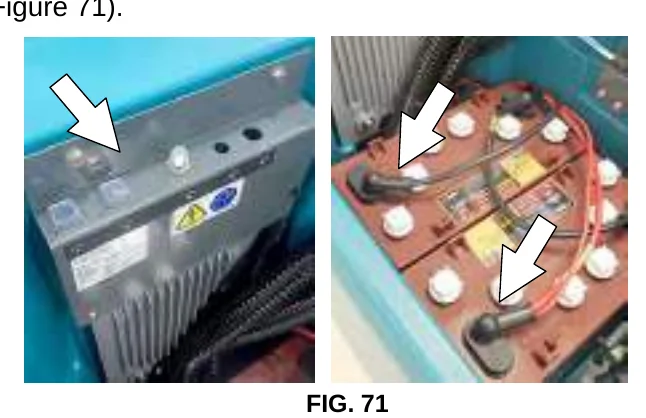
The machine is equipped with resettable circuit breakers to protect the machine from a current overload. If a circuit breaker trips, disconnect the battery cable connections and reset the breaker by pressing the reset button after the breaker has cooled down. Reconnect the battery cable connections. If the circuit breaker does not reset or continues to trip contact service personnel.
The circuit breaker panel is located near the battery compartment and identified as described below (Figure 71).
| Circuit Breaker | Rating | Circuit protected |
|---|---|---|
| CB1 | 4 A | Key switch, control board |
| CB2 | 10 A | ec-H2O module / pump |
| CB4 | 30 A | Propel |
FOR SAFETY: When servicing machine, all repairs must be performed by trained personnel.
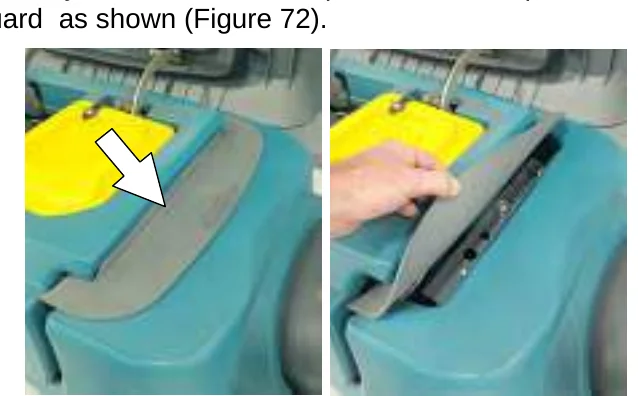
The circuit breaker panel is protected by a splash guard. To access the circuit breaker panel when the recovery tank is in the down position lift the splash guard as shown (Figure 72).
HOUR METER
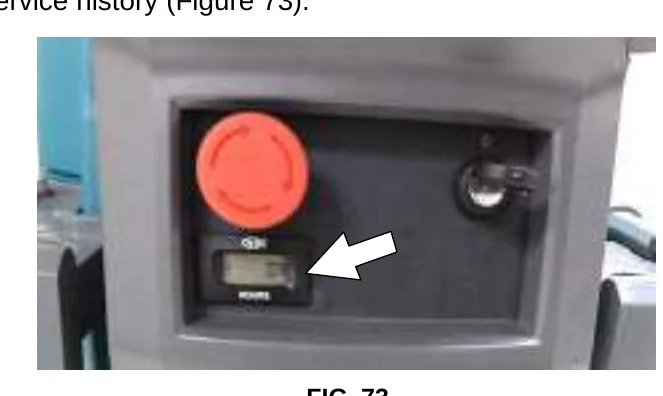
The hour meter records the number of hours the machine has been operated. Use the hour meter to perform specific maintenance procedures and to record service history (Figure 73).
DRAINING TANKS
FOR SAFETY: Before leaving or servicing machine, stop on level surface, turn off machine, remove key and set parking brake if equipped.
DRAINING RECOVERY TANK
Drain and clean the recovery tank daily and between solution tank refills.
- Transport the machine to drain area.
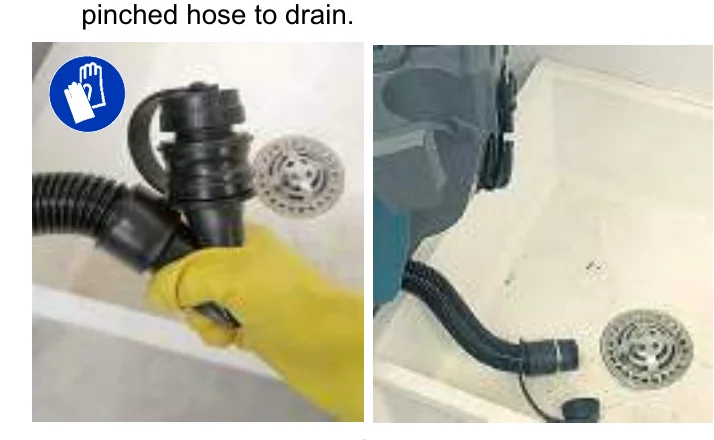
- Remove the recovery tank drain hose from storage hook and pinch hose as shown (Figure 74). Over a drain basin, remove cap and slowly release the pinched hose to drain.
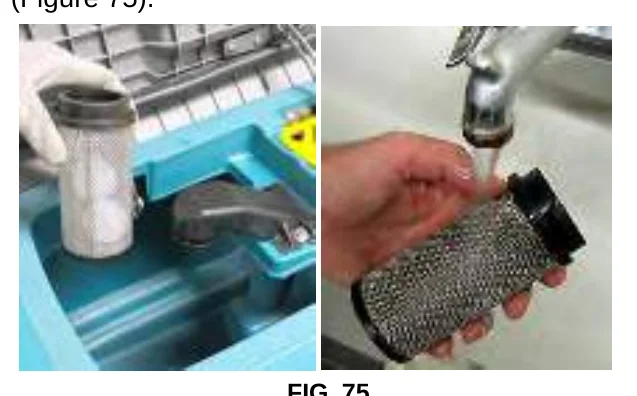
- Remove and clean the float shut-off screen (Figure 75).
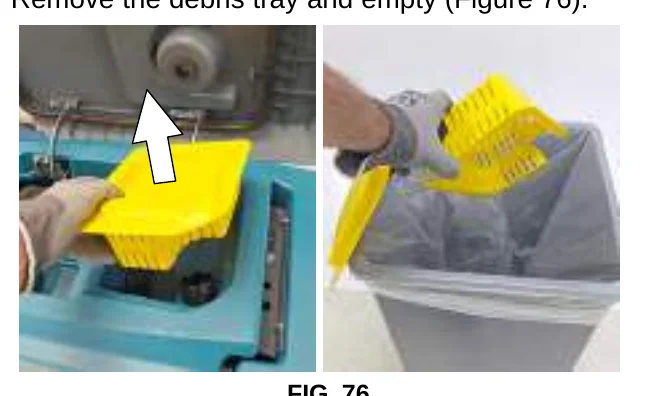
- Remove the debris tray and empty (Figure 76).
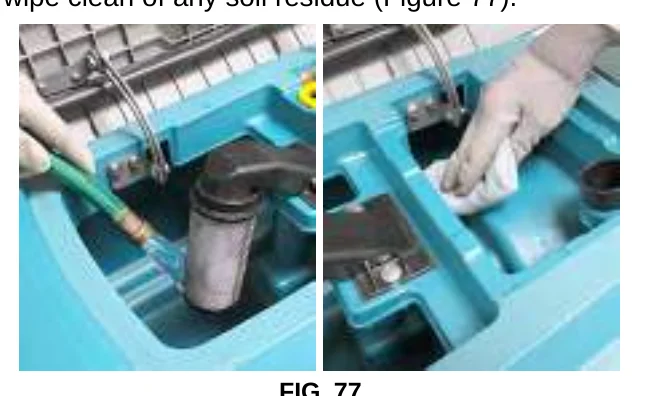
- Rinse out the recovery tank with clean water and wipe clean of any soil residue (Figure 77).
DRAINING SOLUTION TANK
Drain the solution tank daily.
- Transport the machine to drain area.
- To drain remaining water from solution tank, pull the solution hose from the accessory rail (Figure 78).
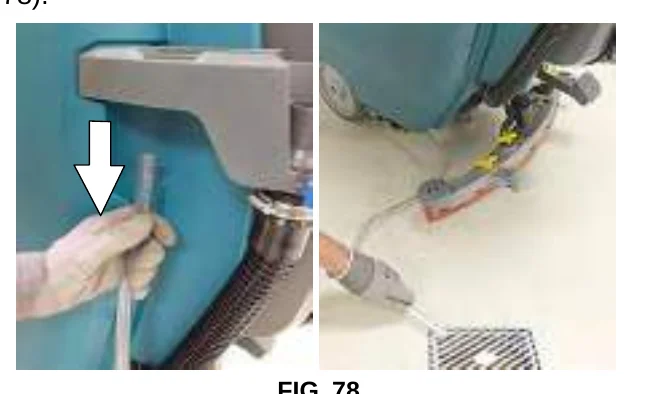
Firmly reconnect the solution hose to accessory rail after draining tank.
- Rinse out solution tank with clean water (Figure 79).
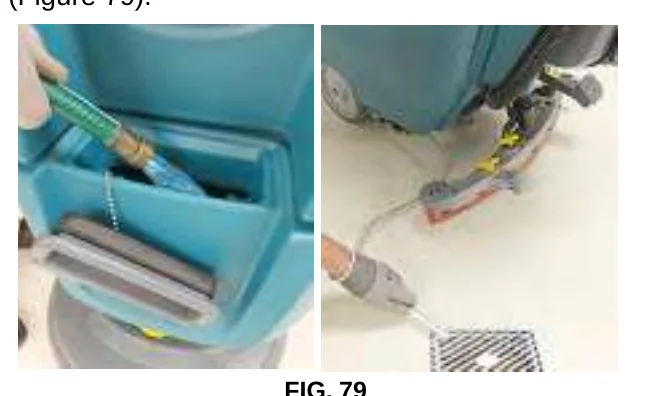
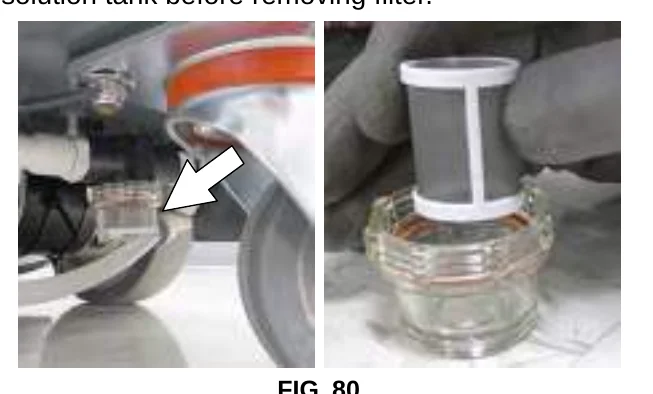
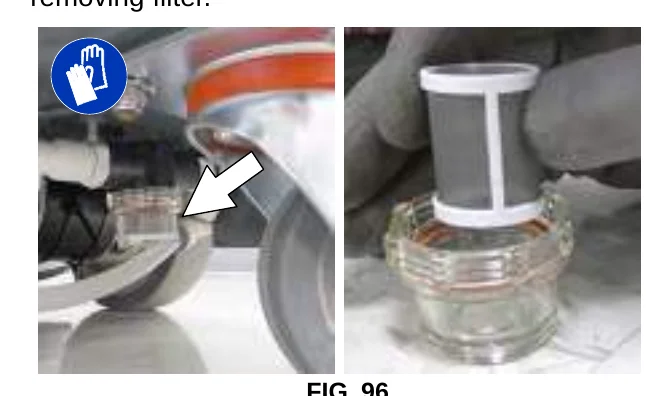
- Remove the solution tank filter and clean screen after every 50 hours of use (Figure 80). Solution filter is located under machine at rear. Drain solution tank before removing filter.
SERVICE INDICATOR CODES
Batteries and chargers: make sure your charger is compatible with your batteries, and set its charging algorithm to your battery pack before you use it.
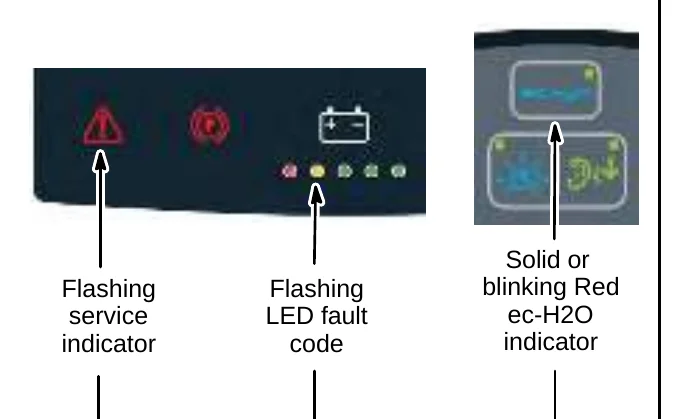
When the machine or battery charger detects a fault, the service indicator will flash. A fault code will be provided to determine problem as described below.
T300 Membrane Control Panels
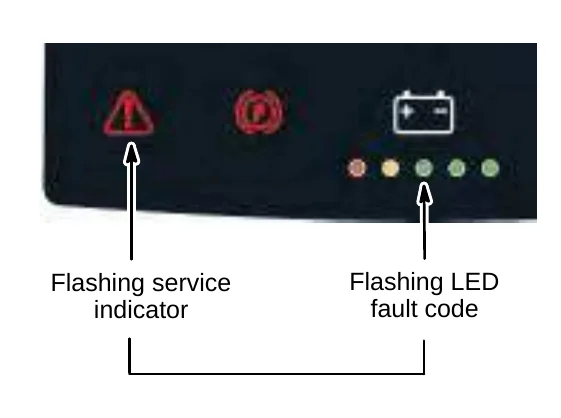
T300 Pro-Panel Controls (LCD)
| LED Fault Code (flashing symbol = Flashing) | LCD Fault Code | CAUSE | SOLUTION |
|---|---|---|---|
| Flashing, Flashing, Flashing, Flashing, Flashing | 0xFFF0 | Emergency stop button activated. | Release emergency stop button and restart machine. |
| Steady, Steady, Steady, Flashing, Steady | 0x0201 | Head lift actuator, wiring, connector or control board problem. | Contact service. |
| Steady, Steady, Steady, Flashing, Flashing | 0x0101 | Brush motor wiring, connector or control board problem. | Contact service. |
| Flashing, Flashing, Flashing, Flashing, Steady | 0x0102 | Voltage loss. | Contact service. |
| Steady, Flashing, Steady, Steady, Flashing | 0x0301 | Solution valve wiring, connector or control board problem. | Check connections. Contact service. |
| Steady, Flashing, Steady, Flashing, Flashing | 0x0303 | Solution valve over current. | Contact service. |
| Flashing, Steady, Flashing, Flashing, Steady | 0x0307 | Solution valve control board fault. | Contact service. |
| Steady, Steady, Flashing, Steady, Steady | 0x0501 | Vacuum motor wiring, connector or control board problem. | Contact service. |
| Steady, Steady, Flashing, Steady, Flashing | 0x0601 | Severe environment detergent pump wiring, connector or control board problem. | Contact service. |
| Steady, Steady, Flashing, Flashing, Steady | 0x0910 | Propel circuit breaker tripped. | Disconnect battery and reset circuit breaker. If trip repeats, contact service. |
| Steady, Steady, Flashing, Flashing, Flashing | 0x0901 | Propel motor wiring, connector or control board problem. | Contact service. |
| Steady, Flashing, Steady, Flashing, Flashing | 0xFF00 | Software load failure. | Contact service. |
| Flashing, Steady, Steady, Steady, Flashing | 0x0900 0x0903 0x0904 0x0905 0x0908→0x0942 0x090A→0x093B | Propel I-Drive fault Propel I-Drive communication lost Propel power cycle fault Propel current limit fault Propel faults Propel faults | Restart machine. If fault repeats, contact service. |
| Flashing, Steady, Steady, Flashing, Steady | 0x0906 0x0907 | Propel motor shorted fault | Contact service. |
SERVICE INDICATOR CODES − Continued
| LED Fault Code (✳ = Flashing) | LCD Fault Code | CAUSE | SOLUTION |
|---|---|---|---|
| ✳ • • ✳ ✳ | 0x0103 0x0104 0x0105 | Brush motor over current | Contact service. |
| ✳ • ✳ • ✳ | 0x0902 | Start bail is pulled or obstructed before turning machine on. | Release start bail or remove bail obstruction before turning machine on. |
| ✳ • ✳ ✳ • | 0x0107 0x0207 0x0507 0x0607 | Brush motor control board fault Actuator motor control board fault Vacuum motor control board fault Detergent pump control board fault | Disconnect battery cable connection and contact service to replace control board. |
| ✳ • ✳ ✳ ✳ | 0x0503 0x0504 0x0505 | Vacuum motor over current. | Contact service. |
| ✳ ✳ • • • | 0x0506 | Vacuum motor shorted fault. | Contact service. |
| ✳ ✳ • • ✳ | 0x0603 0x0604 0x0605 | Severe environment detergent pump over current. | Contact service. |
| ✳ ✳ • ✳ • | 0x0606 | Severe environment detergent pump shorted fault. | Contact service. |
| ✳ ✳ ✳ • ✳ | 0x0106 | Brush motor shorted fault. | Contact service. |
| • ✳ ✳ ✳ • | 0xF103 0xFF20 0x0704 | Charger communication fault Scrub control board comm. fault ec-H2O system comm. fault | Restart. If fault code persists, contact service. |
ON-BOARD BATTERY CHARGER SERVICE INDICATOR CODES
Batteries and chargers: make sure your charger is compatible with your batteries, and set its charging algorithm to your battery pack before you use it.
| LED Fault Code (✳ = Flashing) | LCD Fault Code | CAUSE | SOLUTION |
|---|---|---|---|
| ✳ ✳ ✳ • • | 0xF100 | Charger error condition. | Contact service. |
| • ✳ ✳ • • | 0xF101 | Charger is not connected to battery pack. | Check cable connections. |
| • ✳ • • • | 0xF102 | Charger overheated. | Let charger cool. Move to well ventilated area. Charge batteries in areas with temperatures 80°F/27°C or less. If fault persists, contact service. |
| • ✳ ✳ ✳ • | 0xF103 | Charger communication fault | Restart charger. If fault code persists, contact service. |
| • ✳ ✳ • ✳ | 0xF104 | Charger timer exceeded maximum charging time. Interrupts charging cycle. | Replace Batteries. |
ec-H2O SYSTEM SERVICE INDICATOR CODES – OPTION
T300 Membrane Control Panel
T300 Pro-Panel Controls (LCD)
| LED Fault Code ✳ = Flashing | LCD Fault Code | CAUSE | SOLUTION |
|---|---|---|---|
| • ✳ ✳ ✳ • | 0x0704 | ec-H2O system comm. fault | Restart. If fault code persists, contact service. |
| • ✳ • ✳ • | 0x0711 | ec-H2O pump wiring, connector or control board problem. | Contact service. |
| • ✳ ✳ ✳ ✳ | 0x0713 | ec-H2O pump over current | Contact service. |
| ✳ • • • • | 0x0717 | ec-H2O pump shorted fault | Contact service. |
| ✳ • ✳ • • | 0x0703 | ec-H2O circuit breaker tripped | Reset circuit breaker. If trip repeats, contact service. |
| ecH2O indicator solid red | 0x0700 0x0712 0x0716 0x0720 0x0727 0x072A 0x0741 0x0746 0x0747 | ec-H2O electrical faults | Contact service. |
| ecH2O indicator blinking red* | 0x0702 0x0708* 0x0721 0x0723 0x0726 0x0728 | ec-H2O water and plumbing faults | Contact service. |
| ecH2O indicator blinking blue/red | 0x0707 | Water conditioning cartridge expired | Replace water conditioning cartridge. |
*Verify if cleaning detergent was added to solution tank. If ec-H2O system was operated with cleaning detergent, drain solution tank, add clear water and operate the ec-H2O system until the fault code clears.
MAINTENANCE CHART
Batteries and chargers: make sure your charger is compatible with your batteries, and set its charging algorithm to your battery pack before you use it.
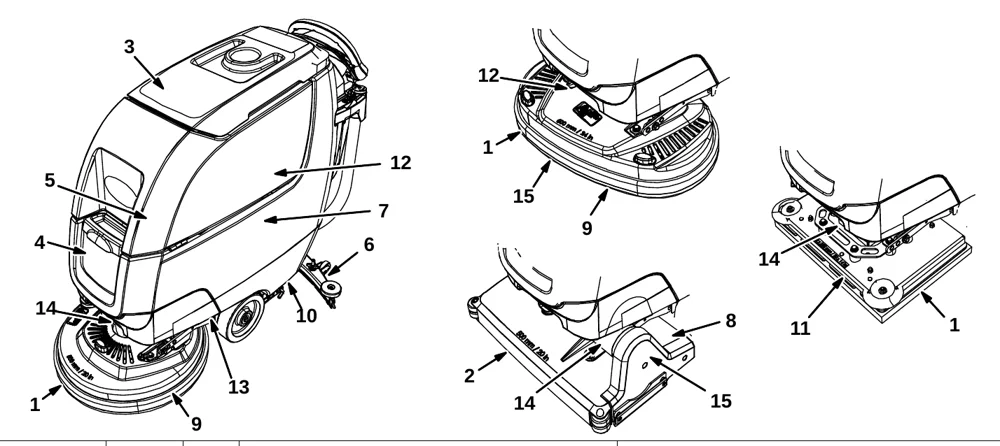
| Interval | Person Resp. | Key | Description | Procedure |
|---|---|---|---|---|
| Daily | O | 1 | Pad(s) | Check, flip or replace |
| O | 1 | Brush(es) | Check, clean | |
| O | 2 | Cylindrical Brushes | Check, clean | |
| O | 3 | Recovery tank | Drain, rinse, clean float shut-off screen and debris tray if equipped | |
| O | 4 | Solution tank | Drain, rinse | |
| O | 5 | Severe environment tank (option) | Check, refill | |
| O | 6 | Squeegee | Clean, check for damage and wear | |
| O | 7 | Batteries | Charge if necessary | |
| O | 8 | Debris trough | Clean | |
| O | 9 | Scrub head skirt | Check for damage and wear | |
| Weekly | O | 7 | Battery cells | Check electrolyte level |
| O | 6 | Squeegee assembly drip trap reservoir | Check, clean | |
| 50 Hours | O | 2 | Cylindrical brushes. | Rotate brushes. Check for wear |
| O | 2 | Cylindrical scrub head | Clean underside of scrub head | |
| O | 3 | Recovery tank lid seal | Check for wear. | |
| O | 10 | Solution tank filter | Clean | |
| 100 Hours | O | 7 | Battery watering system (option) | Check hoses for damage and wear |
| 200 Hours | O | 7 | Batteries, terminals and cables | Check and clean |
| 500 Hours | T | 11 | Lower orbital isolators | Replace (4 qty) |
| 750 Hours | T | 12 | Vacuum motor | Replace carbon brushes |
| 1250 Hours | T | 13 | Propel motor | Replace carbon brushes |
| T | 14 | Brush motor | Replace carbon brushes | |
| T | 15 | Brush belt | Replace belt |
O = Operator T = Trained Personnel
MACHINE MAINTENANCE
To keep the machine in good working condition, simply perform the following maintenance procedures.
AFTER DAILY USE
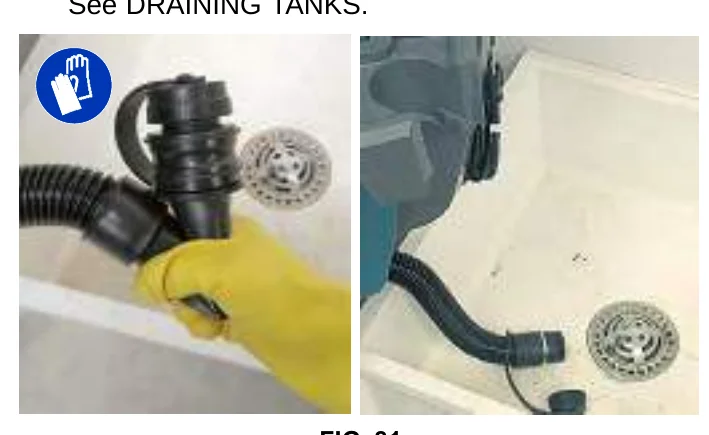
- Drain and rinse out the recovery tank (Figure 81). See DRAINING TANKS.
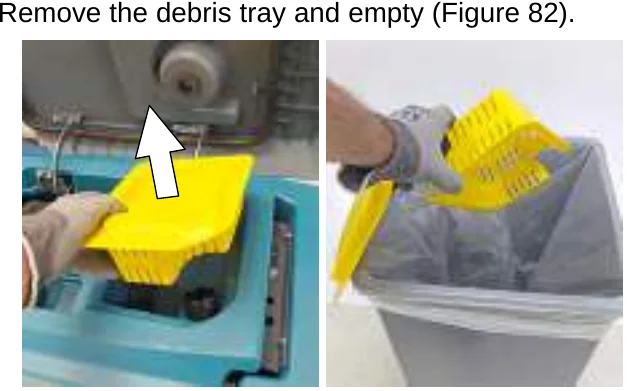
- Remove the debris tray and empty (Figure 82).
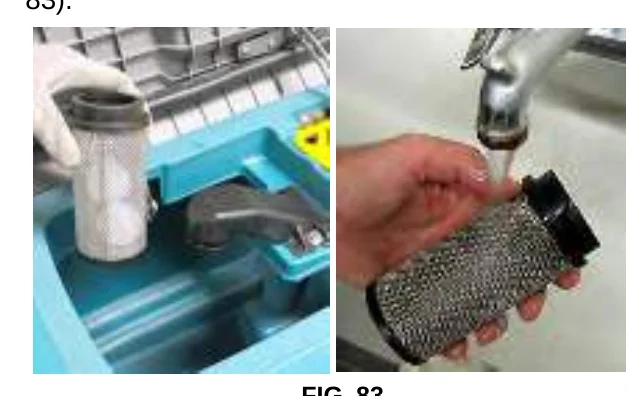
- Remove and clean the float shut-off screen (Figure 83).
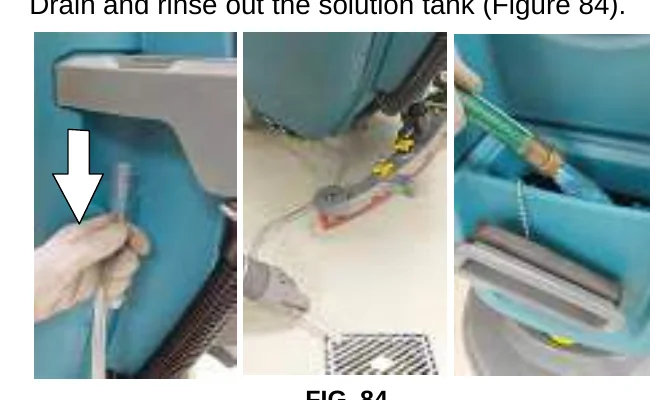
- Drain and rinse out the solution tank (Figure 84).
- Disk scrub head − Turn pad over or replace when worn (Figure 85).
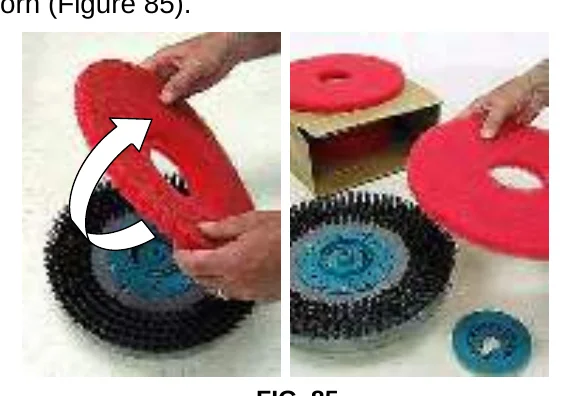
FIG. 85 Orbital scrub head − Turn the work pad over or replace when worn (Figure 86).
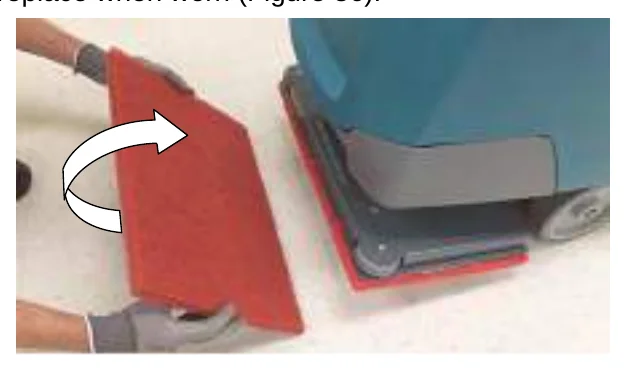
FIG. 86 - Insta-Click pad driver/brushes − clean any debris buildup from hub connection area (Figure 87).
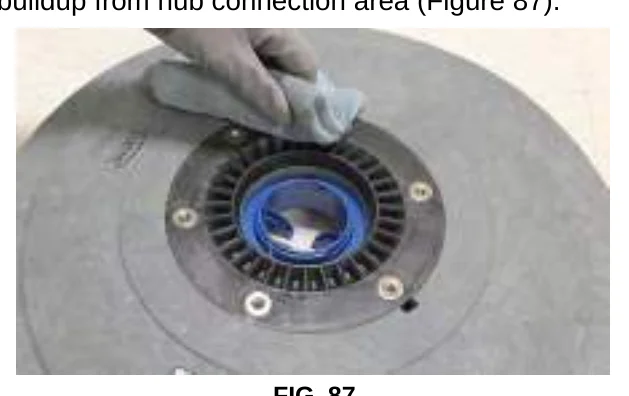
FIG. 87 - Wipe the squeegee blades clean. Inspect blades for wear and damage (Figure 88). Rotate blade if worn. See SQUEEGEE BLADE REPLACEMENT.
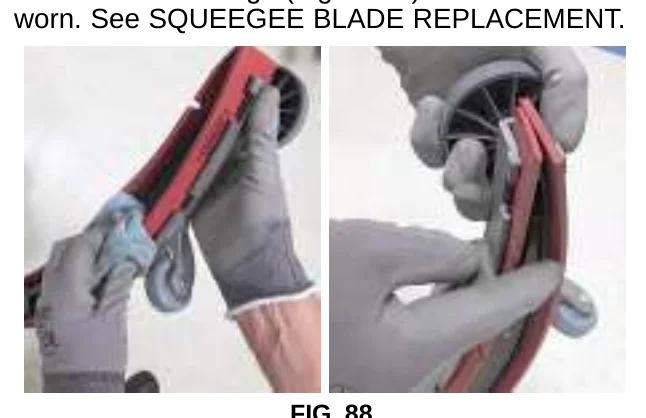
FIG. 88 - Check the scrub head skirt for wear or damage (Figure 89). Replace if worn or damaged.
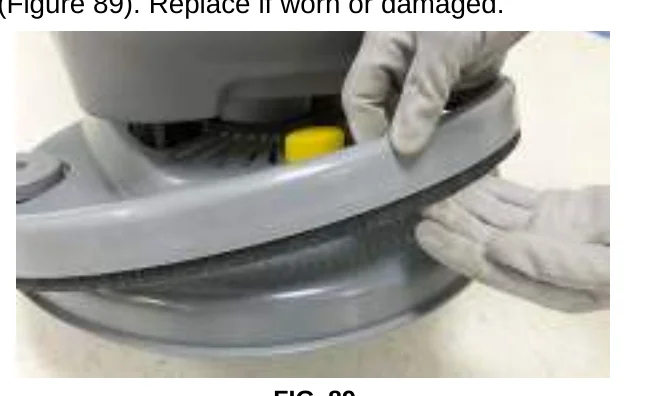
FIG. 89 - Clean the outside surface of the machine with an all purpose cleaner and damp cloth (Figure 90).
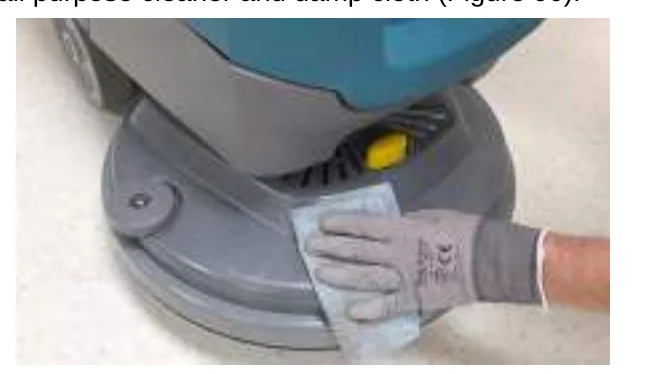
FIG. 90 - Cylindrical scrub head − Remove and clean debris trough (Figure 91).
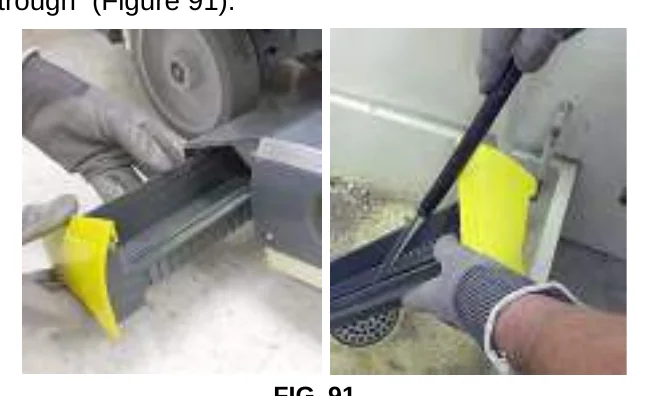
FIG. 91
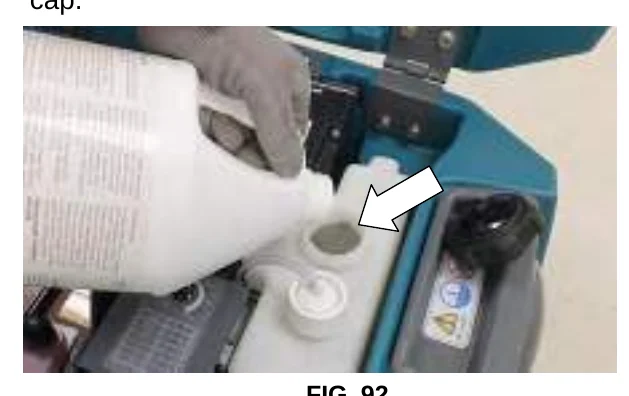
- Severe environment option − Refill the severe environment tank with a recommended cleaning detergent at full concentration (Figure 92). Replace cap.
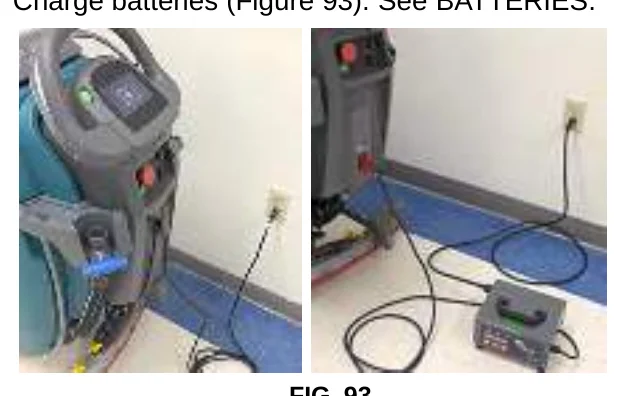
- Charge batteries (Figure 93). See BATTERIES.
AFTER WEEKLY USE
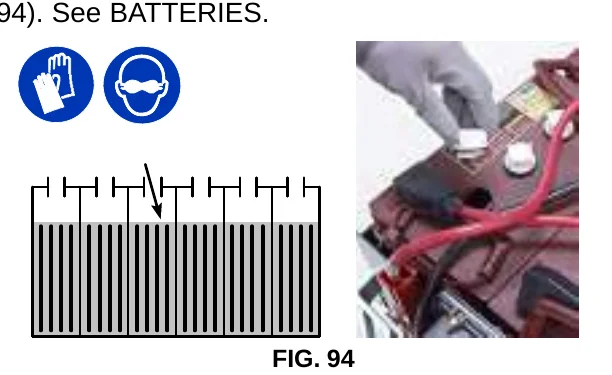
- Check the electrolyte level in all batteries (Figure 94). See BATTERIES.
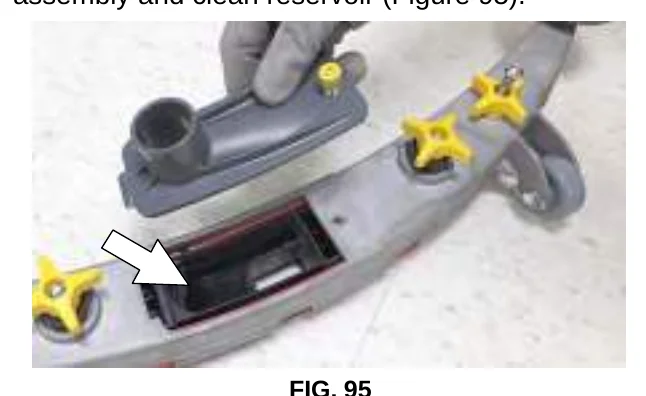
- Remove the drip trap cover from the squeegee assembly and clean reservoir (Figure 95).
AFTER EVERY 50 HOURS OF USE
- Remove the solution tank filter and clean screen (Figure 96). Turn the filter bowl counter-clockwise to remove. Make sure to drain solution tank before removing filter.
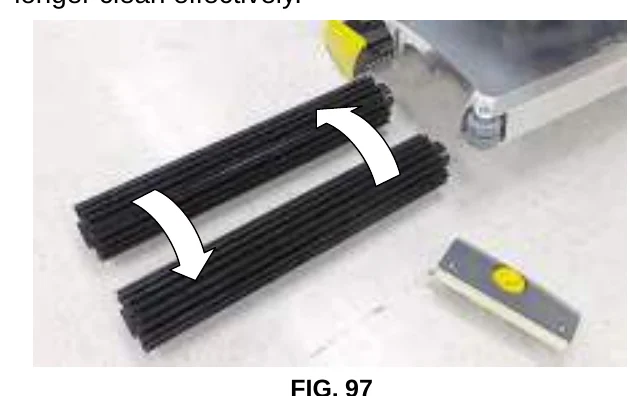
- Cylindrical brushes − Rotate brushes from front to rear (Figure 97). Replace brushes when they no longer clean effectively.
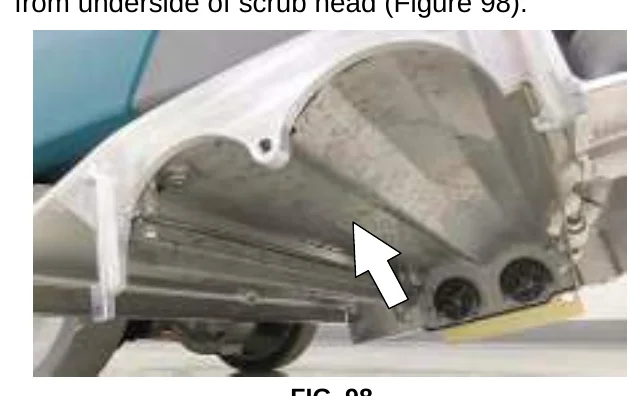
- Cylindrical scrub head − Remove debris buildup from underside of scrub head (Figure 98).
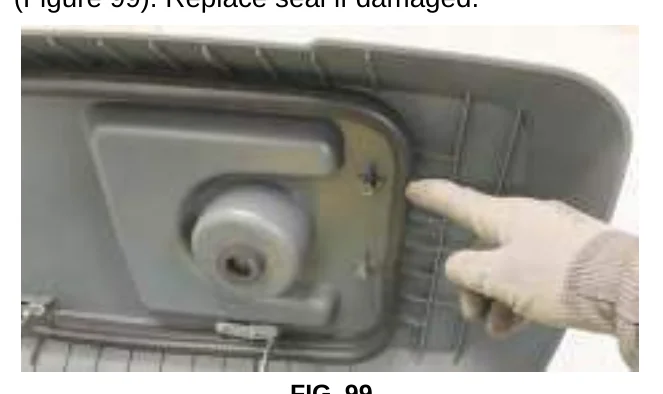
- Inspect and clean the seal on the recovery tank lid (Figure 99). Replace seal if damaged.
AFTER EVERY 100 HOURS OF USE
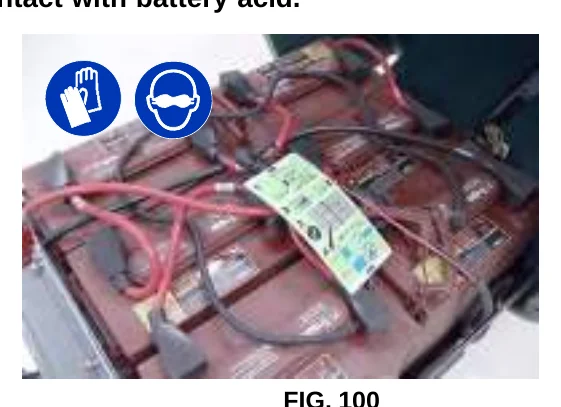
If machine is equipped with the optional battery watering system, check the watering hoses and connections for damage and wear (Figure 100). Replace system if damaged.
ELECTRIC MOTORS
Replace motor carbon brushes as indicated. Contact trained personnel for carbon brush replacement.
| Carbon Brush Replacement | Hours |
|---|---|
| Vacuum motor | 750 |
| Propel motor (drive model) | 1250 |
| Disk brush motor | 1250 |
| Cylindrical brush motor | 1250 |
| Orbital brush motor | 1250 |
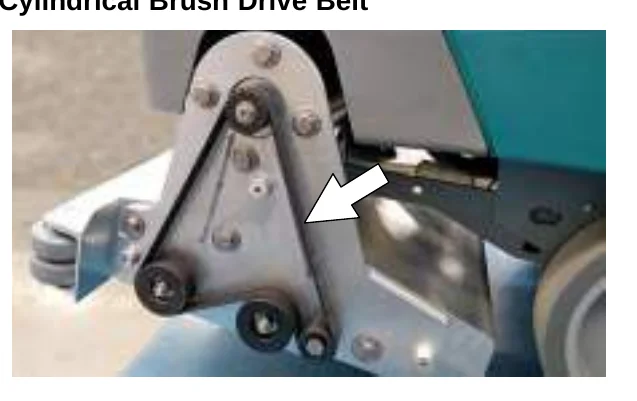
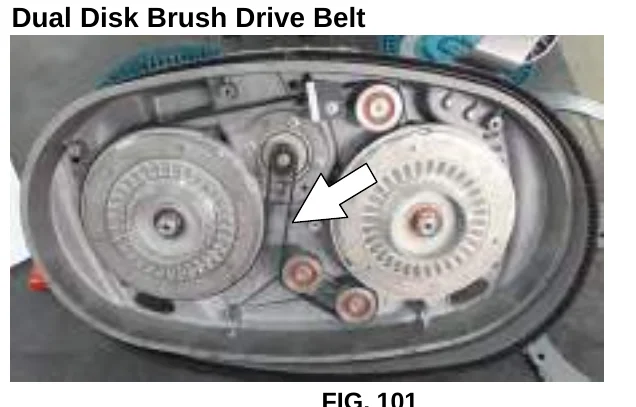
BELTS
Replace belts every 1250 hours. Contact trained personnel for belt replacement (Figure 101).
Cylindrical Brush Drive Belt
Dual Disk Brush Drive Belt
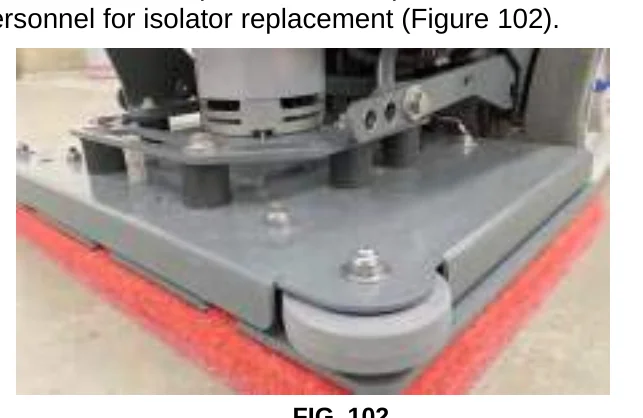
ORBITAL SCRUB HEAD ISOLATORS
Replace the four lower vibration isolators every 500 hours. The lower isolators (hidden) are located between the deck plate the driver plate. Contact trained personnel for isolator replacement (Figure 102).
BATTERIES
Batteries and chargers: make sure your charger is compatible with your batteries, and set its charging algorithm to your battery pack before you use it.
Your machine is equipped with either flooded (wet) lead-acid, maintenance-free (Sealed AGM) batteries or lithium-ion battery supplied by Tennant.
FLOODED (WET) AND MAINTENANCE-FREE SEALED LEAD-ACID BATTERIES
The lifetime of the batteries depends on their proper maintenance. To get the most life from the batteries:
- Do not charge the batteries more than once a day and only after running the machine for a minimum of 15 minutes.
- Do not leave the batteries partially discharged for long period of time.
- Only charge the batteries in a well-ventilated area to prevent gas build up. Charge batteries in areas with ambient temperatures 80°F / 27°C or less.
- Allow the charger to complete charging the batteries before re-using the machine.
- Maintain the proper electrolyte levels of flooded (wet) batteries by checking levels weekly.
Your machine is equipped with either flooded (wet) lead-acid or maintenance-free batteries supplied by Tennant.
Maintenance-free (Sealed AGM) batteries do not require watering. Cleaning and other routine maintenance is still required.
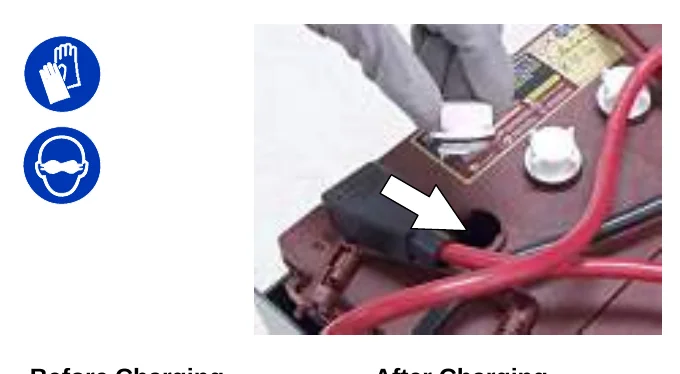
The flooded (wet) lead-acid batteries require routine watering as described below. Check the battery electrolyte level weekly.
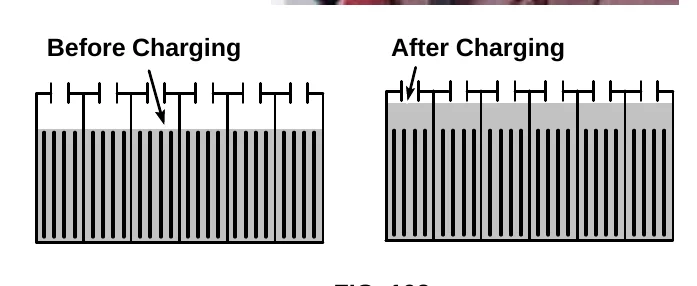
The electrolyte level should be slightly above the battery plates as shown before charging (Figure 103). Add distilled water if low. DO NOT OVERFILL. The electrolyte will expand and may overflow when charging. After charging, distilled water can be added up to about 3 mm (0.12 in) below the sight tubes.
CHECKING CONNECTIONS / CLEANING
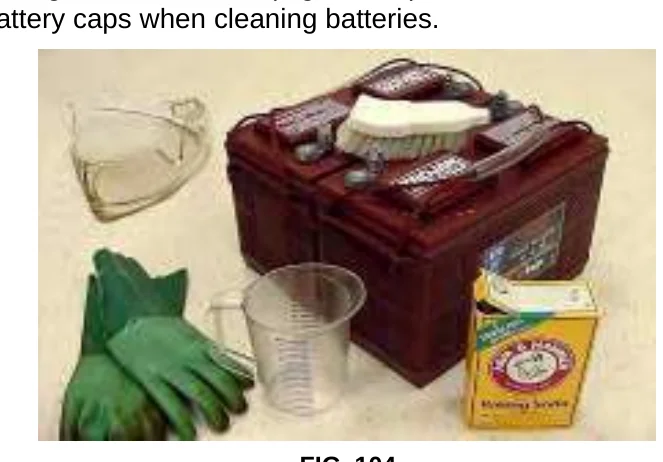
After every 200 hours of use, check for loose battery connections and clean the surface of the batteries, including terminals and cable clamps to prevent battery corrosion. Use a scrub brush with a strong mixture of baking soda and water (Figure 104). Do not remove battery caps when cleaning batteries.
LITHIUM−ION BATTERY
Batteries and chargers: make sure your charger is compatible with your batteries, and set its charging algorithm to your battery pack before you use it.
The lithium−ion battery pack is a maintenance−free battery protected by a battery management system (BMS). To achieve the maximum battery life, carefully follow the instructions below:
- Lithium−Ion batteries must be charged prior to initial use.
- Carefully follow the Important Safety Instructions section in the manual when using the Lithium−ion Battery Model.
- Only use the lithium−ion battery charger supplied with machine.
- Charge battery pack in well−ventilated areas. For best charging performance, charge the battery pack in temperatures below 80°F/27°C and above 32°F/0°C. Battery pack may shut down and not take a charge in elevated or freezing temperatures.
- Do not store the machine for an extended period if battery is discharged to the last bar, the battery may further discharge to a level that is unrecoverable.
- When the machine shuts down due to a depleted battery pack, do not repeatedly cycle the key on and off. This may cause permanent battery pack damage. Recharge battery pack immediately to avoid damage.
- Opportunity charging (i.e. partial charge cycle of a half hour or more) is only recommended if discharge level is below 80%.
- Do not operate machine in temperatures above 104°F / 40°C or below −4°F / −20°C. Machine may shutdown if exceed these temperatures.
- Contact Tennant Service for lithium−ion battery service and replacement.
BATTERY POWER BUTTON / BATTERY DISCHARGE INDICATOR
Each Lithium−Ion battery contains a power button to turn on/off the battery power supply. The battery discharge indicator (BDI) displays the current state of the battery (Figure 105).
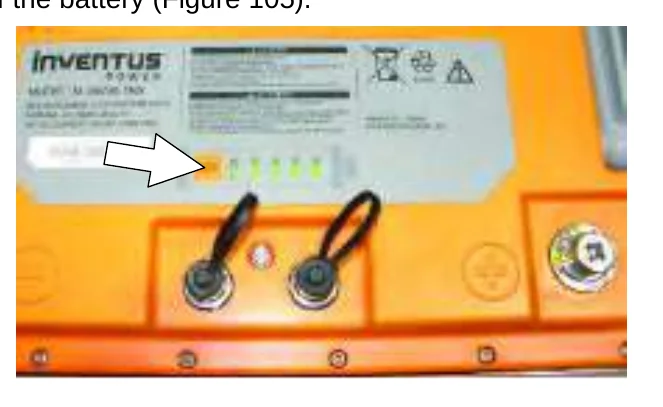
To display the battery charge status or fault state (while the batteries are active), press and hold the power button of any battery for one second. When the batteries are fully charged, all five green indicators are lit. As the battery discharges, the indicator levels decreases. If the indicators flash red the battery is getting very low. If the indicators display solid red along with green, the battery has a fault. Contact Tennant Service to fix the fault.
| LED Indicator Status | Battery State of Charge |
|---|---|
| All five bars green | 81−100% |
| Four bars green | 61−80% |
| Three bars green | 41−60% |
| Two bars green | 21−40% |
| One bar green | 11−20% |
| One bar red | 1−10% |
| Red and green bars | Fault − Contact Service |
To turn off the battery power (while the batteries are active), press and hold the battery power button of any battery for 20 seconds. The battery discharge indicators will turn off. Turning off one battery will shut down power to all connected batteries. Batteries should be shut down before any service is completed on the battery modules.
To turn on the battery power (when the batteries are shutdown), press and hold the power button on each battery for 5 seconds. The battery discharge green indicators will illuminate when turned on.
CHARGING BATTERIES
Batteries and chargers: make sure your charger is compatible with your batteries, and set its charging algorithm to your battery pack before you use it.
The charging instructions in this manual are intended for the battery charger supplied with your machine. The use of other battery chargers that are not supplied and approved by Tennant are prohibited.
If your machine is equipped with an off-board battery charger refer to the charger’s owners manual for operating instructions. Contact distributor or Tennant for battery charger recommendations if machine is not equipped with charger.
- Transport the machine to a well-ventilated area.
- Park the machine on a flat, dry surface, turn off machine and remove key.
- If the machine is equipped with flooded (wet) lead-acid batteries check the battery electrolyte level weekly before charging. See FLOODED (WET) LEAD-ACID BATTERIES.
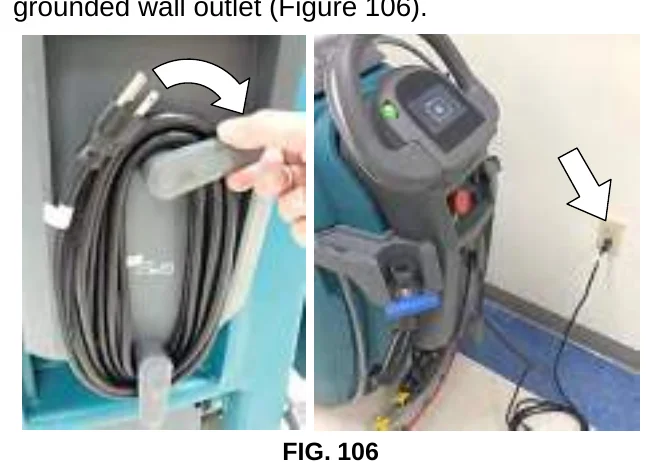
- For models equipped with on-board chargers, remove the charger’s power cord from the storage hooks and plug power cord into a properly grounded wall outlet (Figure 106).
For models equipped with off-board chargers, first connect the charger’s DC cord into the machine’s battery charge receptacle then plug the AC power supply cord into a properly grounded wall outlet (Figure 107). Refer to the off-board battery charger’s owner manual for operating instructions.
- The charger will automatically begin charging and and shut off when fully charged. The maximum charging cycle may take up to 6−12 hours depending on battery type.
For on-board battery charger:
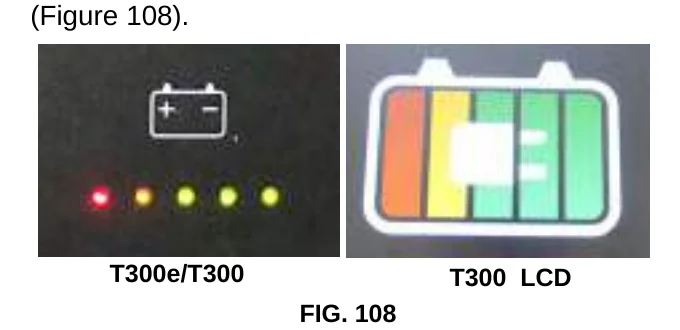
The battery discharge indicator lights will ripple back and forth during the charging cycle. When all five lights repeatedly flash two times, the charging cycle is complete (Figure 108).
For models equipped with lithium−ion batteries: During the charging cycle, starting from left to right, the indicator light will flash, turn solid then progress to the next light. Once the charging cycle completes this process through all five lights, all lights will repeatedly flash two times at the end of the charge cycle. (Figure 108).
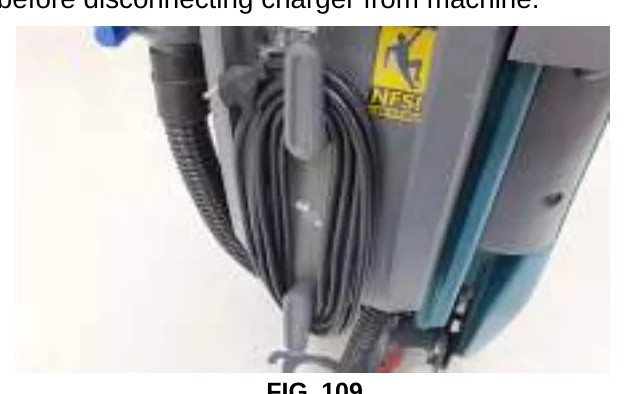
- After charging batteries unplug the power supply cord and wrap cord around the cord hooks (Figure 109).
For models equipped with an off-board charger, always disconnect the AC power supply cord first before disconnecting charger from machine.
BATTERY CHARGER SETTINGS
Batteries and chargers: make sure your charger is compatible with your batteries, and set its charging algorithm to your battery pack before you use it.
The battery charger is set to charge the battery type supplied with your machine. If you choose to change to a different battery type or capacity, the charger’s charging profile must be changed to prevent battery damage.
The machine’s battery discharge indicator (BDI) must also be reprogrammed to match battery type to prevent battery damage and/or short run−time.
IRIS MODELS: For models equipped with capability to report battery charging data via IRIS, Tennant recommends using the same battery type. If a different amp hour or battery type is desired, contact Tennant Service Department.
OFF−BOARD BATTERY CHARGER:
- To change the off−board battery charger settings, refer to the off-board charger’s owner manual.
- To reprogram the machine’s battery discharge indicator (BDI), see below:
Pro/Membrane Models − Service application software required, contact service.
Pro−Panel Model − See CHANGING ON−BOARD BATTERY CHARGER SETTINGS for Pro−Panel model.
ON−BOARD BATTERY CHARGER:
Pro/Membrane Models − To change the on−board battery charger settings, service application software required, contact service. As an alternative, the charger settings may be manually changed. See CHANGING ON−BOARD BATTERY CHARGER SETTINGS for Pro−Membrane model. The battery discharge indicator will automatically reprogram to match battery type when the battery charger profile is changed.
Pro−Panel Model − To change the on−board battery charger settings, see CHANGING ON−BOARD BATTERY CHARGER SETTINGS for Pro−Panel model. The battery discharge indicator will automatically reprogram to match battery selection.
CHANGING ON−BOARD BATTERY CHARGER SETTINGS (Pro/Membrane models)
To manually change the on-board battery charger settings for a different battery type, carefully follow instructions as described below :
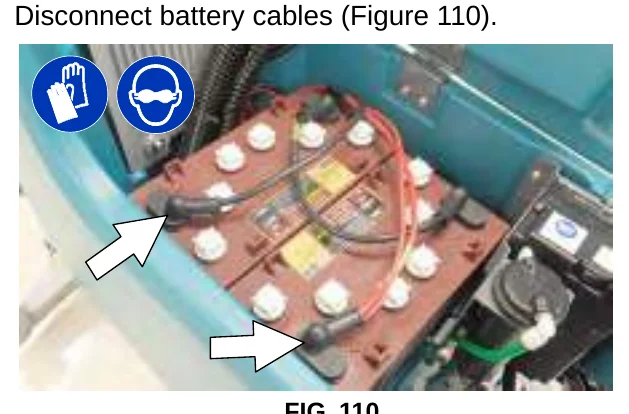
- Disconnect battery cables (Figure 110).
- Unwrap the battery charger power cord from the cord hooks.
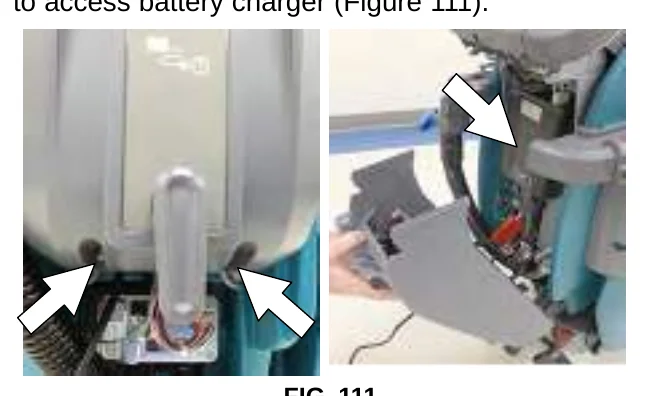
- Using a T25 star screwdriver, remove the two screws located at the bottom of the control console to access battery charger (Figure 111).
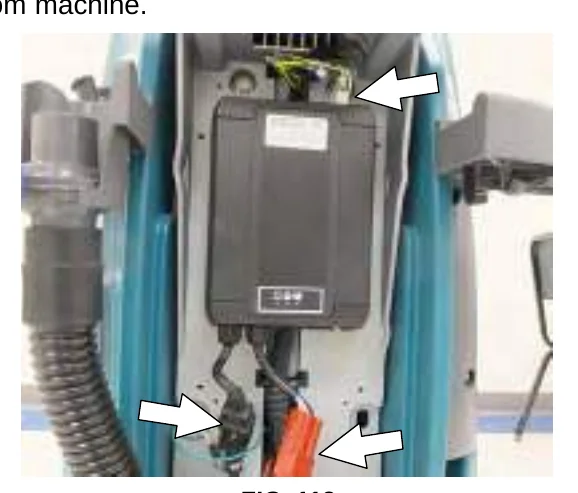
- Disconnect the battery cable, power cord and wire harness from charger. Using a T25 star screwdriver, remove the four screws that mount charger to machine (Figure 112). Remove charger from machine.
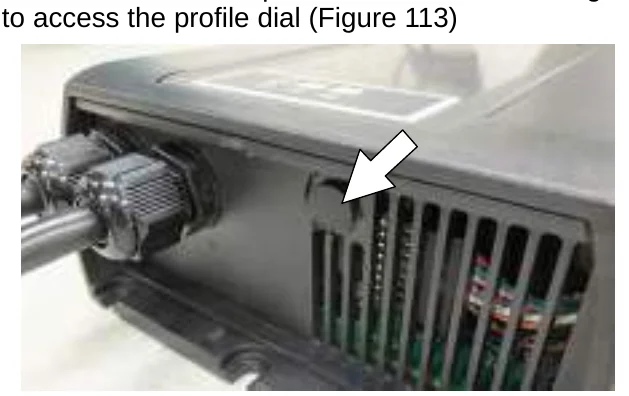
- Remove the black cap from bottom side of charger to access the profile dial (Figure 113)
- Using a small standard screwdriver, turn the dial to the appropriate battery type according to the following chart (Figure 114).
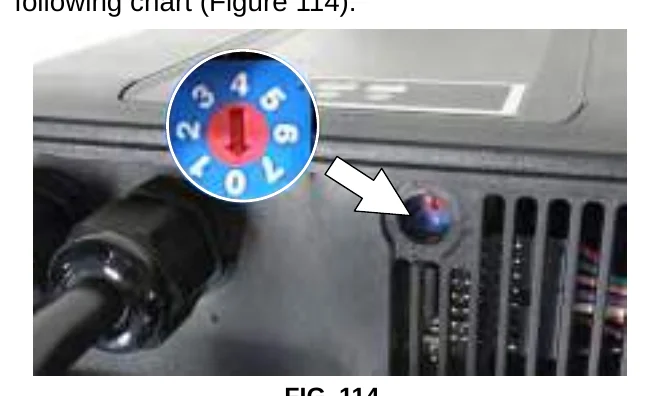
| Dial Position | Battery Description Settings with AH Ranges |
|---|---|
| 0 | CAN−BUS setting* |
| 1 | Wet, Trojan 105−155 AH |
| 2 | Wet, Enersys/Tab 105−155 AH |
| 3 | AGM, Discover 80−150 AH |
| 4 | AGM, Fullriver 80−150 AH |
| 5 | AGM, TPPL, Enersys 20−40 AH |
| 6 | Gel, Sonnenschein 80−150 AH |
* The CAN-BUS setting, dial position “0”, is the software setting that is programmed to match battery type supplied with machine. When the dial is manually changed to a different setting, it should not be reset back to “0” otherwise battery damage may result. Service Application Software is required to reset dial back to “0”. Contact Service.
- Replace the black cap on charger, reinstall battery charger and replace control console.
- Reconnect the battery cable connection.
- To set the BDI for the new battery type, plug the on−board battery charger cord into an electrical outlet. The machine’s software will automatically reprogram the BDI to the new battery type.
CHANGING ON-BOARD BATTERY CHARGER SETTINGS (Pro-Panel model)
Batteries and chargers: make sure your charger is compatible with your batteries, and set its charging algorithm to your battery pack before you use it.
To change the on-board battery charger settings for a different battery type :
- Turn the key to the on position.
- Press the settings button located on the home screen (Figure 115).
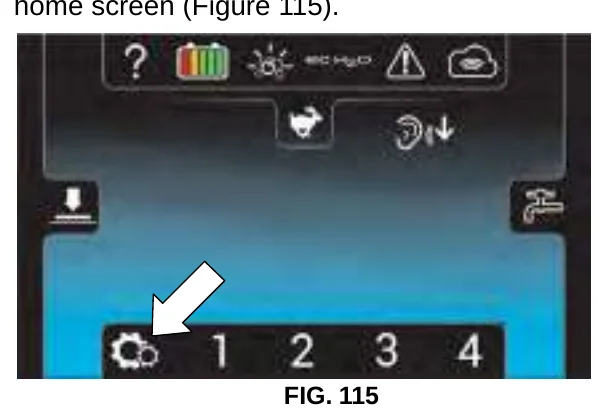
FIG. 115 - Press the Setup button to access the Setup screen (Figure 116).
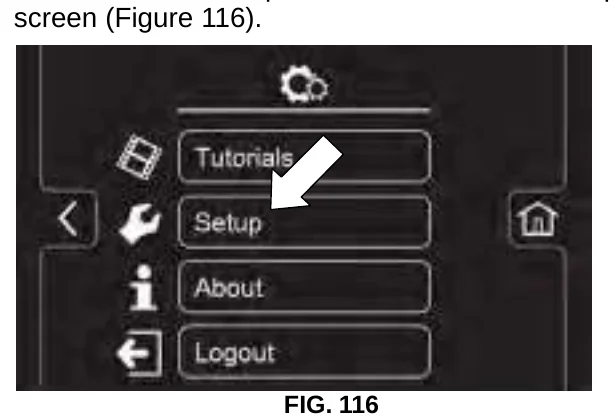
FIG. 116 - Press the Battery Type button to select the battery type installed in machine (Figure 117).
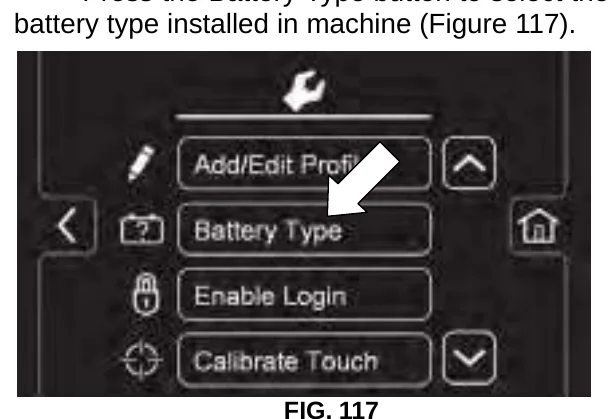
FIG. 117
MANUAL BATTERY WATERING SYSTEM (Trojan Battery OPTION)
Batteries and chargers: make sure your charger is compatible with your batteries, and set its charging algorithm to your battery pack before you use it.
The following instructions are for models equipped with the manual battery watering system option.
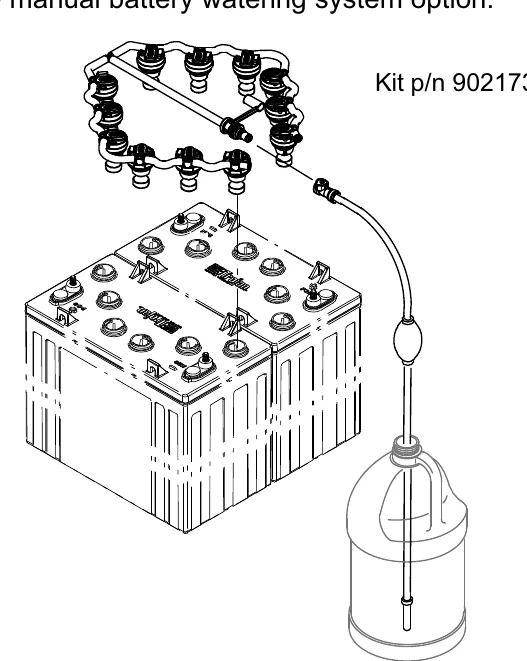
The optional manual battery watering system provides a safe and easy way to maintain the proper electrolyte levels in your batteries. It is designed exclusively for Trojan flooded (wet) lead-acid batteries.
Before using the battery watering system check hoses and connections for damage or wear.
- Fully charge batteries prior to using the battery watering system. Do not add water to batteries before charging, the electrolyte level will expand and may overflow when charging.
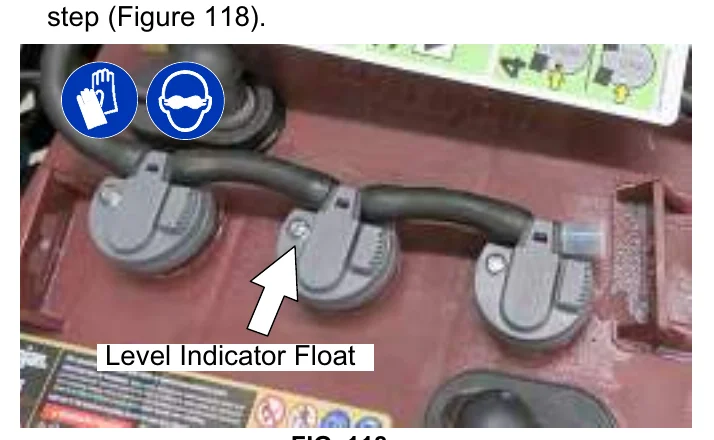
- After charging batteries, check the electrolyte level indicator on each battery cap. If any of the indicator floats are low, add water as described in the next step (Figure 118).
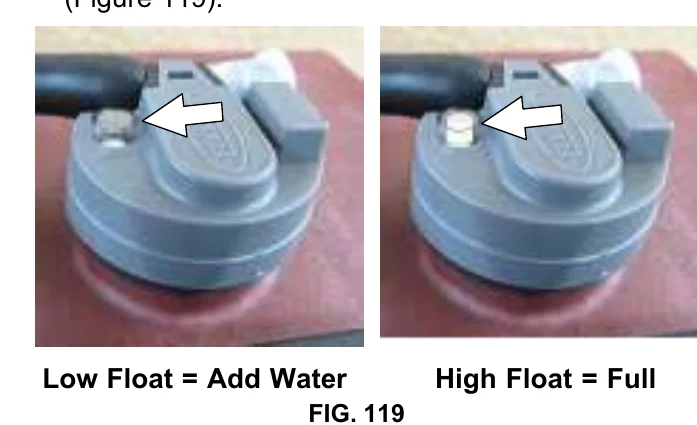
- If the level indicator has a low white float add water as described in the following instructions. (Figure 119).
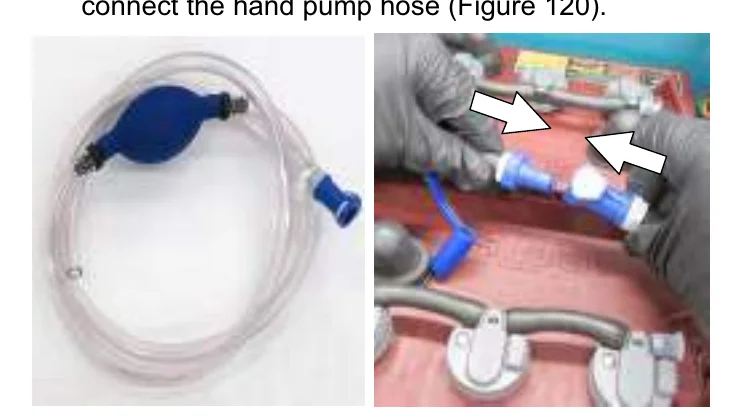
- Locate the battery fill hose coupler inside the battery compartment. Remove the dust cap and connect the hand pump hose (Figure 120).
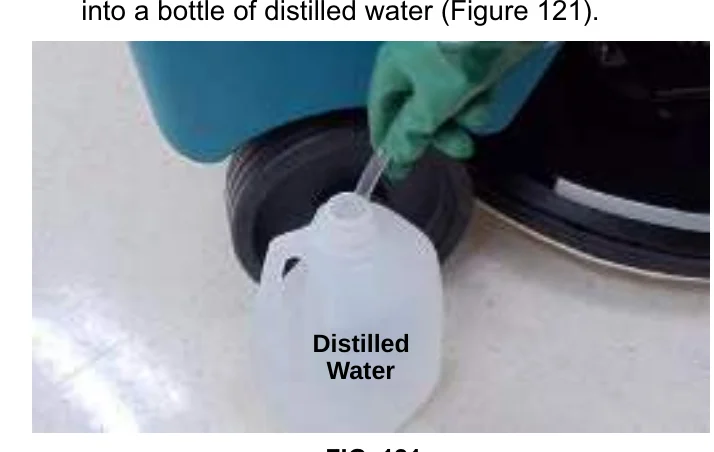
- Submerge the other end of the hand pump hose into a bottle of distilled water (Figure 121).
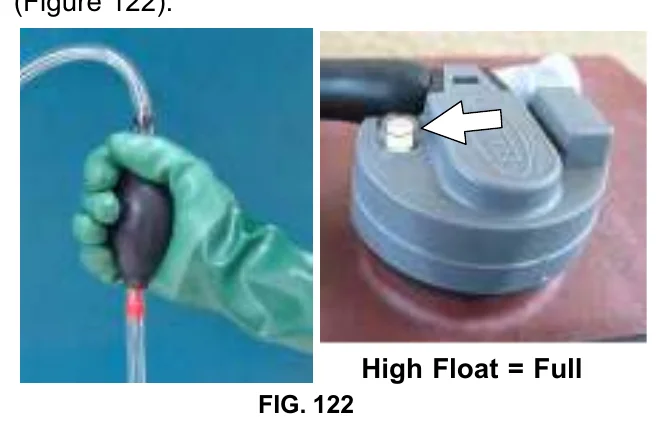
- Squeeze the bulb on the hand pump hose until firm. The indicator float will rise when full (Figure 122).
- After adding water, replace the dust cap on the battery watering distribution hose and store the hand pump hose inside the machine's battery compartment for future use.
SQUEEGEE BLADE REPLACEMENT
Each squeegee blade has four wiping edges. When the blades become worn, simply rotate the blades end-for-end or top-to-bottom for a new wiping edge. Replace blade if all four edges are worn.
- Remove the squeegee assembly from the machine.
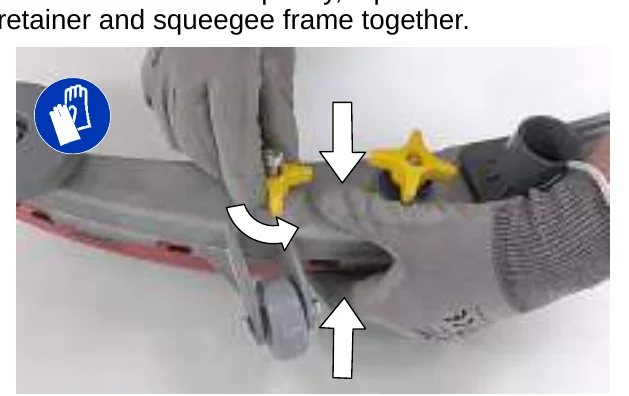
- Fully loosen the two outside knobs on squeegee assembly. This will separate the spring loaded blade retainer from squeegee frame (Figure 123). To loosen the knobs quickly, squeeze the blade retainer and squeegee frame together.
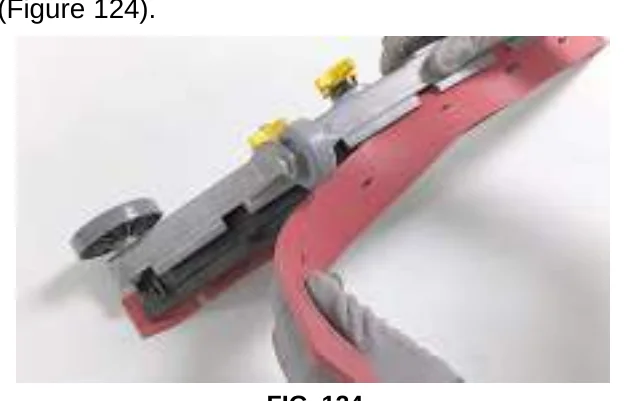
- Remove worn blade(s) from the blade retainer (Figure 124).
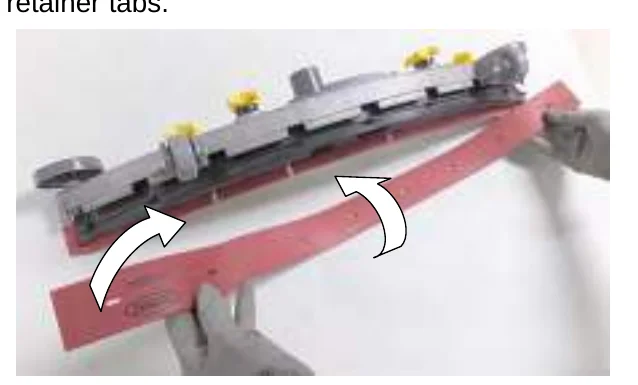
- Rotate the rear blade to a new wiping edge (Figure 125). Make sure to align the slots in the blade with retainer tabs.
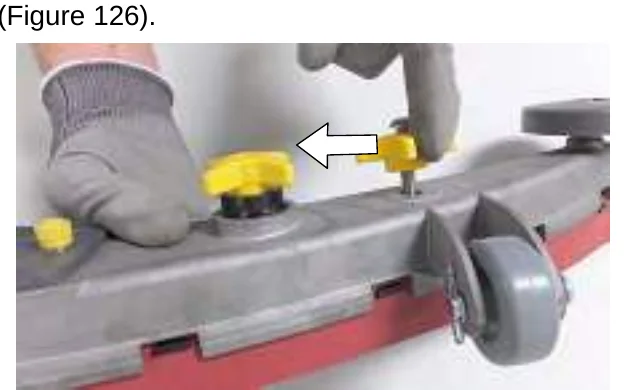
- Squeeze the squeegee frame and blade retainer together and re-tighten the two outside knobs (Figure 126).
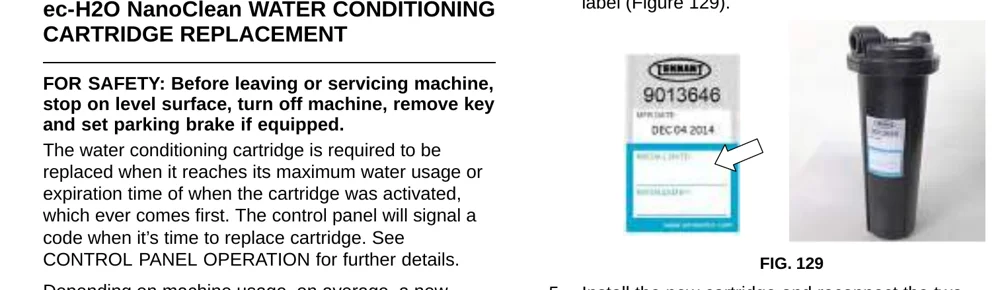
- Fill in the installation date on the new cartridge label (Figure 129).
ec-H2O NanoClean WATER CONDITIONING CARTRIDGE REPLACEMENT
The water conditioning cartridge is required to be replaced when it reaches its maximum water usage or expiration time of when the cartridge was activated, which ever comes first. The control panel will signal a code when it’s time to replace cartridge. See CONTROL PANEL OPERATION for further details.
Depending on machine usage, on average, a new cartridge can last anywhere from 12 months for heavy machine usage to 24 months for light machine usage.
- Park the machine on a level surface, remove the key and set parking brake, if equipped.
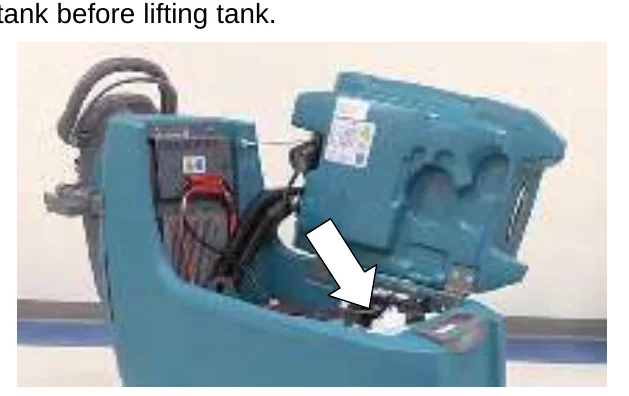
- Lift the recovery tank to access the ec-H2O water conditioning cartridge (Figure 127). Drain recovery tank before lifting tank.
- Disconnect the two hose connectors from the top of the cartridge by pressing the gray collars inward and pulling the connectors outward (Figure 128). Lift cartridge to remove.
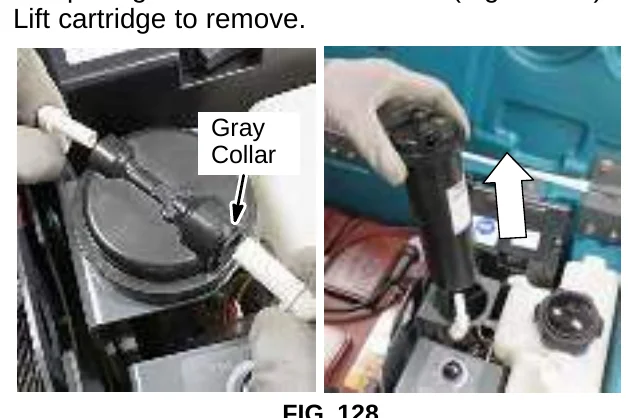
- Install the new cartridge and reconnect the two hoses. Make sure the hose connectors are fully inserted into the cartridge.
- Reset timer for new cartridge.
Carefully read and understand all steps first before performing procedure.
- Turn key on.
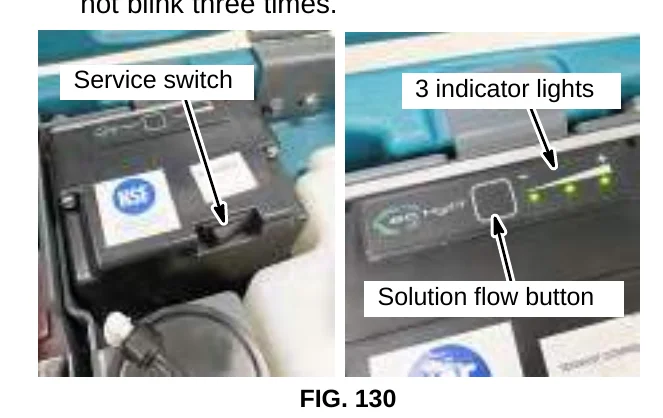
- Press and hold the service switch, located on the ec-H2O module, for 10 seconds. After releasing service switch, the three solution flow indicator lights will begin to (ripple) move back and forth (Figure 130).
- Within 5 seconds after releasing the service switch, while the three indicator lights are moving back and forth, quickly press and release the solution flow button located on ec-H2O module (Figure 130).
The three indicator lights will then blink three times to indicate timer has been reset.
Repeat process if the three indicator lights do not blink three times.
LOADING/UNLOADING MACHINE FOR TRANSPORTING
When transporting the machine by use of trailer or truck, carefully follow the loading and tie-down procedure:
- Raise the scrub head and remove squeegee assembly.
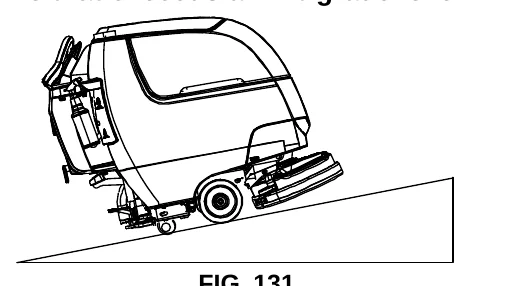
- Use a ramp that can support the machine weight and operator and carefully load machine. Do not operate the machine on a ramp incline that exceeds a 21% grade level (Figure 131). A winch must be used when ramp incline exceeds a 21% grade level.
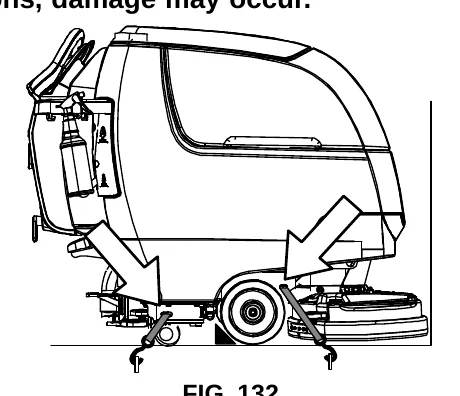
- Once loaded, position the front of the machine up against the front of the trailer or truck. Lower the scrub head, turn key off and set parking brake, if equipped (Figure 132).
- Place a block behind each wheel (Figure 132).
- Using tie-down straps, secure the machine using the four tie-down brackets located on the machine frame (Figure 132). It may be necessary to install tie-down brackets to the floor of your trailer or truck.
STORING MACHINE
Batteries and chargers: make sure your charger is compatible with your batteries, and set its charging algorithm to your battery pack before you use it.
The following steps should be taken when storing the machine for extended periods of time.
- Charge the batteries before storing machine to prolong the life of the batteries. Recharge lead–acid batteries once a month. Recharge Lithium–ion batteries once a year.
- Disconnect batteries before storing.
- Lithium–ion batteries: Turn off battery power with the battery power button.
- Drain and rinse recovery tank and solution tank.
- Store the machine in a dry area with squeegee and scrub head in the up position.
- Open the recovery tank lid to promote air circulation.
- If storing machine machine in freezing temperatures, proceed to FREEZE PROTECTION.
The following steps should be taken when storing the machine for extended periods of time.
FREEZE PROTECTION
Storing machine in freezing temperatures.
- Completely drain solution tank and recovery tank.
- Empty the water from the solution tank filter located under machine. Replace filter.
- Pour 1 gallon / 4 liters of propylene glycol based recreational vehicle (RV) antifreeze into the solution tank.
Models equipped with optional Severe Environment detergent tank - Lift out the tank and empty the detergent from tank. Pour a 1/4 gallon / 1 liter of propylene glycol based recreational vehicle (RV) antifreeze into the detergent tank.
- Turn machine on and operate the solution flow system. Turn the machine off when the antifreeze is visible on floor.
Models equipped with ec-H2O option - Operate ec-H2O scrubbing to cycle antifreeze through system.
Models equipped with Severe Environment mode option - Press the Severe Environment button to cycle antifreeze through system.
- After storing machine in freezing temperatures, drain any remaining antifreeze from the solution tank and from the optional Severe Environment detergent tank. Add clean water to solution tank and to optional detergent tank and operate the machine to flush system.
TROUBLESHOOTING
| PROBLEM | CAUSE | SOLUTION |
|---|---|---|
| Service indicator icon is blinking | Machine or on-board battery charger fault has been detected | See SERVICE INDICATOR CODES |
| ec-H2o indicator icon is red or blinking red | ec-H2O system fault has been detected | See SERVICE INDICATOR CODES |
| Machine will not operate | Emergency stop button activated | Turn button to reset |
| Machine fault detected | See SERVICE INDICATOR CODES | |
| Batteries discharged | Recharge batteries | |
| Loose battery cable(s) | Tighten loose cables | |
| Faulty battery(s) | Replace battery(s) | |
| Faulty key switch | Contact service | |
| Faulty start bail switch | Contact service | |
| Circuit breaker tripped | Reset circuit breaker | |
| Faulty control board | Contact service | |
| On-board battery charger will not operate | Plug not connected to power supply | Check plug connection |
| Batteries over discharged | Replace batteries | |
| Battery charger fault detected | See SERVICE INDICATOR CODES | |
| Faulty charger | Replace charger | |
| Machine will not propel (Drive Model) | Propel fault has been detected. | See SERVICE INDICATOR CODES |
| Circuit breaker tripped | Reset circuit breaker | |
| Faulty propel motor or wiring | Contact service | |
| Worn carbon brushes in motor | Contact service | |
| Brush motor will not operate | Brush motor fault has been detected. | See SERVICE INDICATOR CODES |
| Faulty pad motor or wiring | Contact service | |
| Worn carbon brushes in motor | Contact service | |
| Broken or loose belt (dual disk/cylindrical models) | Contact service | |
| Vacuum motor will not operate | Squeegee assembly is raised off floor | Lower squeegee assembly to floor |
| Vacuum motor fault has been detected | See SERVICE INDICATOR CODES | |
| Faulty vacuum motor or wiring | Contact service | |
| Poor scrubbing performance | Debris caught in brush/pad | Remove debris |
| Worn brush/pad | Replace brushes/pad | |
| Incorrect brush pressure | Adjust brush pressure | |
| Wrong brush/pad type | Use correct brush/pad for application | |
| Low battery charge | Recharge batteries |
TROUBLESHOOTING − Continued
| PROBLEM | CAUSE | SOLUTION |
|---|---|---|
| Trailing water − poor or not water pickup | Full recovery tank or excessive foam buildup | Drain recovery tank |
| Loose drain hose cap or flow control valve is open | Replace cap or close flow control valve on drain hose | |
| Worn squeegee blades | Rotate or replace squeegee blades | |
| Clogged drip trap (Squeegee assembly) | Remove cover and clean | |
| Clogged squeegee assembly | Clean squeegee assembly | |
| Loose vacuum hose connection | Secure vacuum hose connection | |
| Clogged vacuum hose | Flush vacuum hose | |
| Clogged vacuum hose | Flush vacuum hose | |
| Damaged vacuum hose | Replace vacuum hose | |
| Clogged float shut-off screen in recovery tank | Clean screen | |
| Recovery tank lid not completely closed | Check lid for obstructions | |
| Defective seals on recovery tank lid | Replaced seal | |
| Little or no solution flow | Empty solution tank | Refill solution tank |
| Low solution flow rate set | Increase solution flow rate | |
| Clogged solution tank filter | Clean filter | |
| Plugged solution supply line | Flush solution supply line | |
| Severe environment tank does not dispense detergent | No detergent | Refill tank |
| Faulty float switch | Contact service | |
| Defective pump | Contact service | |
| Defective pump potentiometer | Contact service | |
| Faulty control panel | Contact service | |
| Short run time | Low battery charge | Charge batteries |
| Batteries need maintenance | See BATTERIES | |
| Defective battery or end of battery life | Replace batteries | |
| Battery discharge indicator (BDI) programmed incorrectly | See BATTERY CHARGER SETTINGS | |
| Faulty charger | Replace battery charger | |
| Brush pressure set too high | Lower brush pressure. |
SPECIFICATIONS
GENERAL MACHINE DIMENSIONS/CAPACITIES/PERFORMANCE
Batteries and chargers: make sure your charger is compatible with your batteries, and set its charging algorithm to your battery pack before you use it.
| MODEL | 17 in / 43 cm Disk (Push) | 20 in / 50 cm Disk (Push) | 17 in / 43 cm Disk (Drive) | 20 in / 50 cm Disk (Drive) |
|---|---|---|---|---|
| Length | 51.25 in / 1302 mm | 54 in / 1372 mm | 51.25 in / 1302 mm | 54 in / 1372 mm |
| Width | 20 in / 508 mm | 22 in / 559 mm | 20 in / 508 mm | 22 in / 559 mm |
| Height | 43.1 in / 1095 mm | 43.1 in / 1095 mm | 43.1 in / 1095 mm | 43.1 in / 1095 mm |
| Weight | 220 lb / 98 kg | 230 lb / 104 kg | 230 lb / 104 kg | 240 lb / 109 kg |
| Weight (with batteries) | 366 lb / 166 kg | 376 lb / 171 kg | 390 lb / 177 kg | 400 lb / 181 kg |
| GVW | 457 lb / 207 kg | 467 lb / 212 kg | 482 lb / 219 kg | 492 lb / 223 kg |
| Squeegee width | 30.4 in / 772 mm | |||
| Recovery tank capacity | 14 gal / 53 L | |||
| Solution tank capacity | 11 gal / 42 L | |||
| Severe Environment tank capacity | .4 gal / 1.5 L | |||
| Scrubbing path width | 16.9 in / 430 mm | 19.9 in / 505 mm | 16.9 in / 430 mm | 19.9 in / 505 mm |
| Down pressure − Actuated model | Low: 47 lbs / 21.3 kg Med: 73 lbs / 33 kg High: 88 lbs / 40 kg | Low: 52 lbs / 23.5 kg Med: 77 lbs / 35 kg High: 92 lbs / 41.7 kg | Low: 47 lbs / 21.3 kg Med: 71 lbs / 32 kg High: 86 lbs / 39 kg | Low: 51 lbs / 23 kg Med: 76 lbs / 34.5 kg High: 90 lbs / 41 kg |
| Down pressure − Manual model | 47 lbs / 21.3 kg | 52 lbs / 23.5 kg | 47 lbs / 21.3 kg | 51 lbs / 23 kg |
| Dual down pressure − Manual model | 88 lbs / 40 kg | 92 lbs / 41.7 kg | 86 lbs / 39 kg | 90 lbs / 41 kg |
| Scrubbing speed | Pad assist | 200 fpm / 61 mpm | ||
| Transport speed | n/a | n/a | 240 fpm / 73 mpm | |
| Reverse speed | n/a | n/a | 144 fpm / 44 mpm | |
| Productivity rate − estimated actual | 9,340ft2/hr / 868m2/hr | 11,208ft2/hr / 1041m2/hr | 12,453ft2/hr / 1157m2/hr | 14,943ft2/hr / 1388m2/hr |
| ec-H2O productivity rate − est. actual | 9,668 ft2/hr / 898 m2/hr | 11,602ft2/hr / 1078m2/hr | 12,891ft2/hr / 1198m2/hr | 15,469ft2/hr / 1437m2/hr |
| Aisle turnaround width | 52 in / 1321 mm | 54.5 in / 1384 mm | 52 in / 1321 mm | 54.5 in / 1384 mm |
| Ramp incline for scrubbing | 9% maximum | |||
| Ramp incline for transporting | 21% maximum | |||
| Ramp incline for loading−empty tanks | 21% maximum | |||
| Solution flow rate | Low: .15 gpm / .57 L/min, Med: .35 gpm / 1.3 L/min, High: .5 gpm / 1.9 L/min | |||
| ec-H2O solution flow rate | Low: .12 gpm / .45 L/min, Med: .25 gpm / .94 L/min, High: .35 gpm / 1.3 L/min | |||
| Brush motor | 24 VDC, .87hp / .65kW | |||
| Propel motor | n/a | n/a | 24 VDC, .23 hp / .175 kW | |
| Vacuum motor | 24 VDC, .6hp / .47kW | |||
| Water lift | 42 in / 1067 mm | |||
| Water lift Quiet−Mode | 28 in / 711 mm | |||
| ec-H2O solution pump | 24 VDC, 1.0 gpm / 3.8 L/min, min open flow | |||
| Machine voltage | 24 VDC | |||
| Battery capacity | 2−12V 105AH C/20 Wet, 2−12V 130AH C/20 Wet, 2−12V 150AH C/20 Wet, 2−12V 140AH C/20 Sealed/AGM, 1−24V 90Ah Lithium−ion | |||
| Total power consumption | 31.5A nominal | 36.5A nominal | 34.5A nominal | 39.5A nominal |
| Battery Charger − on-board | 100−240VAC, 50/60Hz, 24VDC, 13A | |||
| Battery Charger − smart off-board | 100−240VAC, 50/60Hz, 24VDC, 13A | |||
| Battery Charger − on-board (Lithium−ion battery model) | 100−240VAC, 50/60Hz, 24VDC, 27A | |||
| Battery Charger − smart off-board (Lithium−ion battery model) | 100−240VAC, 50/60Hz, 24VDC, 27A | |||
| Protection grade | IPX3 | |||
| Sound pressure level LpA* | 64.9 dB(A) | 64.9 dB(A) | 64.9 dB(A) | 64.9 dB(A) |
| Sound pressure level LpA* − Quiet mode | 57.8 dB(A) | 57.8 dB(A) | 57.8 dB(A) | 57.8 dB(A) |
| Sound uncertainty KpA* | 0.8 dB(A) | 0.8 dB(A) | 0.8 dB(A) | 0.8 dB(A) |
| Sound power level uncertainty LpA − uncertainty KpA* | 84.3 dB(A) | 84.3 dB(A) | 84.3 dB(A) | 84.3 dB(A) |
| Machine vibration at hand-arm* | <2.5 m/s2 | |||
| Ambient operating temperature | Min: 32°F/0°C, Max: 110°F/43°C | |||
*Values per IEC 60335−2−72. Specifications are subject to change without notice.
SPECIFICATIONS
GENERAL MACHINE DIMENSIONS/CAPACITIES/PERFORMANCE
Batteries and chargers: make sure your charger is compatible with your batteries, and set its charging algorithm to your battery pack before you use it.
| MODEL | 24 in / 60 cm Dual Disk | 20 in / 50 cm Cylindrical Brush | 20 in / 50 cm Orbital |
|---|---|---|---|
| Length | 51.75 in / 1314 mm | 50.5 in / 1283 mm | 49 in / 1245 mm |
| Width | 26 in / 660 mm | 25 in / 635 mm | 20.5 in / 521 mm |
| Height | 43.1 in / 1095 mm | 43.1 in / 1095 mm | 43.1 in / 1095 mm |
| Weight | 250 Ib / 113 kg | 250 Ib / 113 kg | 255 Ib / 116 kg |
| Weight (with batteries) | 410 Ib / 186 kg | 410 Ib / 186 kg | 415 Ib / 188 kg |
| GVW | 502 Ib / 228 kg | 502 Ib / 228 kg | 507 Ib / 230 kg |
| Squeegee width | 30.4 in / 772 mm | ||
| Recovery tank capacity | 14 gal / 53 L | ||
| Solution tank capacity | 11 gal / 42 L | ||
| Severe Environment tank capacity | .4 gal / 1.5 L | ||
| Scrubbing path width | 23.6 in / 600 mm | 19.7 in / 500 mm | 19.7 in / 500 mm |
| Down pressure − Actuated model | Low: 57 lbs / 26 kg Med: 81 lbs / 36.7 kg High: 97 lbs / 44 kg | Low: 53 lbs / 24 kg Med: 60 lbs / 27 kg High: 64 lbs / 29 kg | Low: 63 lbs / 28.5 kg Med: 92 lbs / 42 kg High: 109 lbs / 49.5 kg |
| Down pressure − Manual model | 57 lbs / 26 kg | 53 lbs / 24 kg | 63 lbs / 28.5 kg |
| Dual down pressure − Manual model | 97 lbs / 44 kg | 64 lbs / 29 kg | 109 lbs / 49.5 kg |
| Scrubbing speed | 200 fpm / 61 mpm | ||
| Transport speed | 240 fpm / 73 mpm | ||
| Reverse speed | 144 fpm / 44 mpm | ||
| Productivity rate − estimated actual | 18,264ft2/hr / 1697m2/hr | 14,943ft2/hr / 1388m2/hr | 14,943ft2/hr / 1388m2/hr |
| ec-H2O productivity rate − est. actual | 18,906ft2/hr / 1756m2/hr | 15,469ft2/hr / 1437m2/hr | 15,469ft2/hr / 1437m2/hr |
| Aisle turnaround width | 53.5 in / 1346 mm | 52 in / 1321 mm | 49 in / 1245 mm |
| Ramp incline for scrubbing | 9% max. | ||
| Ramp incline for transporting | 21% max. | ||
| Ramp incline for loading−empty tanks | 21% max. | ||
| Solution flow rate | Low: .15 gpm / .57 L/min Med: .35 gpm / 1.3 L/min High: .5 gpm / 1.9 L/min | Low: .15 gpm / .57 L/min Med: .28 gpm / 1.0 L/min High: .35 gpm / 1.3 L/min | Low: .15 gpm / .57 L/min Med: .35 gpm / 1.3 L/min High: .5 gpm / 1.9 L/min |
| ec−H2O solution flow rate | Low: .12 gpm / .45 L/min, Med: .25 gpm / .94 L/min, High: .35 gpm / 1.3 L/min | ||
| Brush motor | 24 VDC, .87hp / .65kW | ||
| Propel motor | 24 VDC, .23 hp / .175kW | ||
| Vacuum motor | 24 VDC, .6 hp / .47 kW | ||
| Water lift | 42 in / 1067 mm | ||
| Water lift − Quiet-Mode | 28 in / 711 mm | ||
| ec−H2O solution pump | 24 VDC, 1.0 gpm / 3.8 L/min, min open flow | ||
| Machine voltage | 24 VDC | ||
| Battery capacity | 2−12V 105AH C/20 Wet 2−12V 130AH C/20 Wet, 2−12V 150AH C/20 Wet 2−12V 140AH C/20 Sealed/AGM 1−24V 90AH Lithium−ion | 2−12V 150AH C/20 Wet 2−12V 140AH C/20 Sealed/AGM 1−24V 90AH Lithium−ion | 2−12V 105AH C/20 Wet 2−12V 130AH C/20 Wet, 2−12V 150AH C/20 Wet 2−12V 140AH C/20 Sealed/AGM 1−24V 90AH Lithium−ion |
| Total power consumption | 36A nominal | 40A nominal | 30A nominal |
| Battery Charger − on-board | 100−240VAC, 50/60Hz, 24VDC, 13A | ||
| Battery Charger − smart off-board | 100−240VAC, 50/60Hz, 24VDC, 13A | ||
| Battery Charger − on-board (Lithium−ion battery model) | 100−240VAC, 50/60Hz, 24VDC, 27A | ||
| Battery Charger − smart off-board (Lithium−ion battery model) | 100−240VAC, 50/60Hz, 24VDC, 27A | ||
| Protection grade | IPX3 | ||
| Sound pressure level LpA* | 66.5 dB(A) | 64.7 dB(A) | 65.3 dB(A) |
| Sound pressure level LpA* − Quiet mode | 59.1 dB(A) | 61.3 dB(A) | 57.6 dB(A) |
| Sound uncertainty KpA* | 0.8 dB(A) | 0.8 dB(A) | 0.8 dB(A) |
| Sound power level uncertainty LpA − uncertainty KpA* | 83.8 dB(A) | 84.2 dB(A) | 83.5 dB(A) |
| Machine vibration at hand-arm* | <2.5 m/s2 | ||
| Ambient operating temperature | Min: 32°F/0°C, Max: 110°F/43°C | ||
*Values per IEC 60335−2−72. Specifications are subject to change without notice.
MACHINE DIMENSIONS
SINGLE DISK MODEL
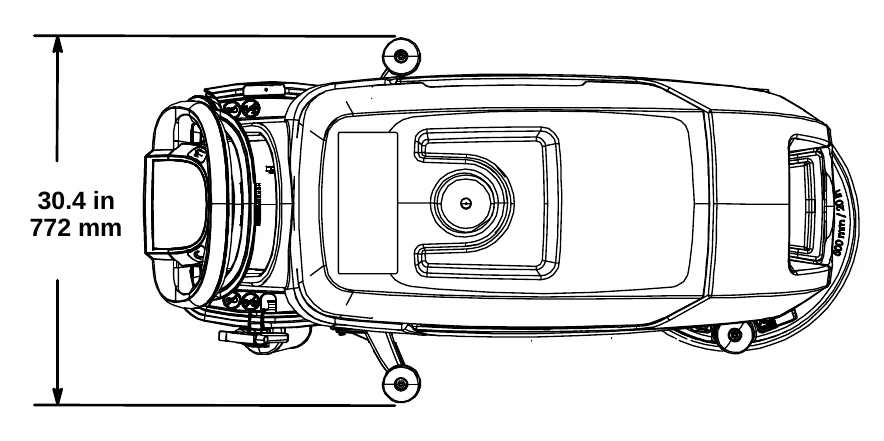
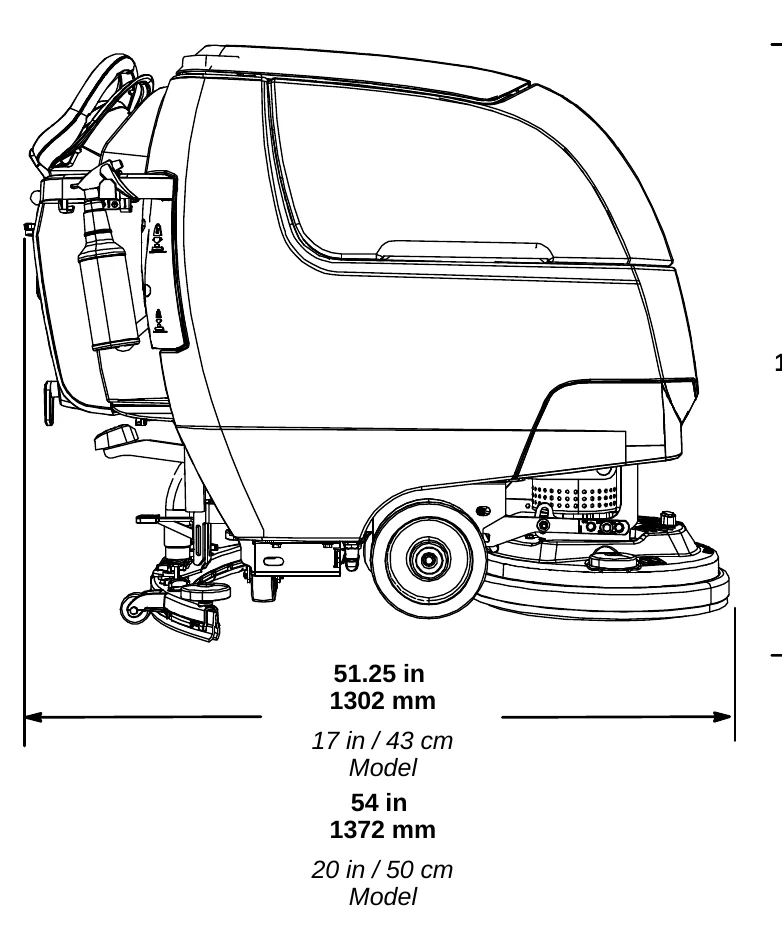
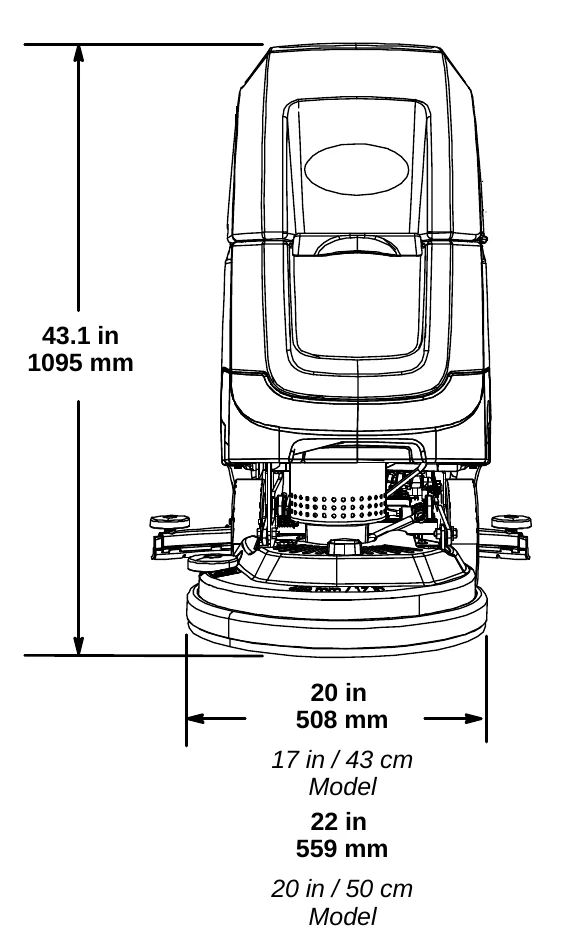
DUAL DISK MODEL
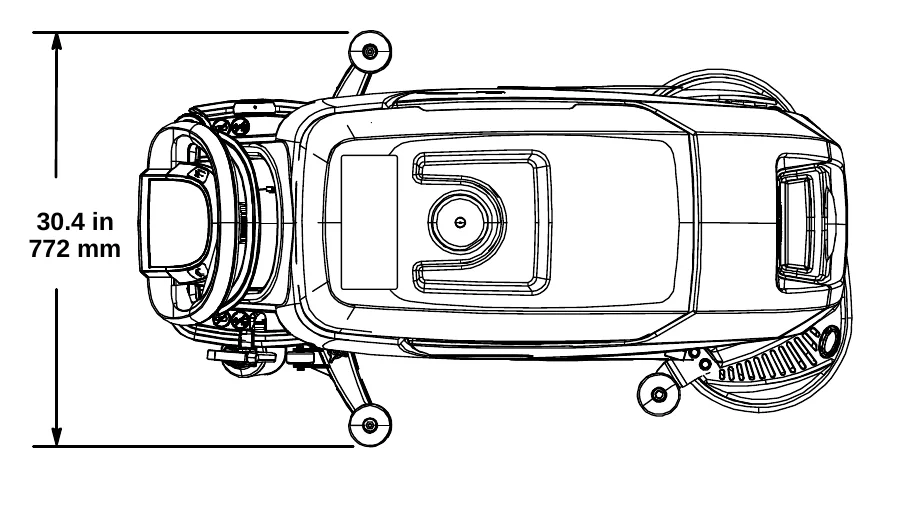
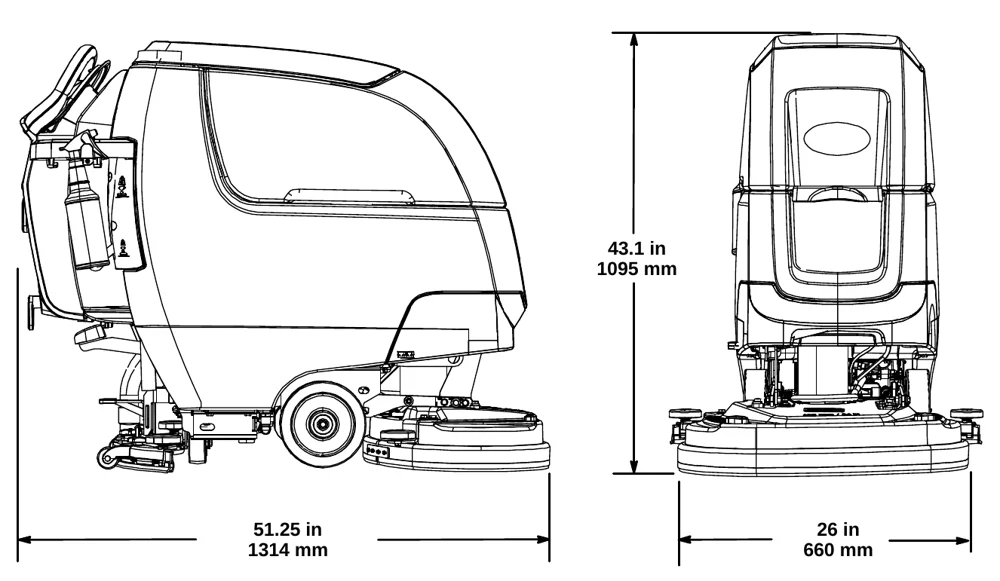
SPECIFICATIONS
CYLINDRICAL BRUSH MODEL
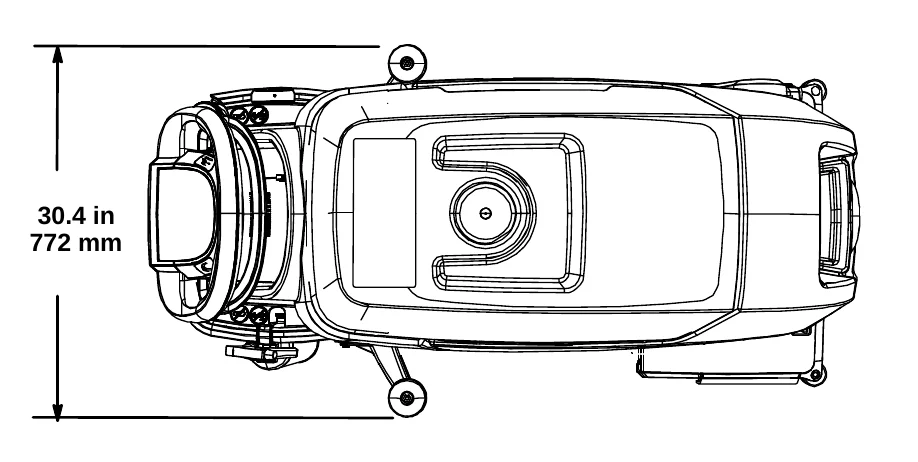
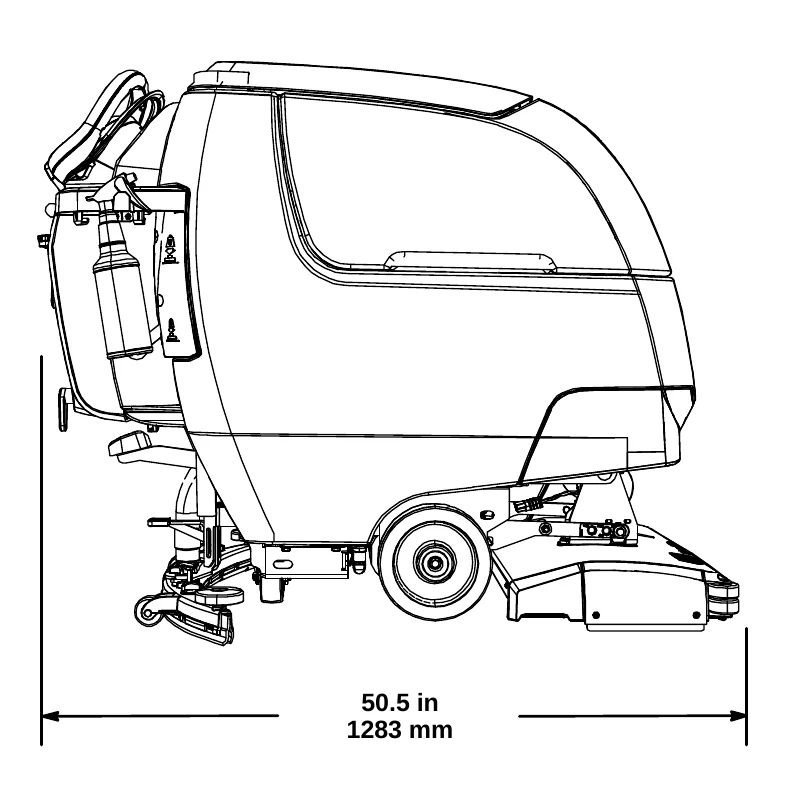
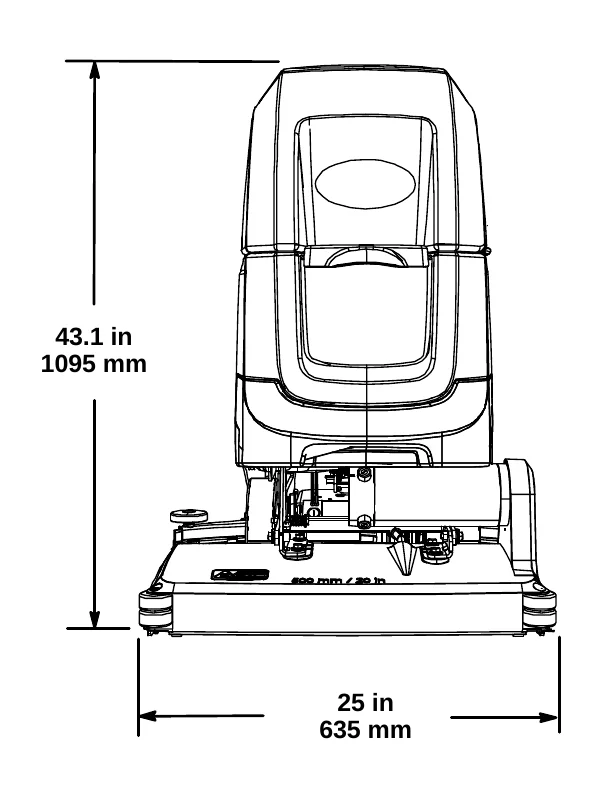
ORBITAL PAD MODEL
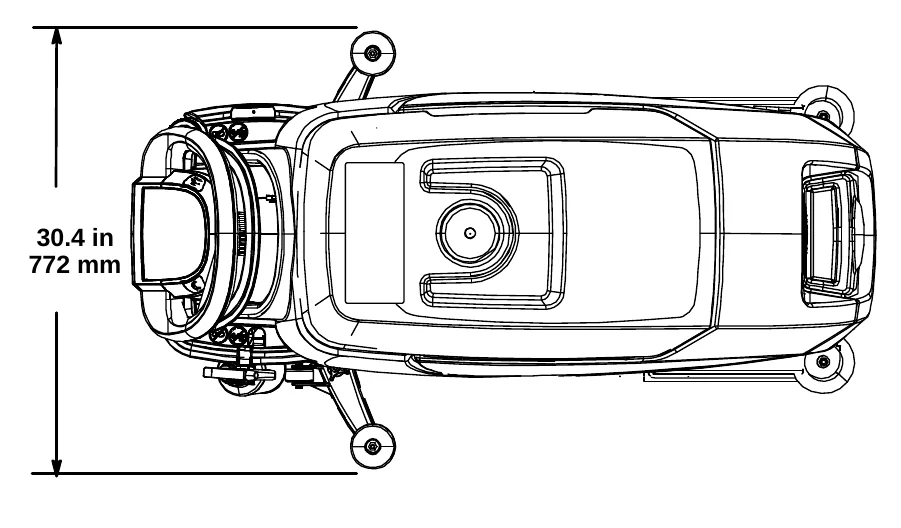
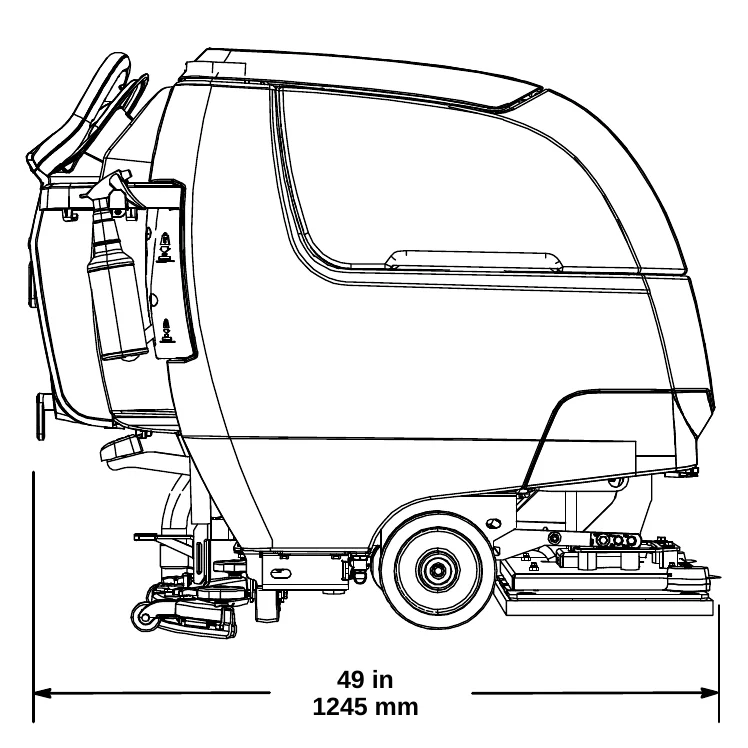
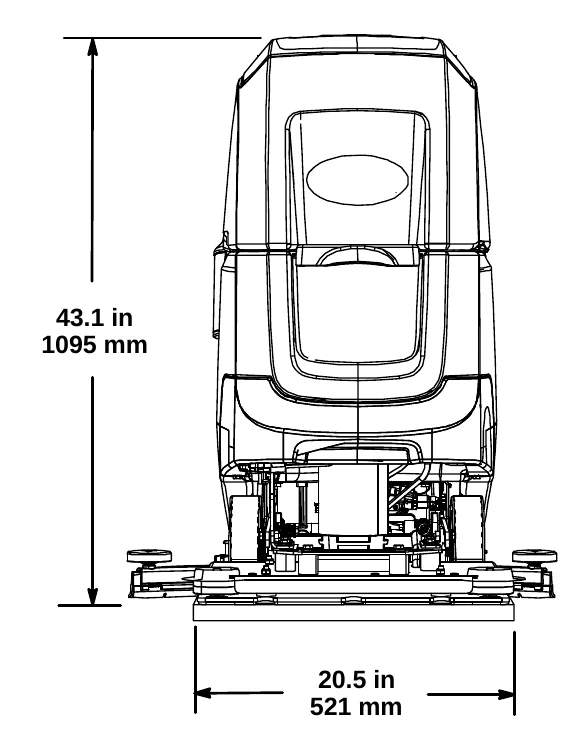
SUPERVISOR CONTROLS
The supervisor controls feature allows a supervisor to program the machine’s scrubbing settings for operator use. The lockout functionality will prevent the operator from changing or saving the Zone Settings.
The supervisor controls feature will lower machine variability for consistent, repeatable cleaning results, machine quality assurance regardless of user experience, and reduce user training requirements.
T300 MODEL WITH PRO-MEMBRANE CONTROL PANEL
The machine has three supervisor control modes of operation to choose from:
Unlocked Mode 1: Operator has full control of all scrubbing parameters with the ability to save Zone Settings. The Unlocked Mode 1 is the factory default setting.
Lockout Mode 2: Zone Settings are configured and locked by supervisor. Operator has control to reconfigure the zone settings, but are not able to save them.
Lockout Mode 3: Zone Settings are configured and locked by supervisor. Operator is restricted to only use the Zone Settings configured by supervisor.
To enter the supervisor controls mode follow the instructions below:
- Park the machine on a level surface and turn the key to off ( O ) position.
- Press and hold the Down Pressure button while turning the key on. Release button when the far right battery discharge indicator LED turns on (Figure 133).
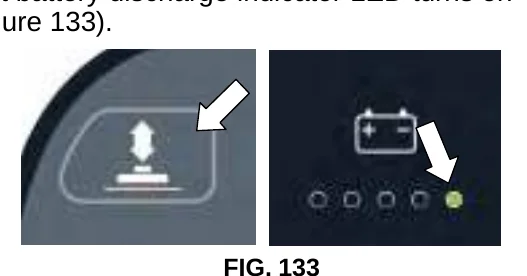
- Select the preferred supervisor control mode by pressing the following Zone Setting buttons as described:
Zone 1 button = Unlocked mode 1
Zone 2 button = Lockout mode 2
Zone 3 button = Lockout mode 3
Hold down the Zone Setting button until it blinks three times to save the preferred supervisor control mode (Figure 134). In this example, Lockout mode 3 was selected.
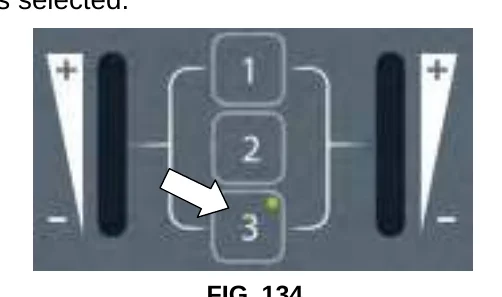
- If Lockout mode 2 or 3 was selected, press the Solution Flow button. This will allow you to configure the Zone Settings for the selected supervisor control mode (Figure 135).
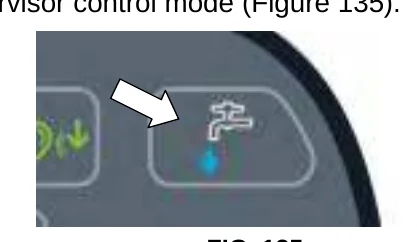
- Configure the following Zone Settings for zone 1. After the Zone Settings are configured, press and hold the zone button until it blinks three times to save Zone Setting. Repeat process for other zones.
Zone Settings:
- Down pressure rate
- Solution flow rate
- Quiet-Mode on or off (option)
- ec-H2O mode on or off (option)
- Maximum scrubbing speed (drive model)
To adjust the maximum scrub speed, press the circled button to cycle through the five speed selections as described below (Figure 136).
The speed selection is displayed by the battery discharge indicator LED’s. The red LED represents the lowest speed. The far right green LED represents the highest speed (Figure 136).
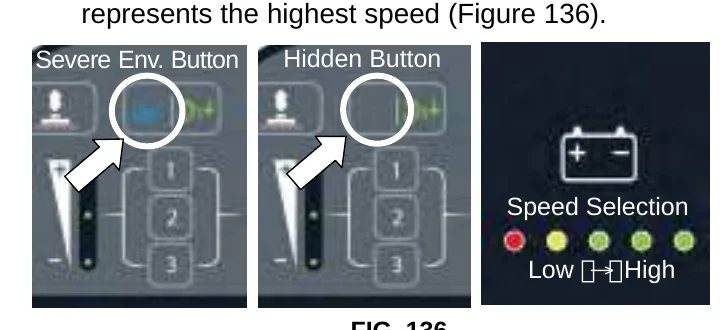
- To exit the supervisor control mode, turn key off.
SUPERVISOR CONTROLS
T300 MODEL WITH PRO-PANEL CONTROLS
There are two types of user modes that will interface with the operator home screen:
Operator Mode − Capable of machine operation with permissions and restrictions controlled by the supervisor.
Supervisor Mode − Capable of machine operation with full use of all controls, along with configuring permissions and restrictions for the operator mode.
A new machine from the factory will automatically start up in the supervisor mode with a preassigned default supervisor profile. The machine’s factory-assigned supervisor login number is “1234”. This login number is not required until it’s enabled. The default supervisor profile name and login number can be changed as described in this section. If the new assigned supervisor mode login number is forgotten, use the recovery login code 836626826.
To enter the supervisor controls follow the instructions below:
- Park the machine on a level surface and turn the key to the on ( I ) position. The home screen will display at start up (Figure 137). This is the factory default screen at start up.NOTE: If a login screen appears at start up. Enter the factory-assigned supervisor login number or your saved personalized supervisor login number to access the operator home screen.
- Press the settings button located on the home screen (Figure 137).
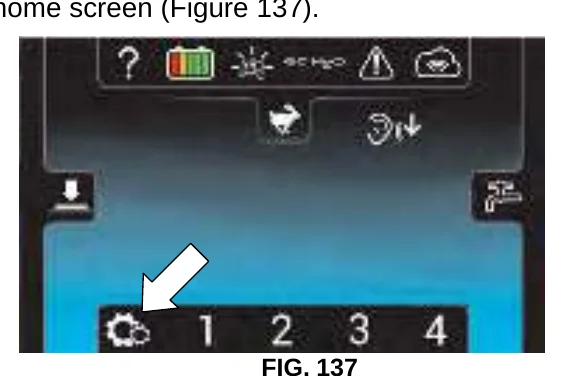
FIG. 137 - Press the Setup button to access the Setup screen (Figure 138). The Setup screen is only accessible with an assigned supervisor login number.
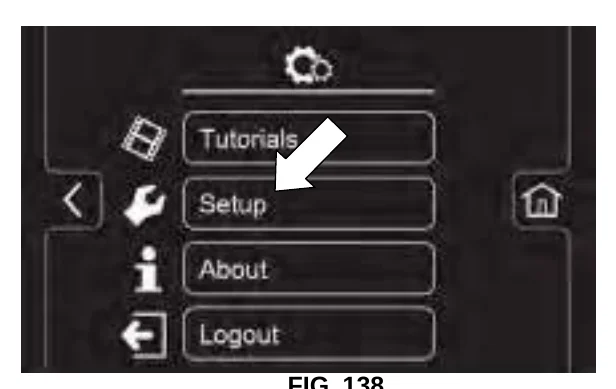
FIG. 138 - The Setup screen allows supervisor access to the following controls as described below.
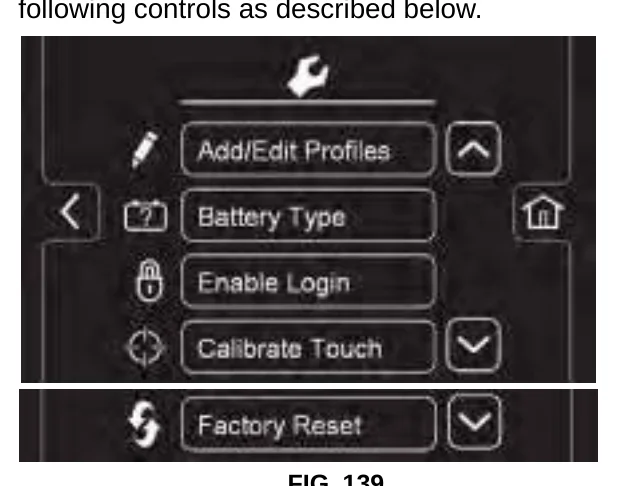
FIG. 139
Add/Edit Profiles − Provides the capability to add, edit, copy or delete user profiles.
Battery Type − Use this to select battery type installed in machine. This ensures the on-board battery charger charging profile is properly programmed to your battery type. See BATTERIES.
Enable Login − Activates a required login number at machine start up for all user profiles to operate machine.
Calibrate Touch Icon − Use this to calibrate the touch screen if the touch points become misaligned.
Factory Reset − Resets the supervisor login number back to the factory default number 1234, removes user profiles and resets any custom preset zone setting names back to the factory preset names.
To Add/Edit User Profiles
Before adding new user profiles, it is recommended to configure the four Zone Settings in advance (See CONTROL PANEL OPERATION).
- Press the “Add/Edit Profiles” button to enter the user profile settings (Figure 140).
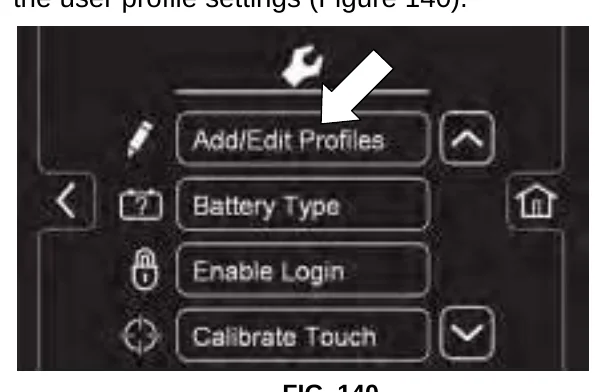
FIG. 140 - Press the “Add Profile” button to add a new user profile (Figure 141).
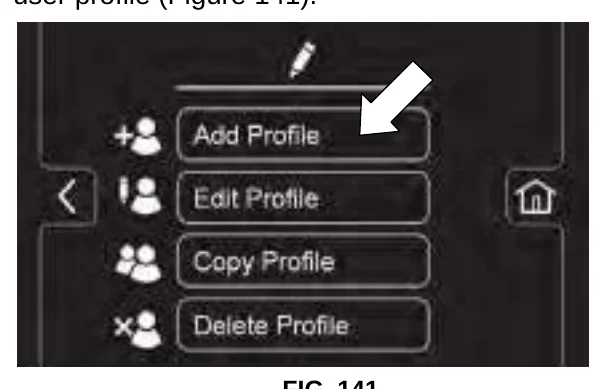
FIG. 141 - Press the “Operator” button to add a new operator (Figure 142).
Or press the “Supervisor” button to add an additional supervisor (Figure 142).Note: The machine’s default supervisor profile can not be deleted from profile list.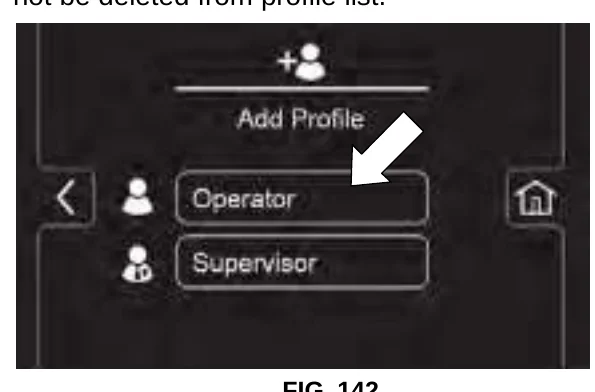
FIG. 142 - Enter the new user’s profile ID (identification) then press the green forward arrow (Figure 143).
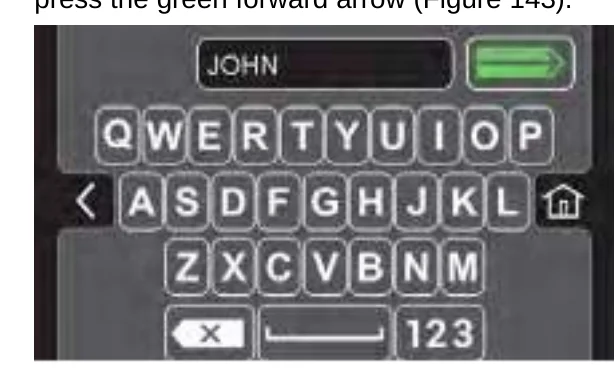
FIG. 143 - Create an assigned login number for the new user profile then press the green arrow (Figure 144). The new login number can be any combination of numbers ranging from 3 to 8 digits long.
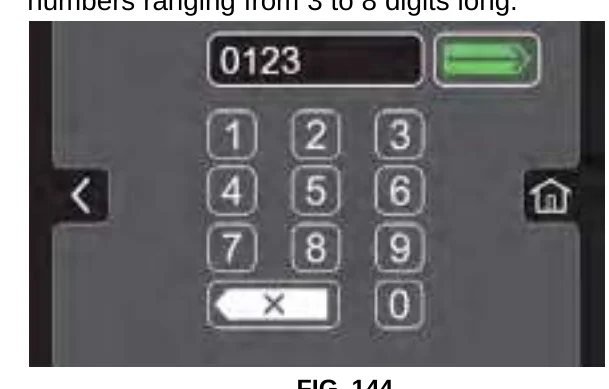
FIG. 144 - Now select the controls that the new user should have access to use (Figure 145). Green represents unlocked controls and gray represents locked controls. Press the blinking save icon to save new profile.
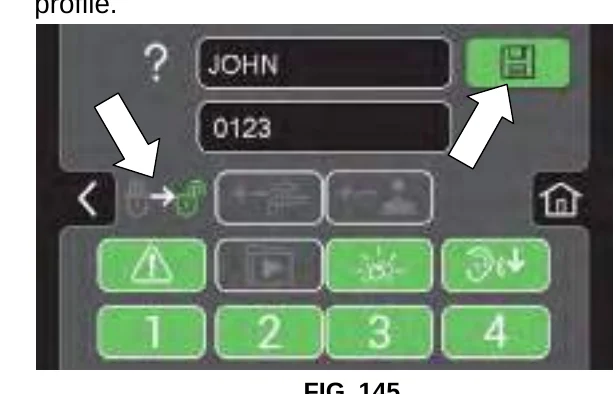
FIG. 145 - The new user profile is now saved to the operator profile list as shown (Figure 146). Multiple Operator and Supervisor user profiles can be added. Press the back arrow to return to the previous screen to add more user profiles or to enable login.
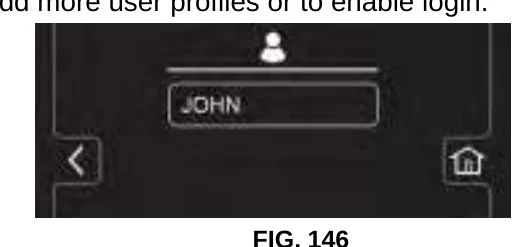
FIG. 146
SUPERVISOR CONTROLS
- To enable the login number at start up, press the “Enable Login” button (Figure 147). This button will change from “Enable Login” to “Disable Login”. This will allow you to disable a required login number at start up as described in step 13.
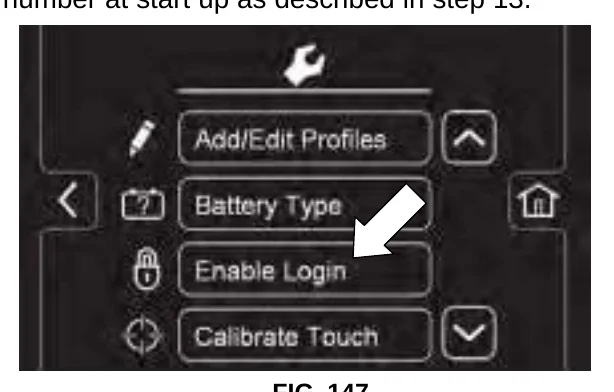
- Now at machine start up, a login screen will display (Figure 148). The new user will need to enter their assigned login number to operate machine
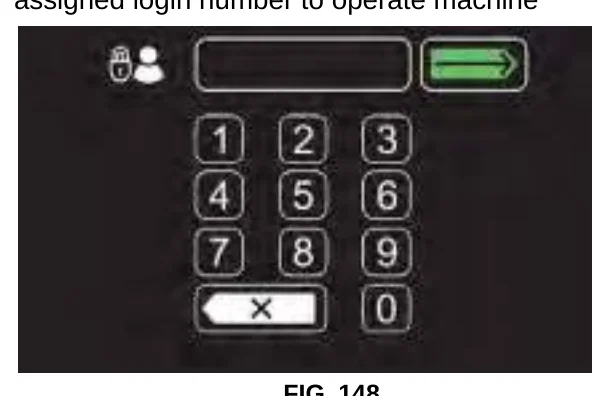
- When the user is done operating the machine, it is recommended to have the user log out by pressing the Settings button, then pressing the logout button (Figure 149). Turning the key to the off position is another way to also logout.
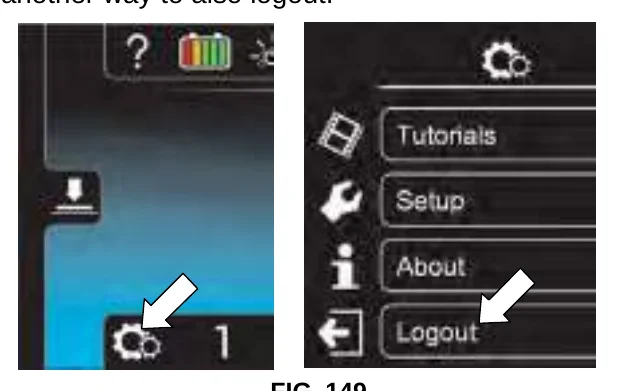
- Use the edit, copy and delete profile buttons to manage the current user profiles (Figure 150).
For example, to edit any user profile settings including the factory-assigned default supervisor login number, press the “Edit Profile” button
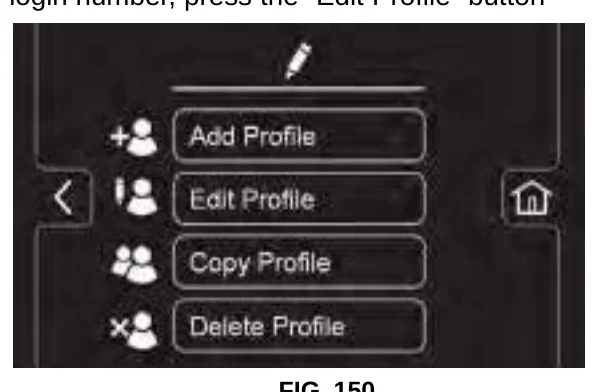
To change the factory-assigned default supervisor login number, press the Supervisor button. Then press the “DEFAULT SUPER” profile button to enter the profile settings (Figure 151 ).
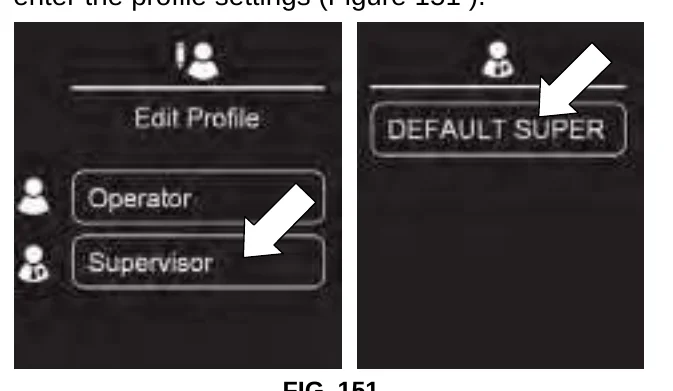
Within the profile settings screen, press the factory-assigned login number and enter a new login number (Figure 152).
Press the blinking save icon to save the new login number.
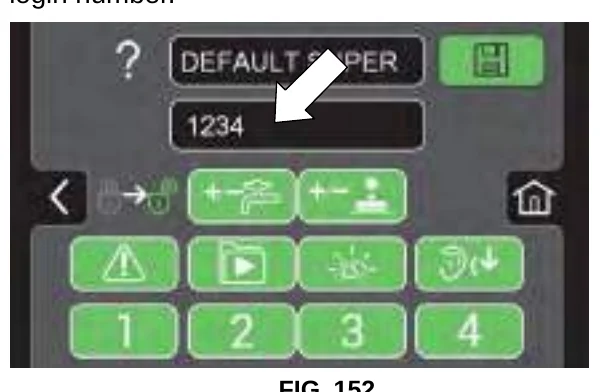
- To setup the machine without a login number requirement for a specific user profile as the default, follow the instructions below:
- Press the “Disable Login” button (Figure 153).
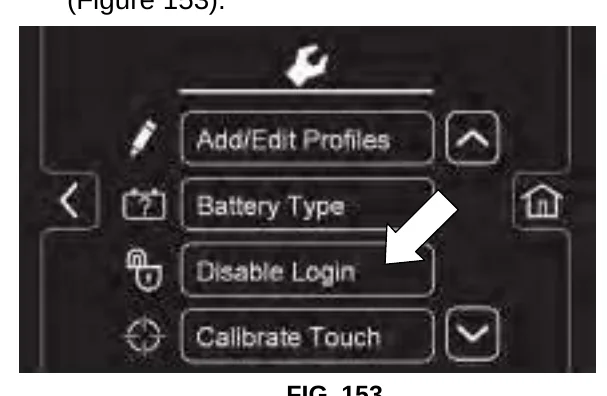
FIG. 153 - Press the “yes” button to enter the Default User screen (Figure 154).
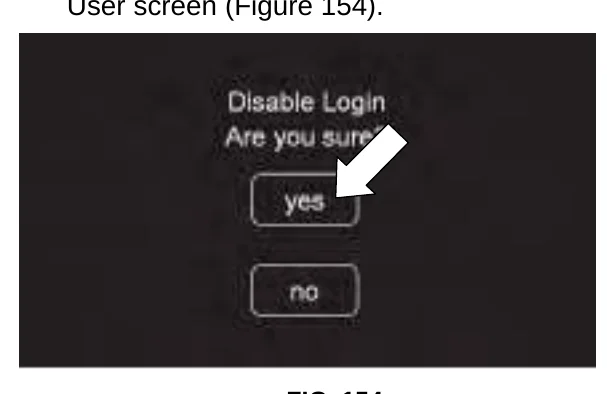
FIG. 154 - Select the desired default user by pressing the Operator or Supervisor button (Figure 155).
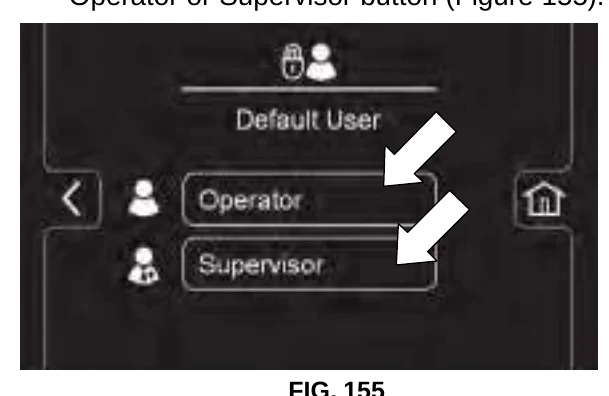
FIG. 155 - Select a pre-assigned user profile. In this example, operator profile “JOHN” is selected (Figure 156). Turn the key off to apply the setting.
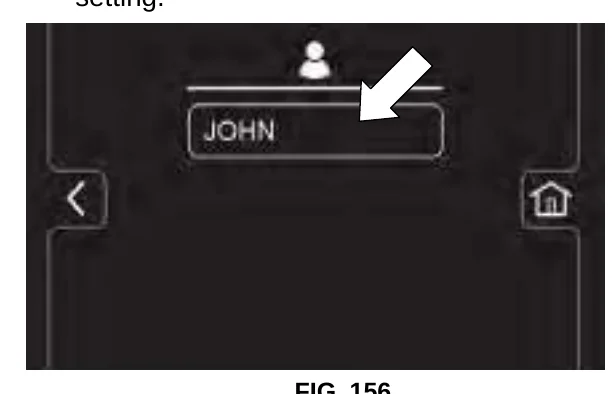
FIG. 156 - At start up, the home screen is now set without a login requirement for John’s operator profile as the default.
- Press the “Disable Login” button (Figure 153).
Tennant and Nobles are trademarks of Tennant Company. Southeastern Equipment & Supply is an independent dealer.